Enhance AI-Generated Images
Upscale AI artwork to print-ready or high-display resolution. Get more out of every generation without re-running the model. Or start fresh with Cuta's AI image generator .
Try it now
AI Super Resolution online
Use Cuta's AI super resolution tool to upscale any image online. Enhance low-res photos, restore old pictures, and sharpen AI-generated art to 4K.
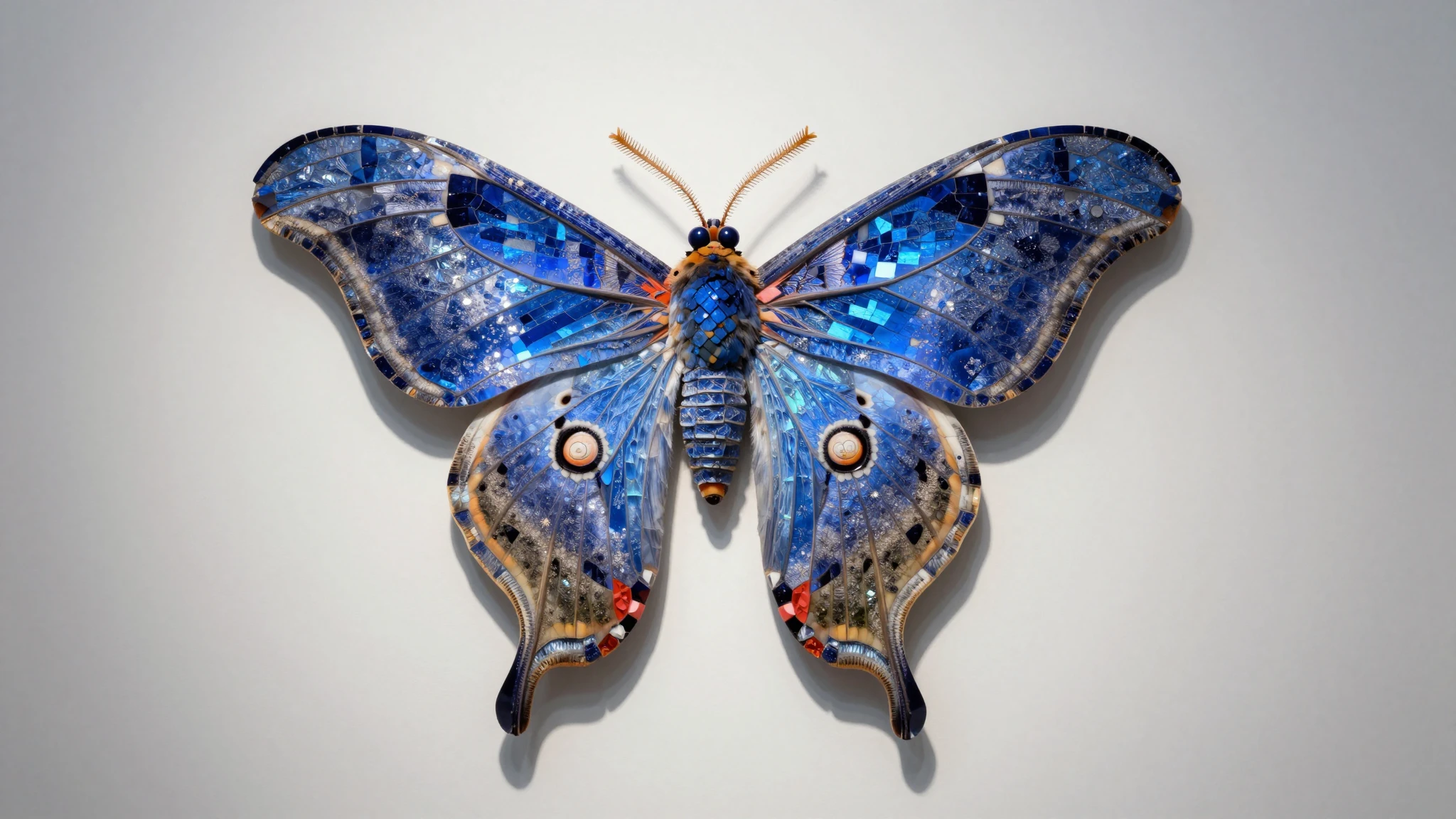
From idea to creation
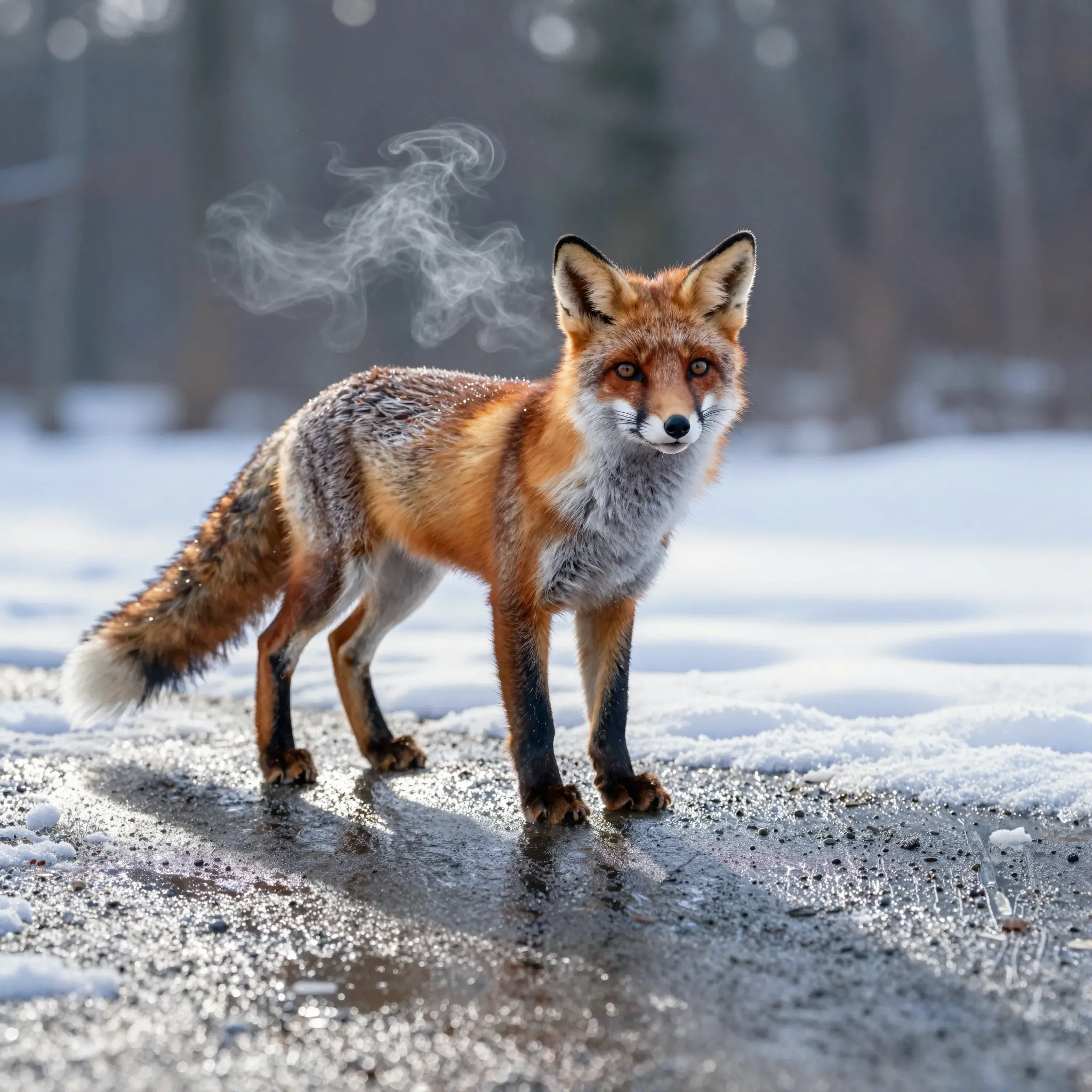
Drop in any photo or image file, portraits, product shots, AI-generated art, scanned photos, anything.
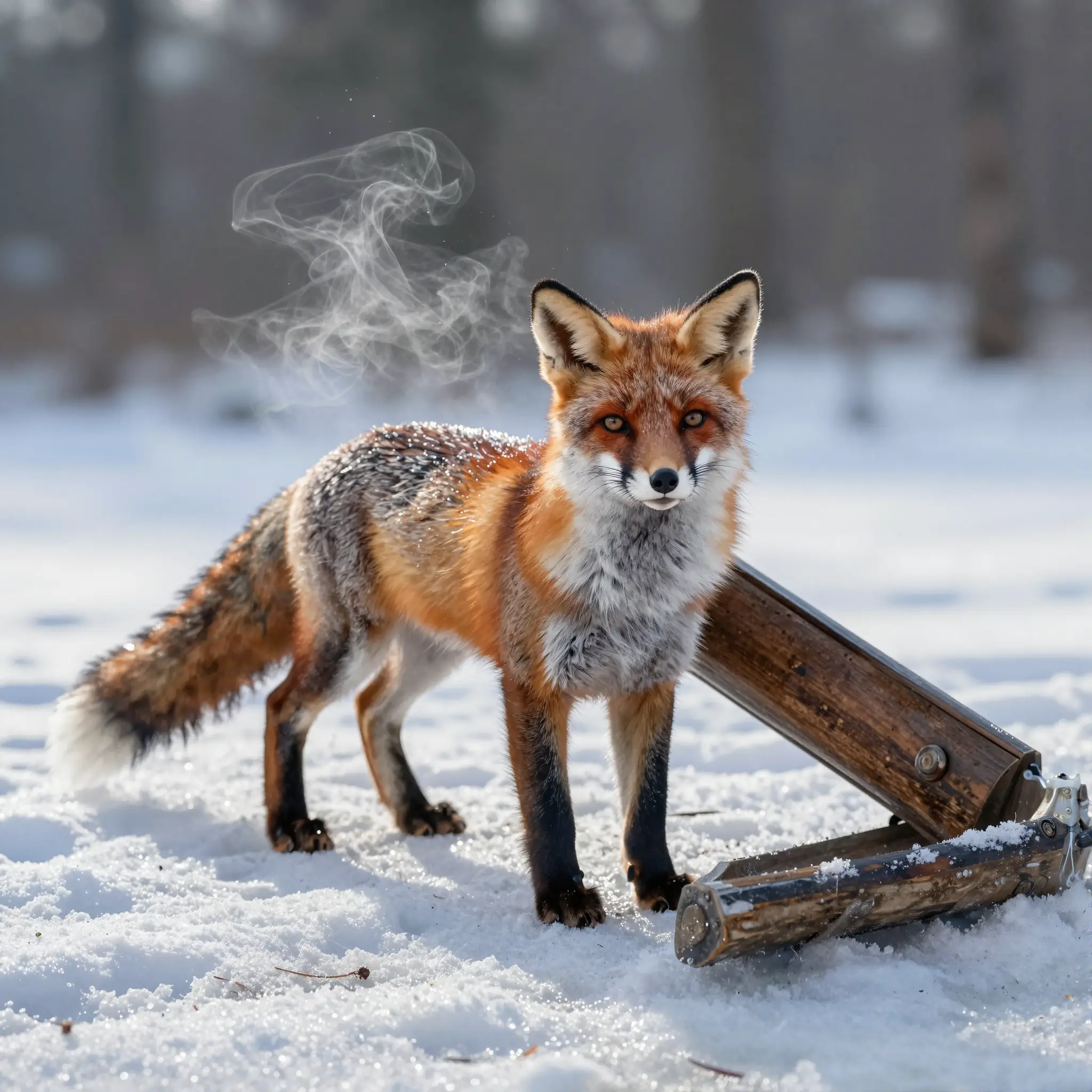
Select Precise, Refined, or Creative mode. Use Precise to preserve the original image, Refined for subtle AI enhancement, or Creative for stronger detail reconstruction and artistic improvement.
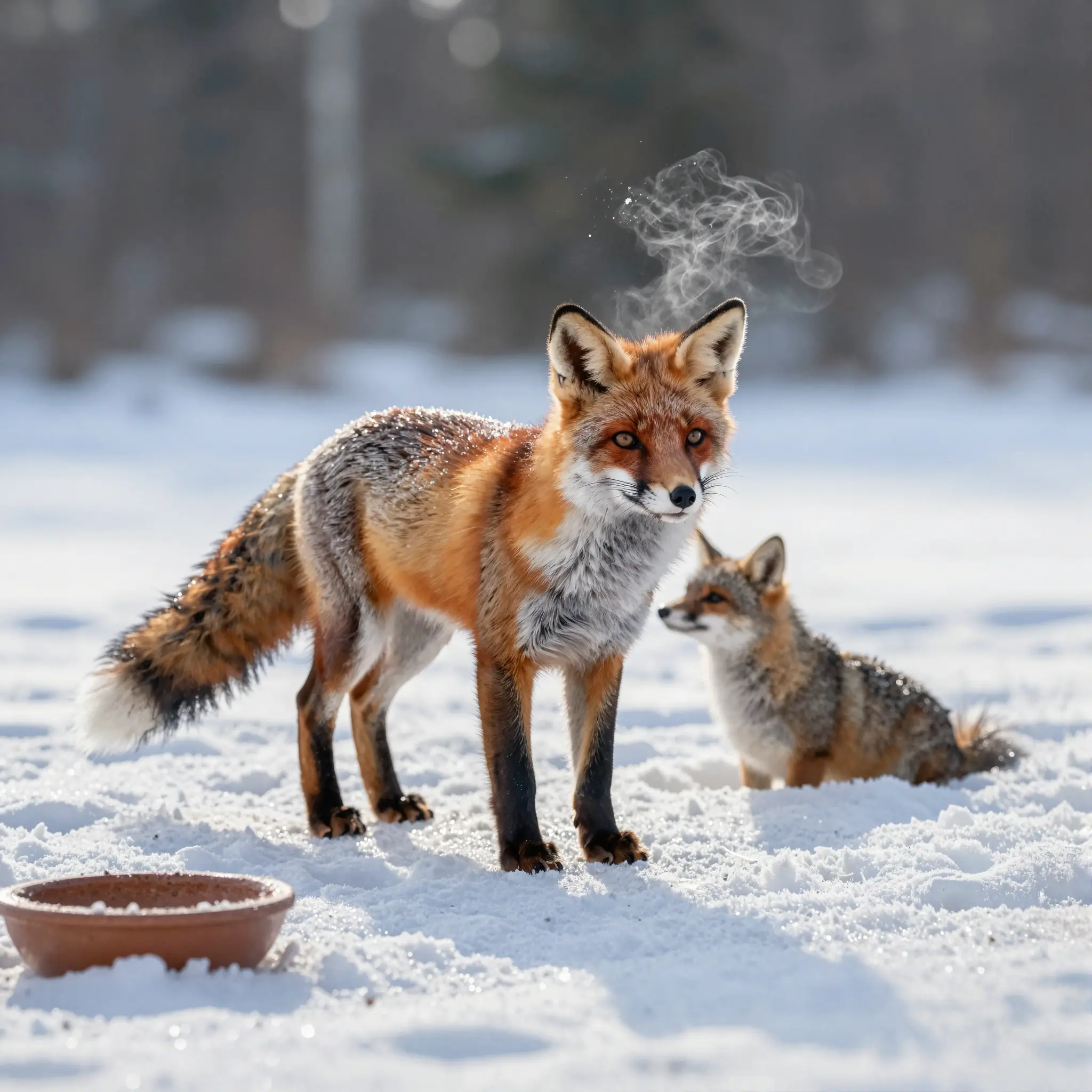
Hit generate, preview the upscaled result, and download. Adjust the mode and try again if you want a different output.
Upscale AI artwork to print-ready or high-display resolution. Get more out of every generation without re-running the model. Or start fresh with Cuta's AI image generator .
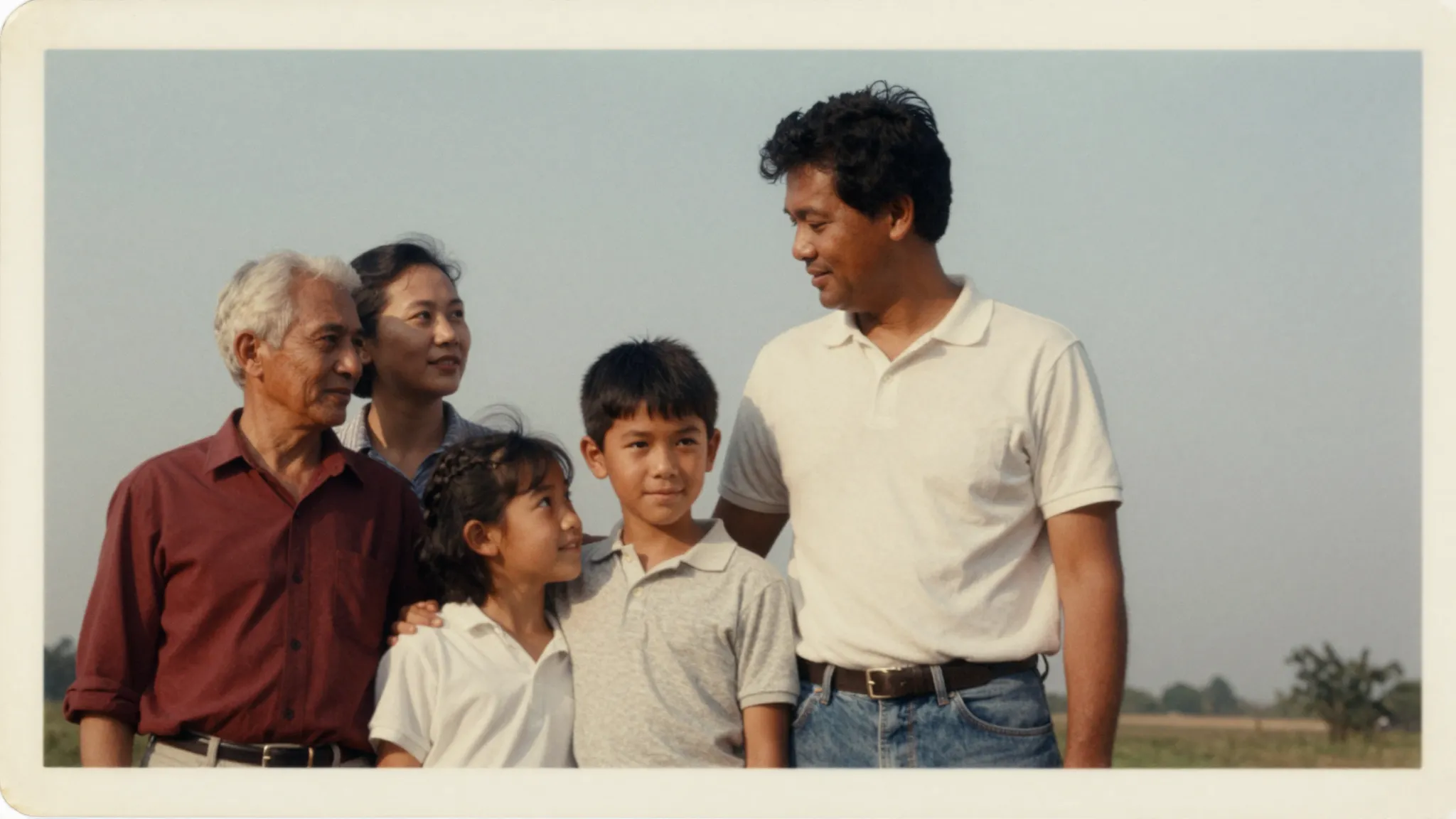
Try it nowRevive blurry scans, compressed JPEGs, or old family photos. The super resolution AI recovers lost detail and sharpens edges without making the image look over-processed.
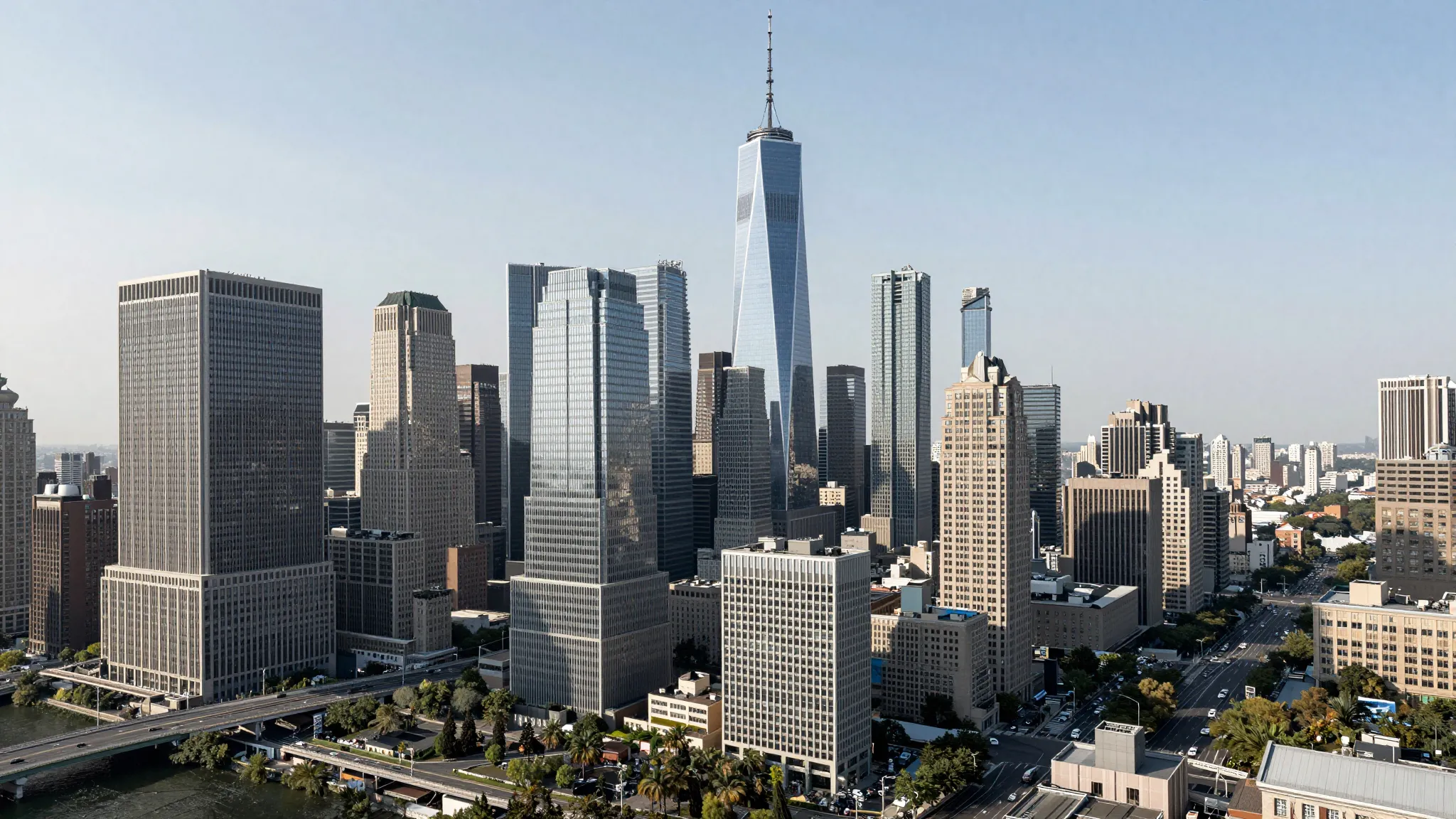
Try it nowClean up product shots for marketplace listings, ads, and landing pages. Higher resolution images look more professional and perform better.
Try it nowChoose an upscale mode and adjust the enhancement level when available. Precise mode stays faithful to the original; Refined adds subtle texture and polish; Creative lets AI reconstruct more detail for a sharper, more enhanced result.
Try it nowBlurry visuals get ignored fast. Upscale images for YouTube thumbnails, TikTok covers, Instagram posts, Pinterest pins, X banners, and blog hero images. A sharper image helps the main subject stand out on mobile, especially when the original file was cropped or downloaded from another source.
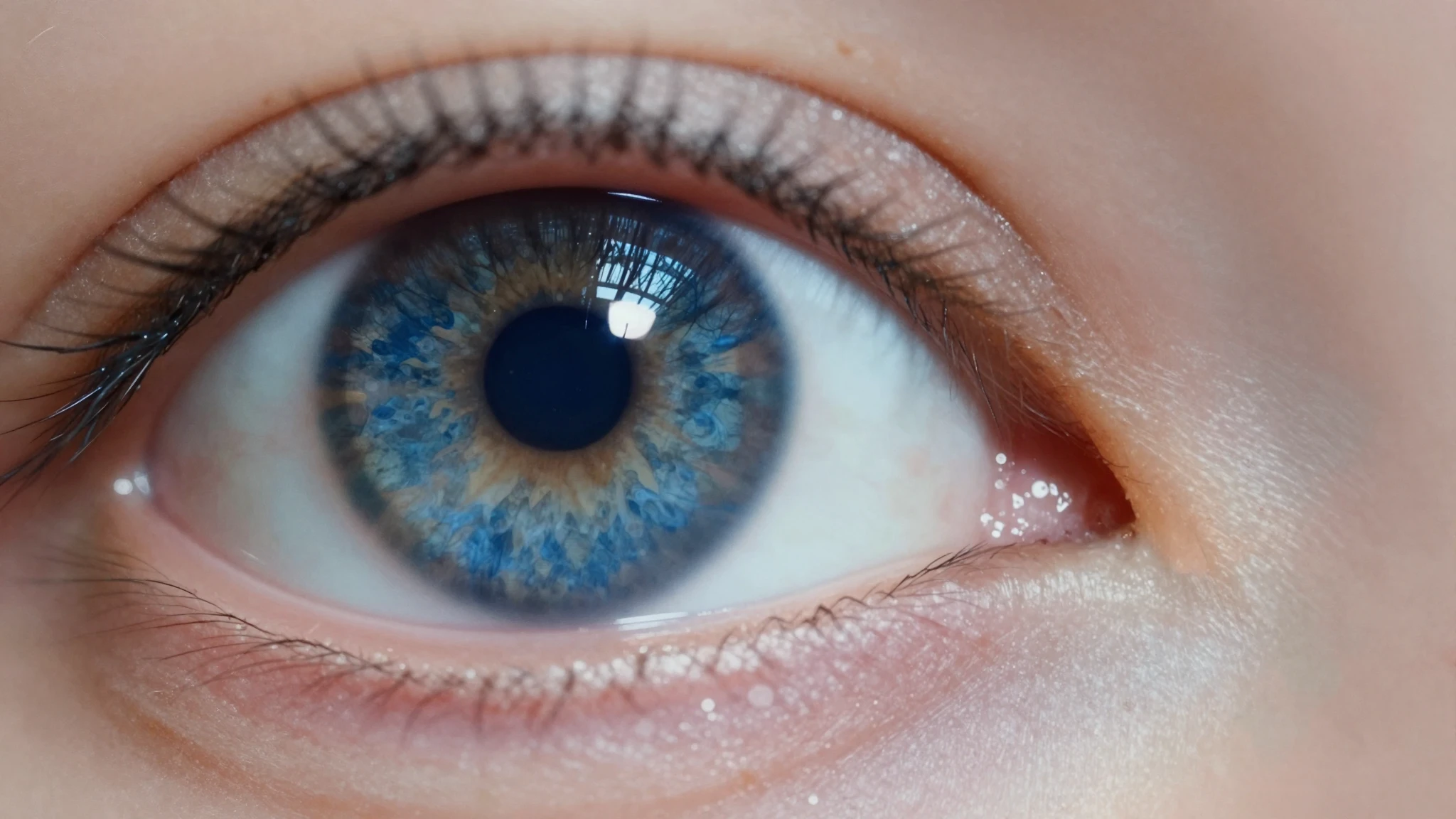
Try it nowUse Precise mode first to preserve the person's identity. Turn on skin enhancement for portraits and close-ups, it's only available in Precise mode. If the result still looks soft, try Refined next. The goal is sharper output without changing how someone looks or making skin appear artificial.
Try it nowUse Precise for clean product edges and packaging details. If the original image is noisy or compressed, try Refined to clean it up. Avoid too much creative enhancement if the product must stay accurate. Always check the final output at full size before publishing.
Try it nowUse Creative when the image can benefit from added detail, richer texture, and stronger line work. AI-generated art usually handles creative upscaling well because the output does not need to match a real-world reference exactly. If the result feels overdone, step back to Refined.
Try it nowStart with Precise or Refined. Old photos need clarity, but they also need respect. Too much creative detail can make faces or backgrounds feel invented. If the result looks too changed, reduce the creative setting and run it again.
Try it nowUse Precise. AI upscalers can improve edges, but small text and logos need careful review. Creative mode can reinterpret fine lines or letterforms in ways that look wrong. Always check the final file at full size before using it in brand or client work.
Try it nowUse Precise. Screenshots rely on sharp edges, readable text, and pixel-accurate layouts. Creative mode can blur interface elements or reinterpret small icons in ways that look wrong. If the screenshot includes fine text or UI components, review the output at full size before use.
Try it nowSuper resolution is an AI technique that increases image resolution beyond its original size while recovering lost detail. Instead of simply stretching pixels, the model analyzes the image and intelligently reconstructs sharpness and texture — producing results far closer to a native high-res photo.
Find your next creative tool
Your next creation starts here
Start with your own content in AI Super Resolution. Review the settings in Studio and create your result.