01
Start with a clear visual brief
Describe your subject, composition, lighting, and style. Carry the prompt into the image studio with GPT Image 2 already selected.
Try GPT Image 2
AI Image Model
Create with OpenAI GPT Image 2 in Cuta. Describe the image you have in mind, add an optional reference, and shape your next visual in one workspace.
Visual inspiration
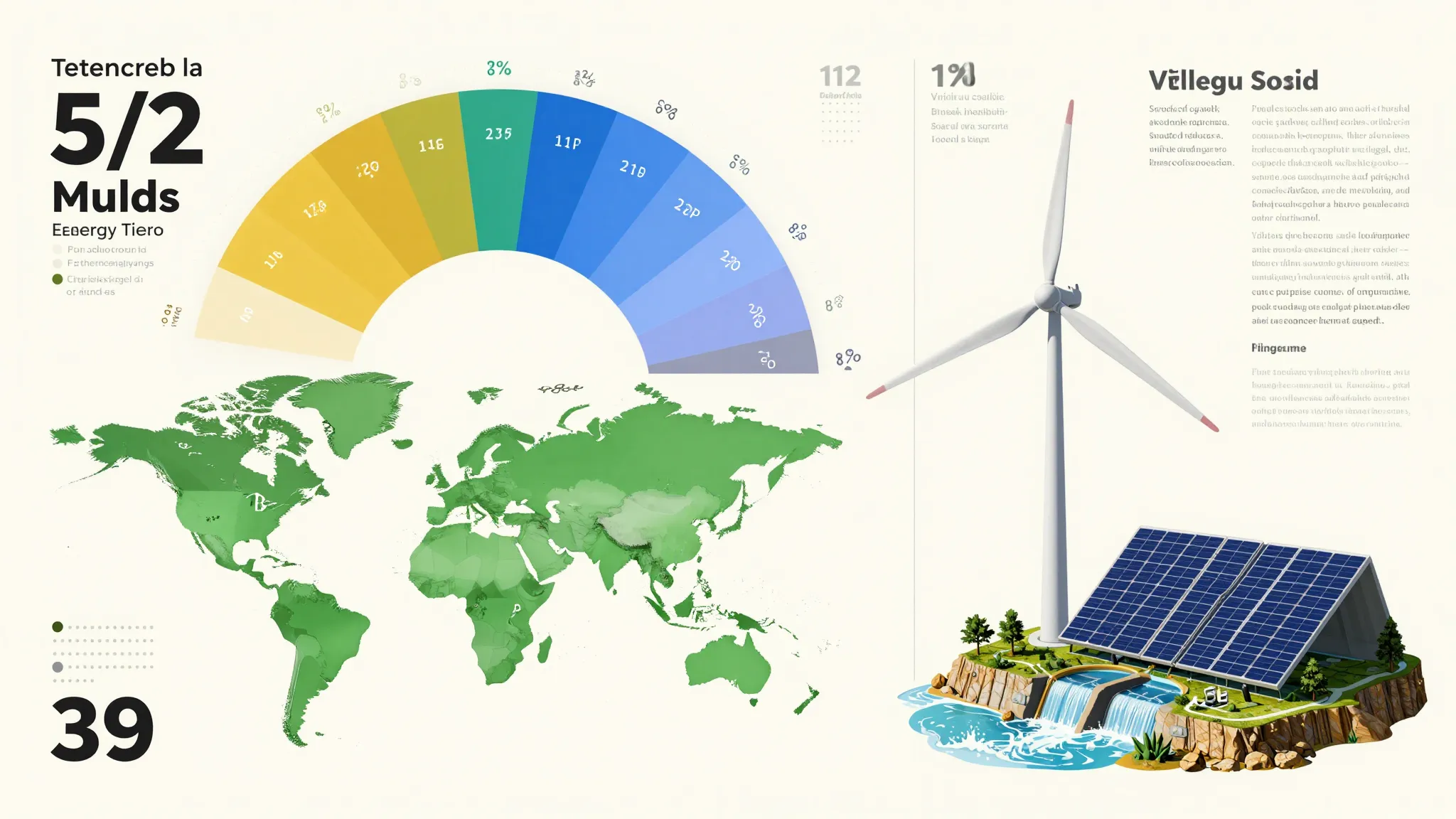
Explore visual inspiration for illustrations, concept art, and your next image brief.
Creative workflow
Your idea, your brief, your next image.
01
Describe your subject, composition, lighting, and style. Carry the prompt into the image studio with GPT Image 2 already selected.
Try GPT Image 202
Add an optional image alongside your prompt to guide an edit or a new direction. Review the available reference settings in the studio before generating.
Try GPT Image 203
Set the available image size, quality, and output options in the studio. Review the generation cost and refine your prompt before creating the next version.
Try GPT Image 2From idea to image
Write a prompt with the subject, setting, composition, and visual style you want. Add a reference image if it helps explain the direction.
Continue to the image studio with GPT Image 2 selected and your inputs preserved. Review the available output options and generation cost.
Create the image in the studio, review the result, and adjust your prompt or reference for the next version.
Creative possibilities
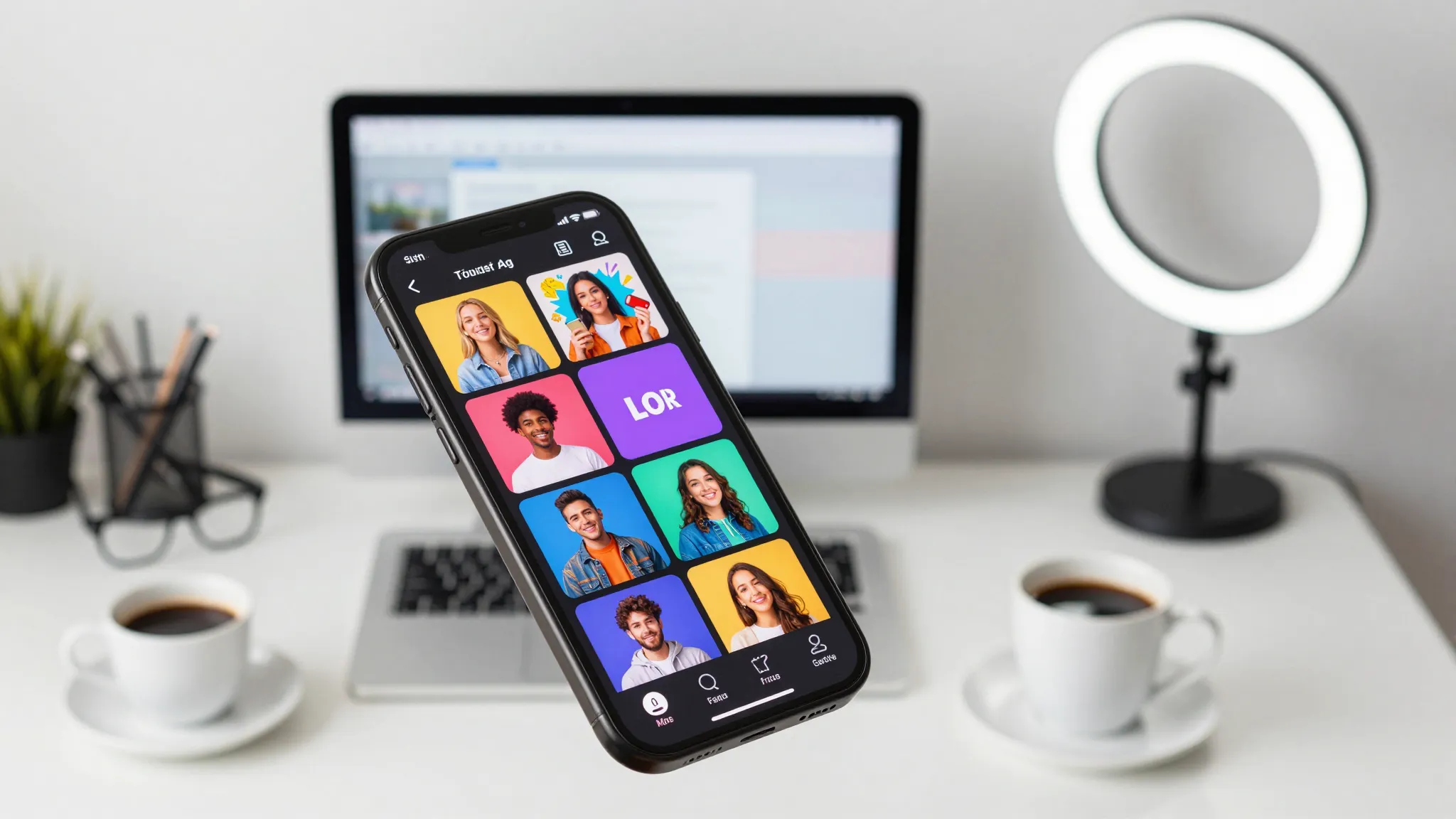
3D illustrations and app visuals
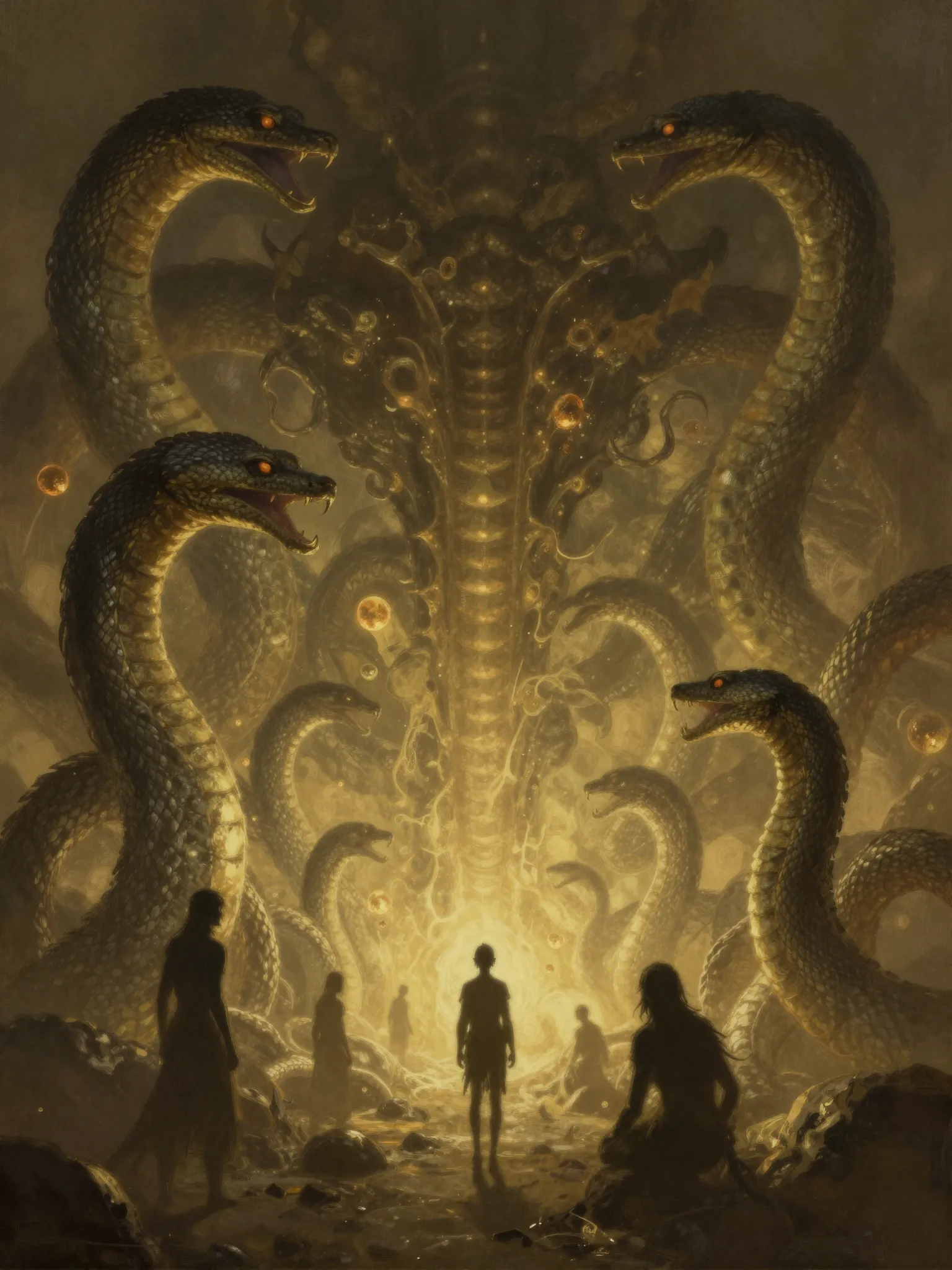
Fantasy worlds and concept art
Social content and campaign visuals
GPT Image 2 is an OpenAI image model available in Cuta's image studio. This page introduces the model and helps you prepare a prompt before creating.
AI image models
Compare different image models for your next creative brief.
Create with Cuta
Start with a prompt, choose your settings, and refine your next visual in the image studio.