Street Photography
View prompt
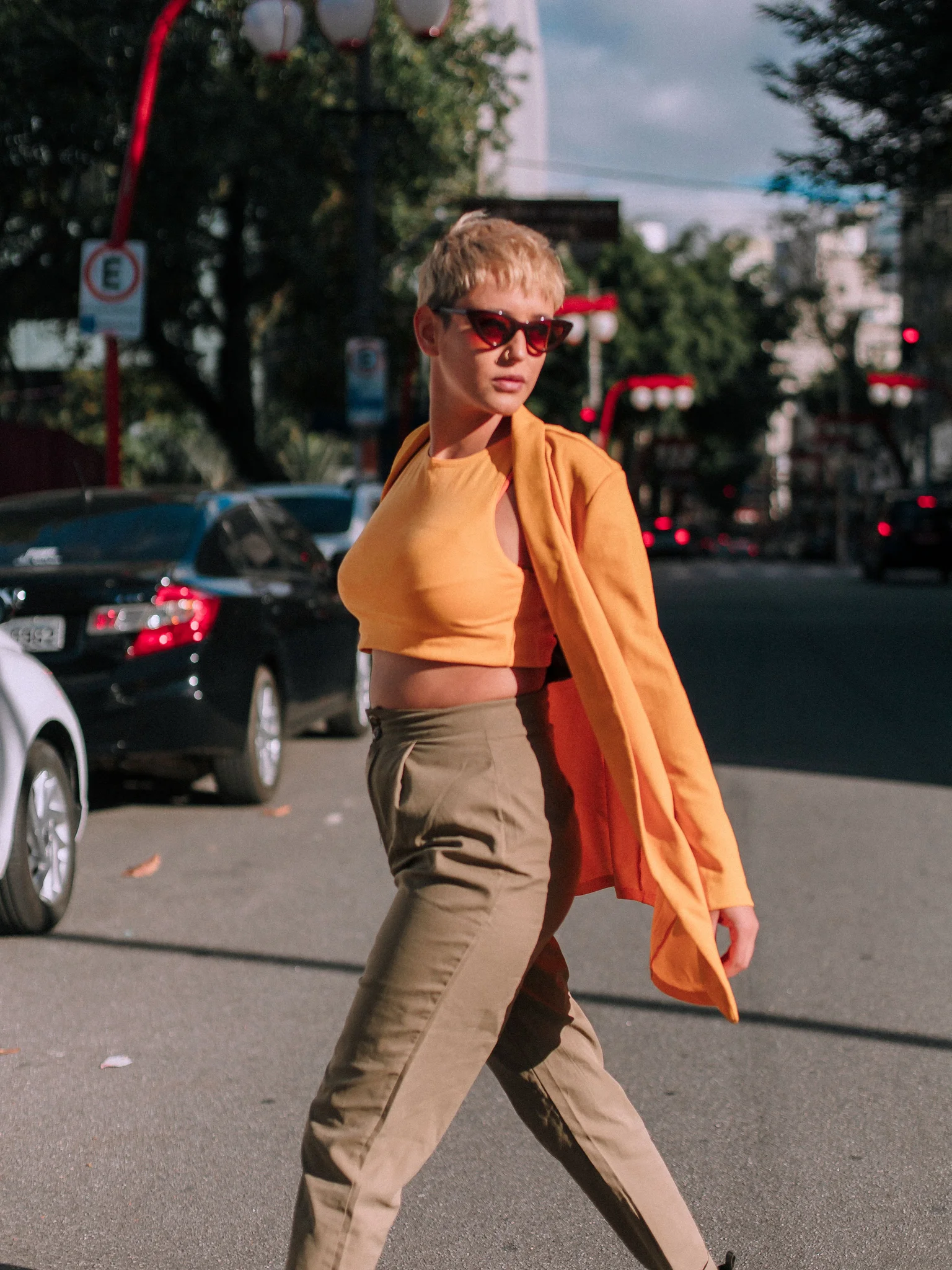
A woman with Western/European facial features in an orange shirt walking across a city street, afternoon sunlight, natural candid fashion photography.
Create with this prompt
Cuta · AI image generator
Create from a few words or a reference image. Explore a new style, refine the details, and make something that feels like you.
Start with your idea. Choose the model and settings in the workspace.
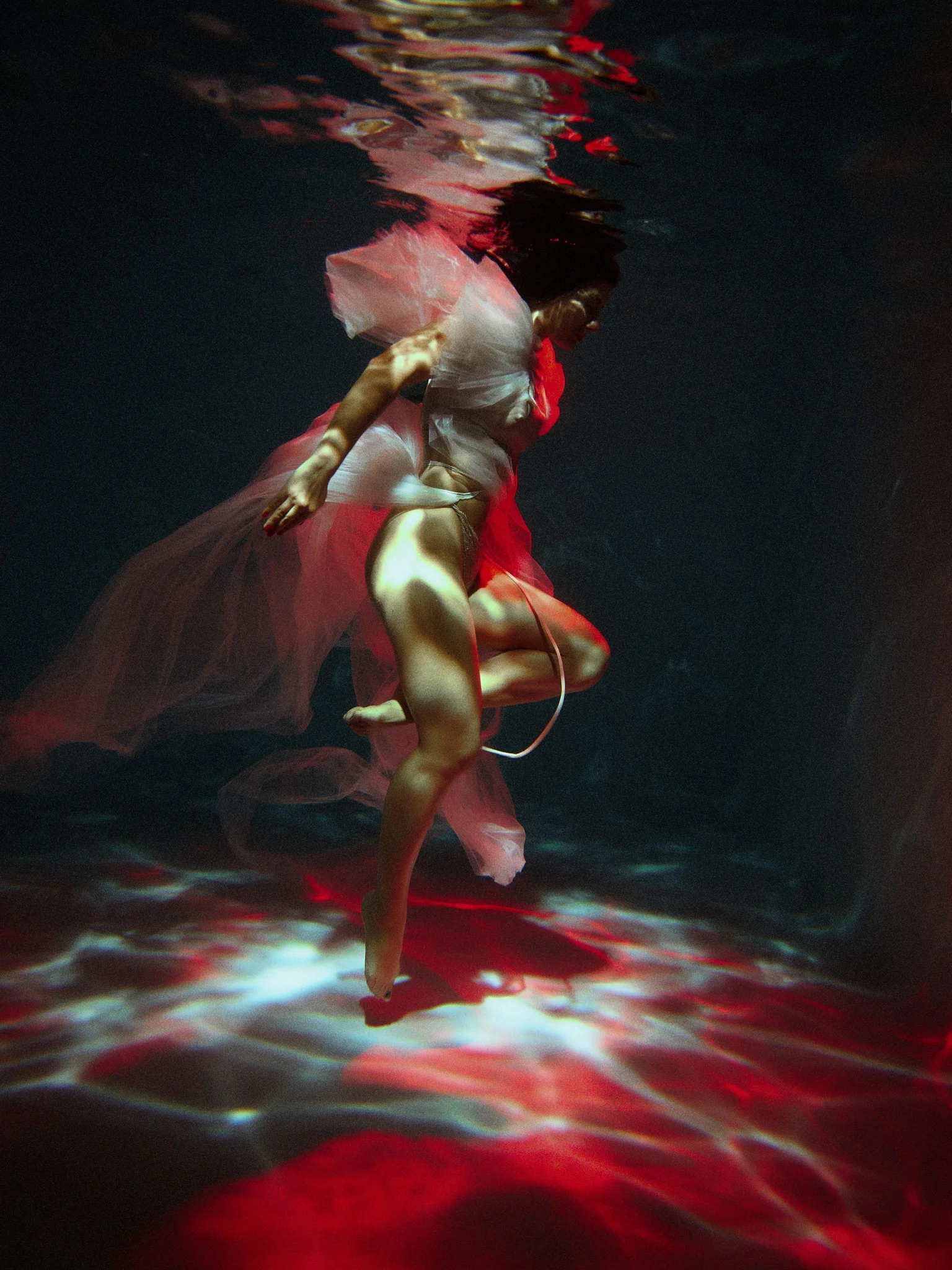
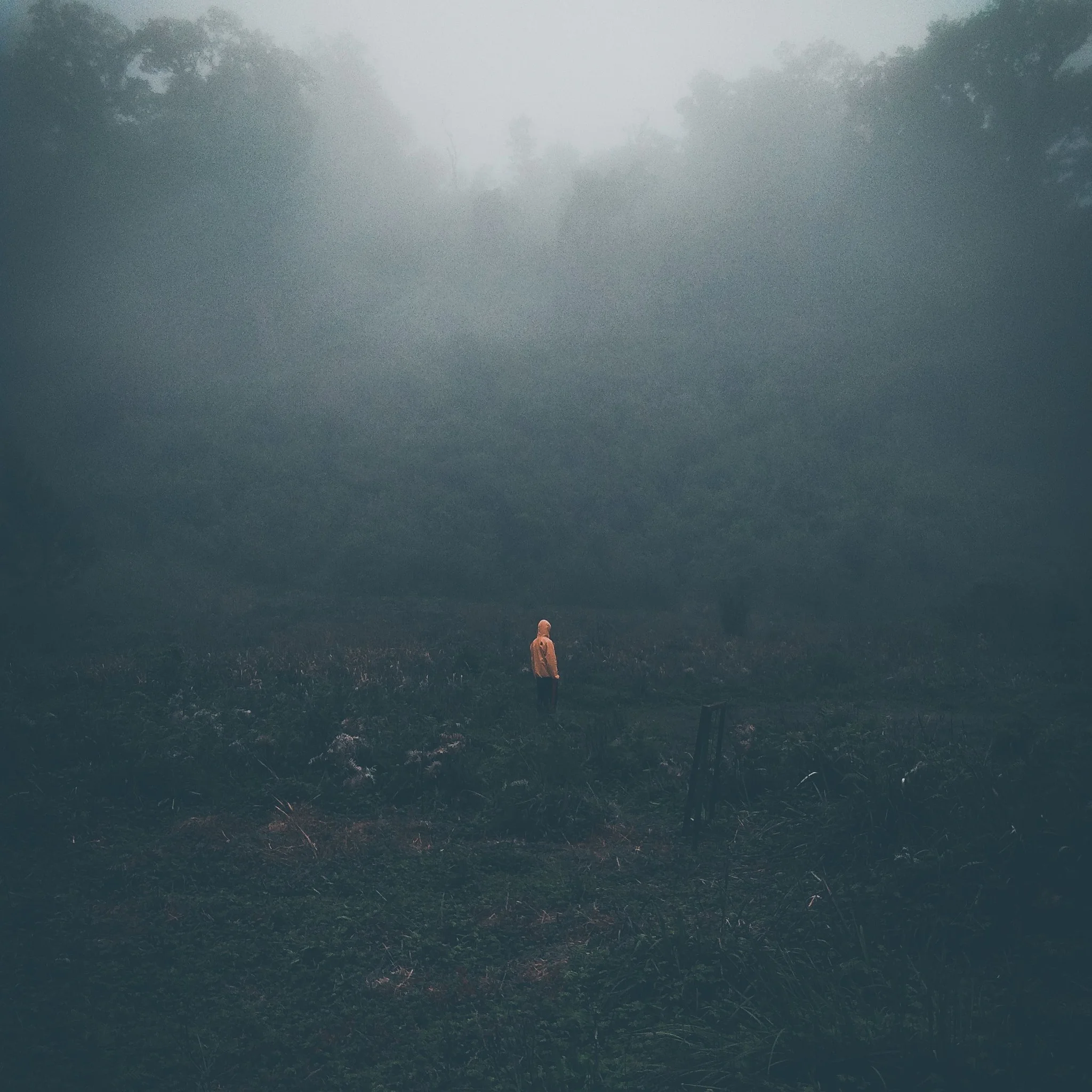
A little inspiration
Explore portraits, illustrations, imagined worlds, and more. Open a style prompt and make it your own.
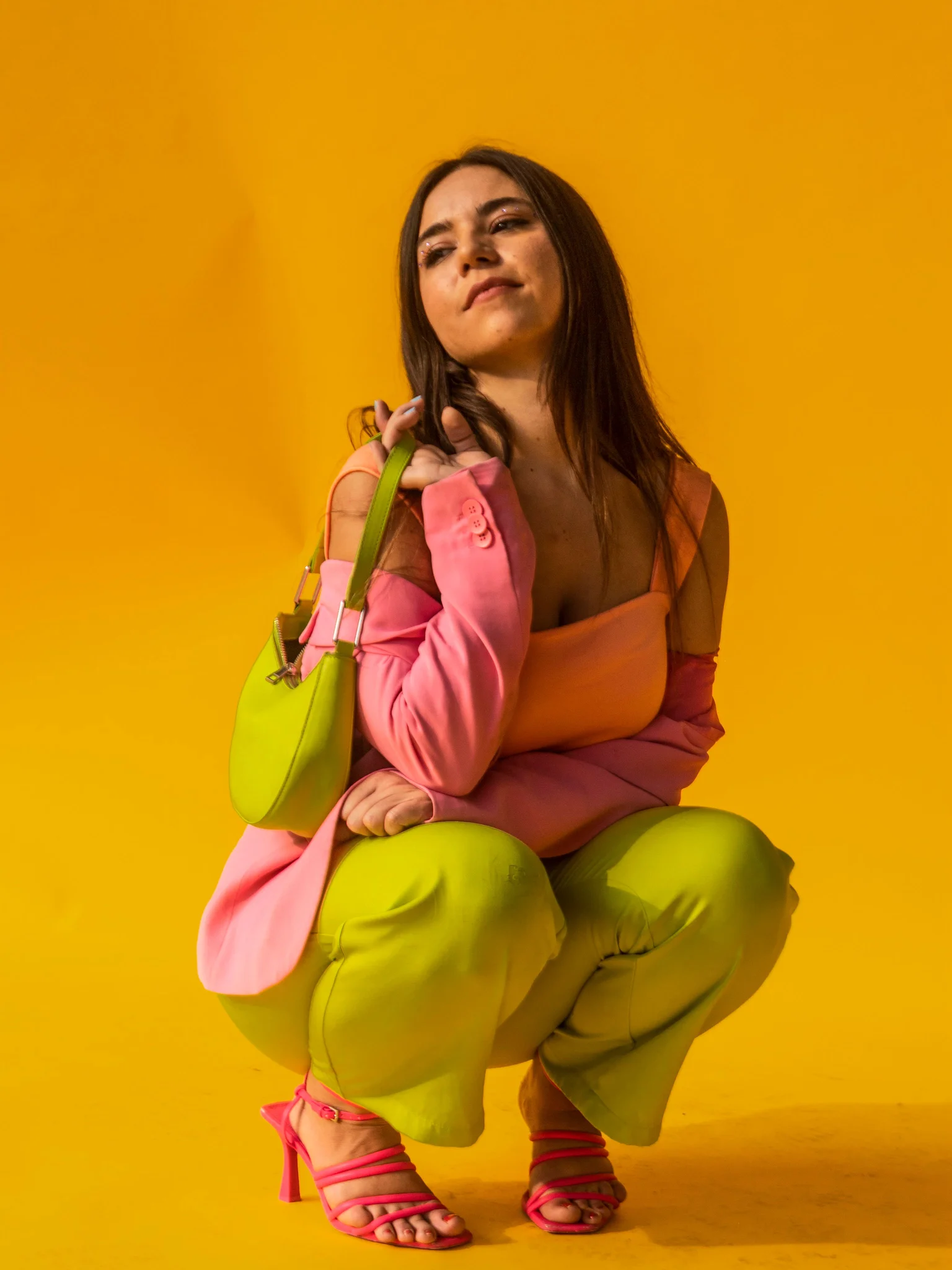
Explore image promptsA woman with Western/European facial features in an orange shirt walking across a city street, afternoon sunlight, natural candid fashion photography.
Create with this prompt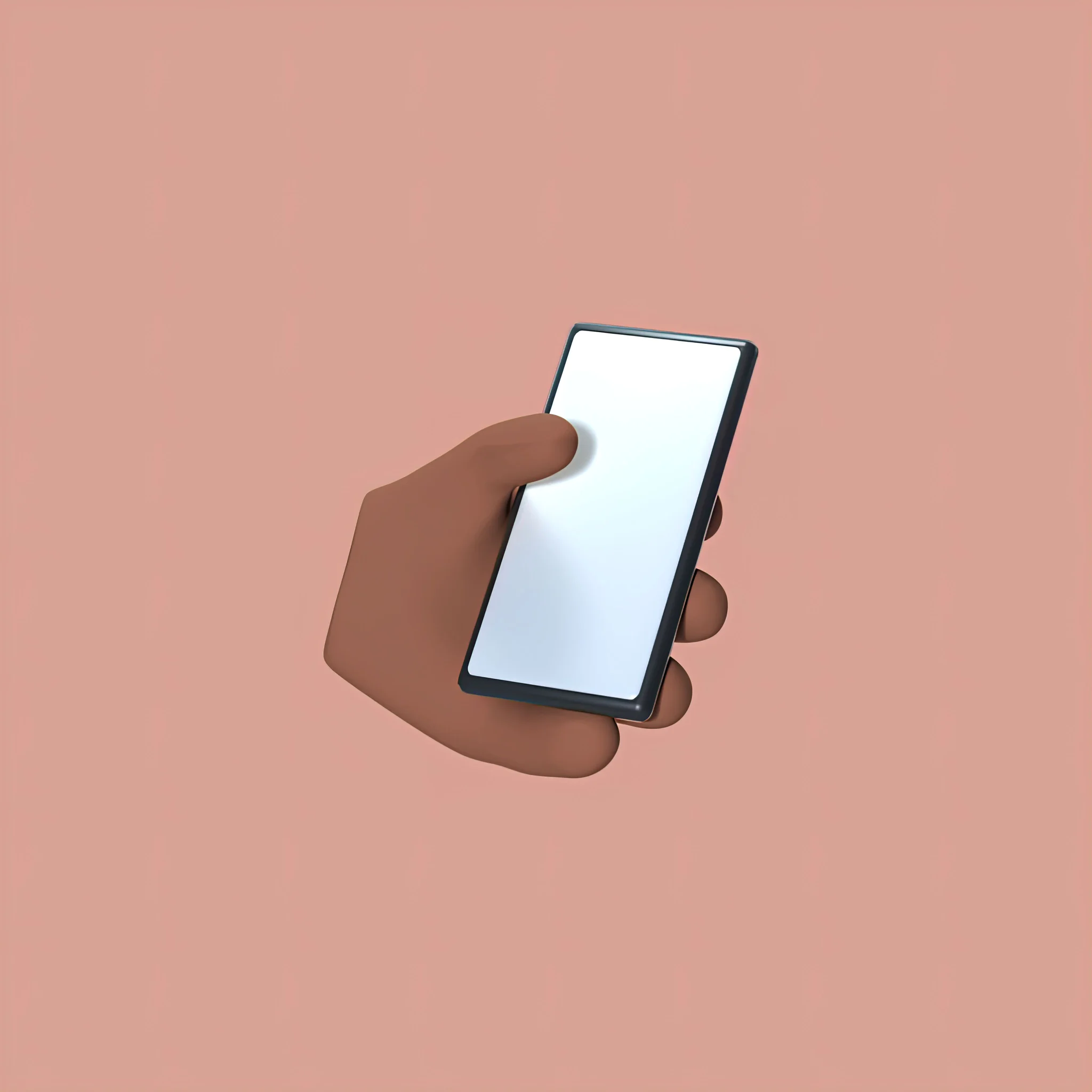
A stylized 3D hand holding a smartphone with a blank white screen, peach background, soft studio lighting, clean minimal composition.
Create with this promptA woman with Western/European facial features wearing a red cap, close-up editorial portrait, natural skin texture, direct flash and subtle film grain.
Create with this prompt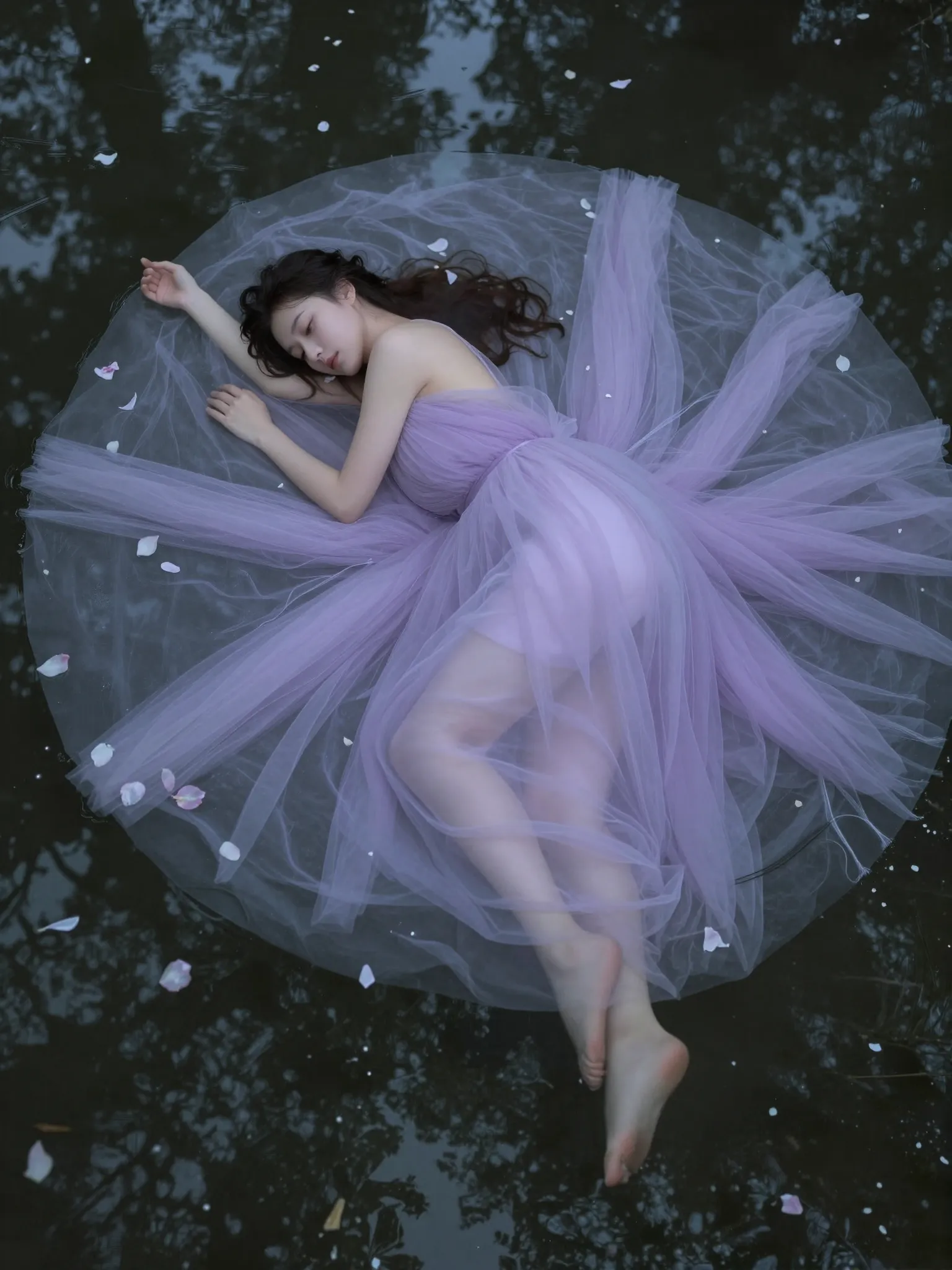
A woman with Western/European facial features in a flowing ivory dress standing at the edge of a lake at sunset, soft golden light, tranquil fine art photography.
Create with this prompt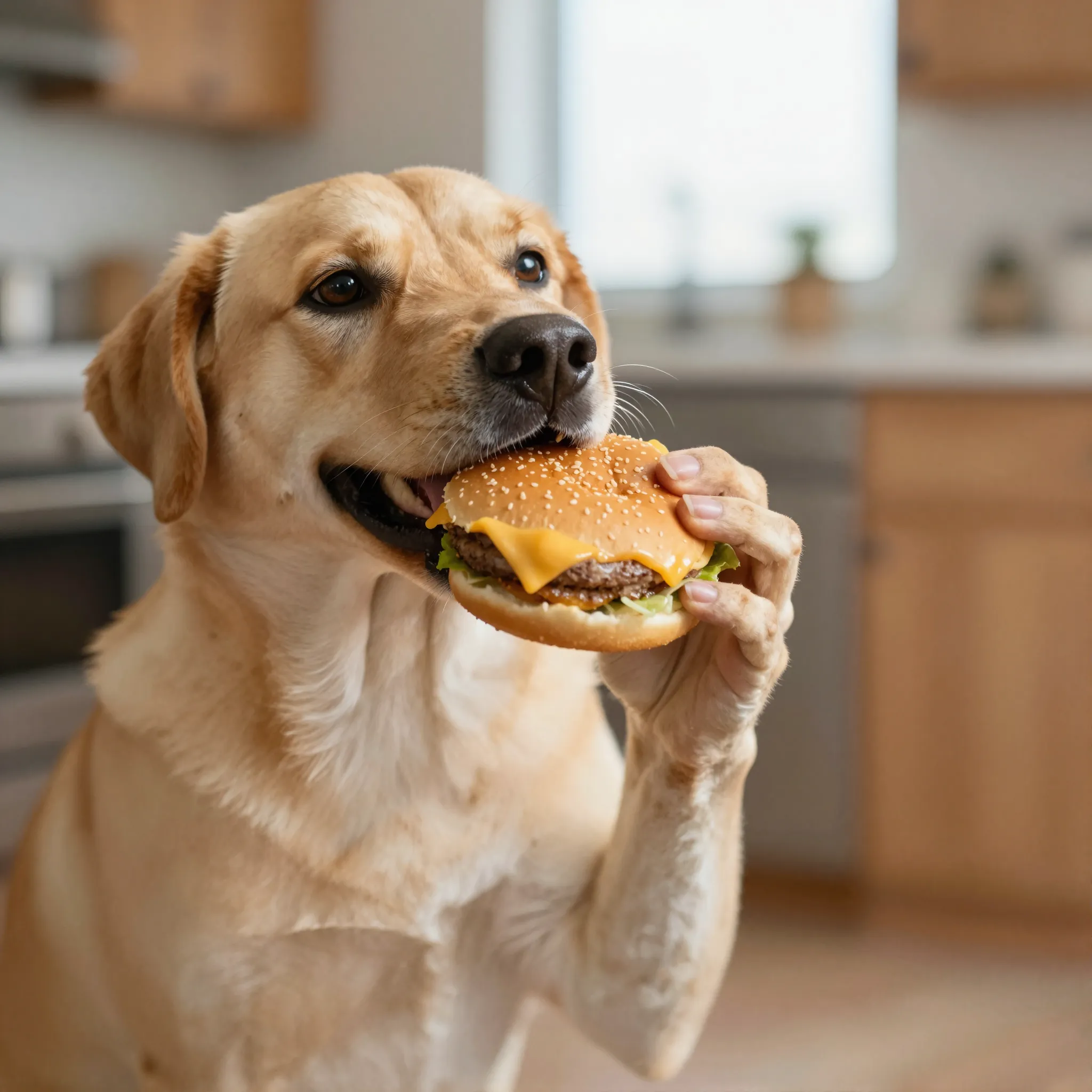
A golden dog holding a cheeseburger in a bright kitchen, expressive eyes, natural light, shallow depth of field, playful pet photography.
Create with this prompt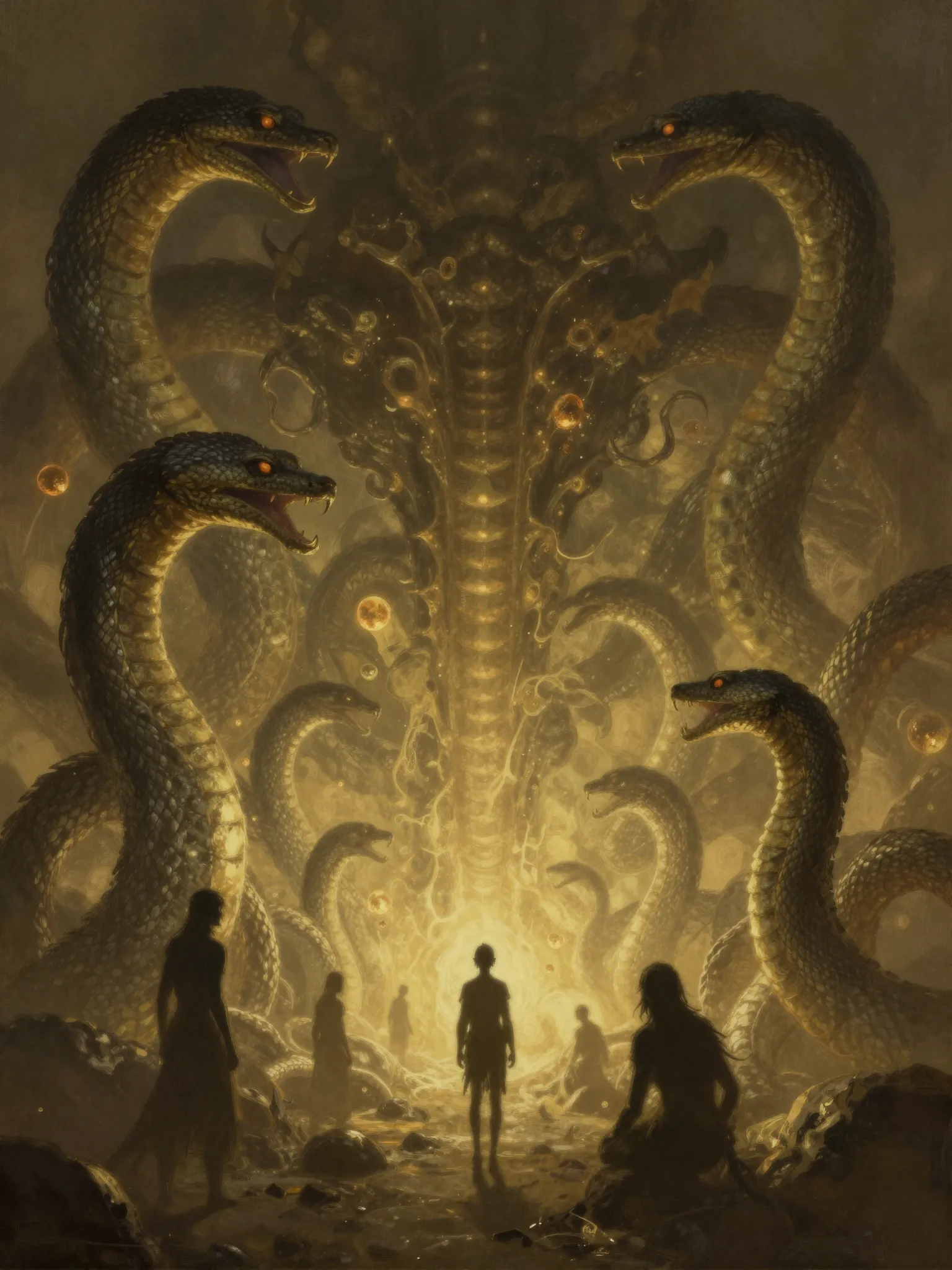
Small silhouettes surrounded by colossal serpents in an ancient cavern, amber volumetric light, intricate dark fantasy concept art.
Create with this prompt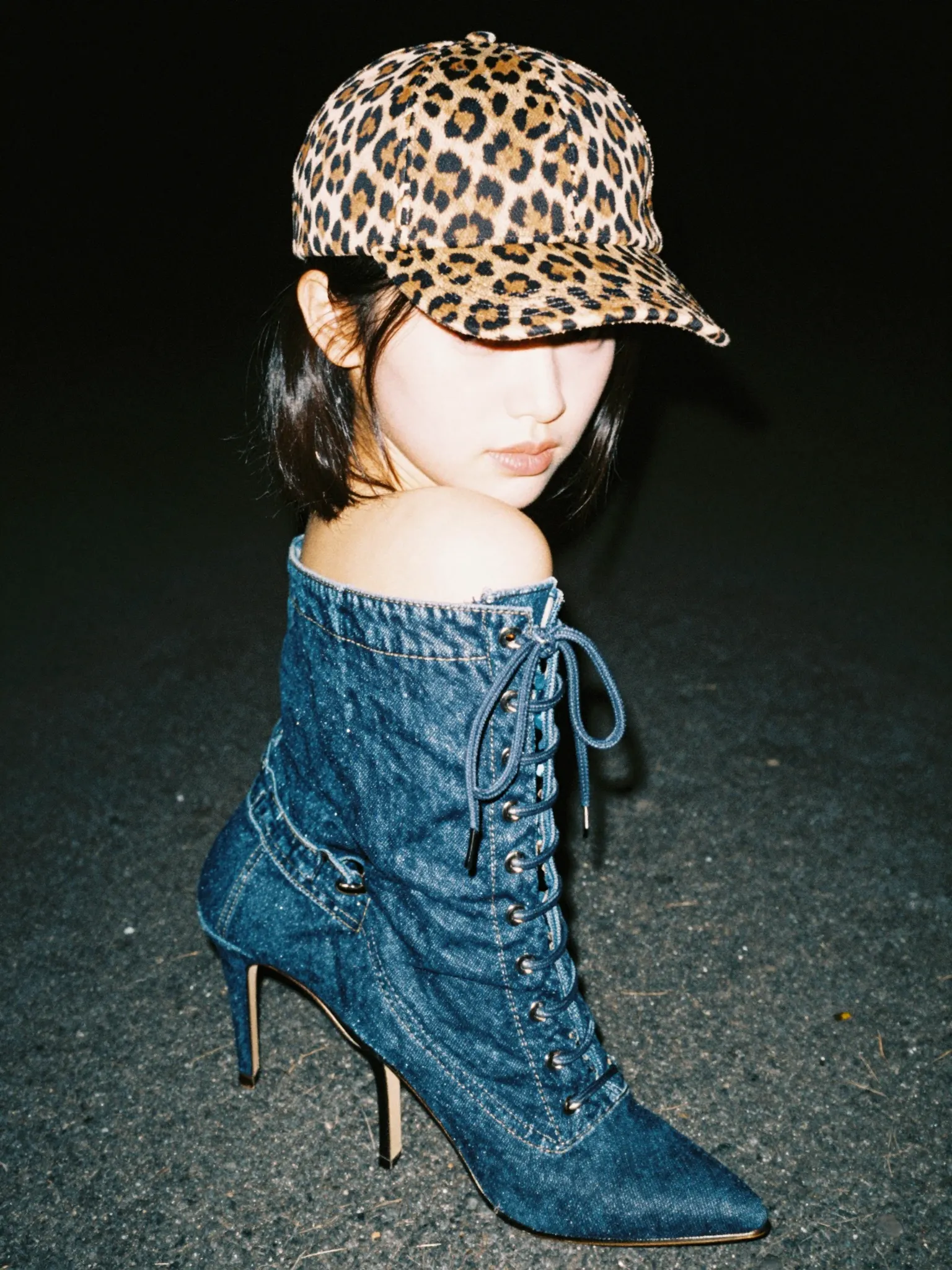
A woman with Western/European facial features in a burgundy suit seated inside a sunlit greenhouse, relaxed pose, warm light, editorial fashion photography.
Create with this prompt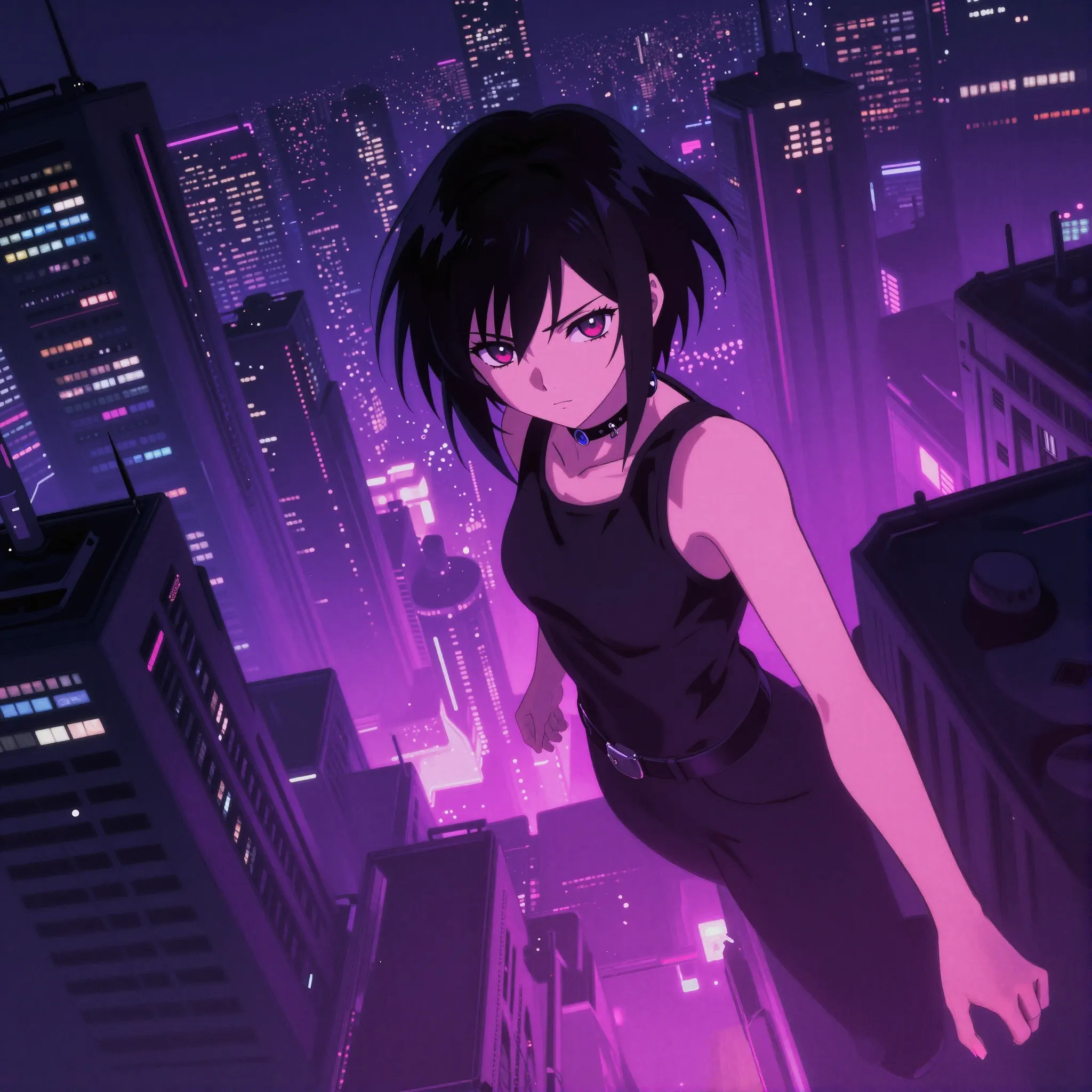
An anime character above a futuristic city, high-angle composition, vivid violet and pink neon, detailed cyberpunk illustration.
Create with this promptYour creative toolkit
Start with words or an image, then keep shaping your work. Your references, edits, and new ideas belong in the same creative process.
Describe the subject, setting, lighting, and style. Turn a rough idea into a visual direction you can keep exploring.
Try it Now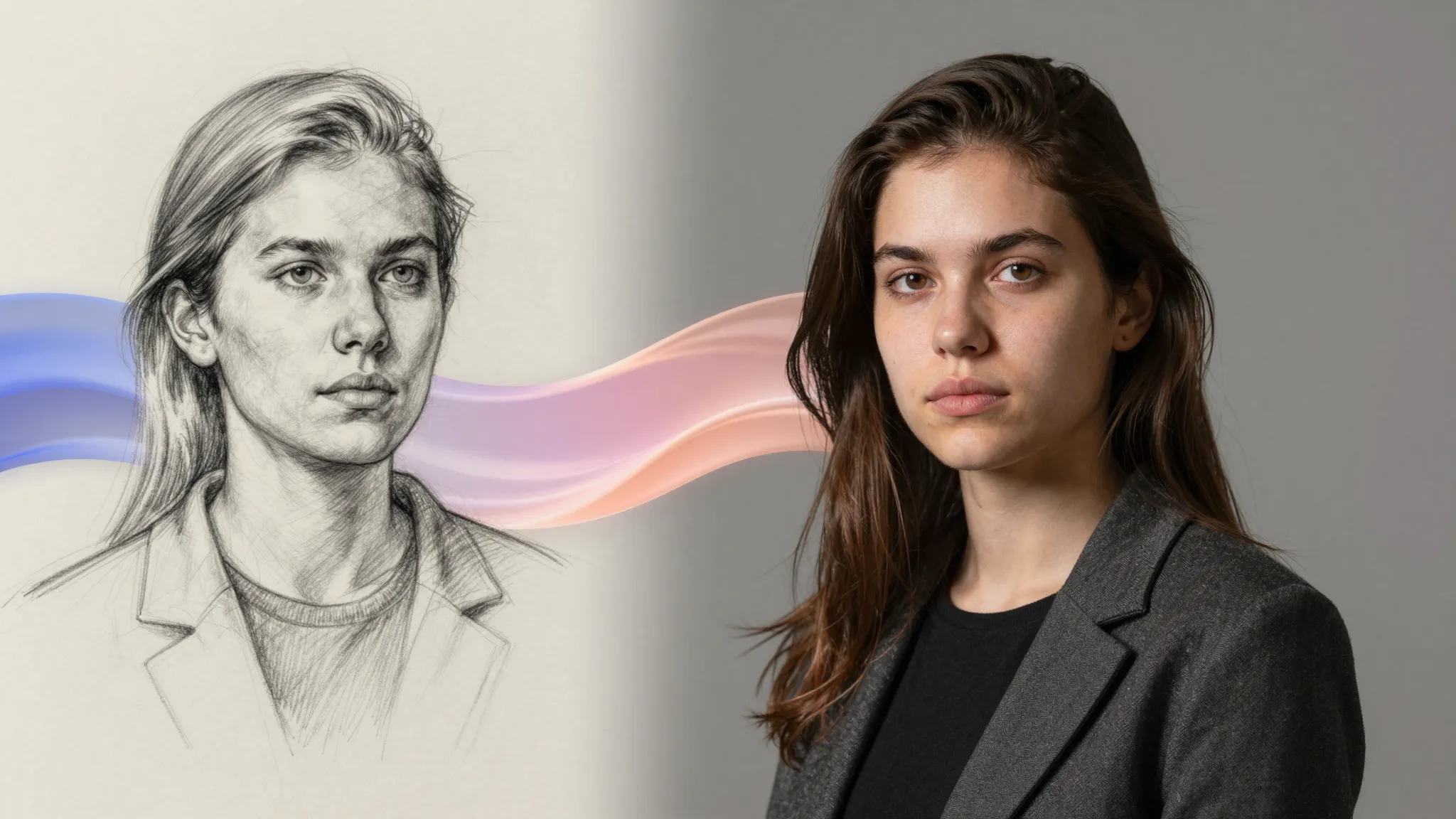
Bring a photo or sketch into the workspace. Use it to guide the composition, subject, or style of your next image.
Try it Now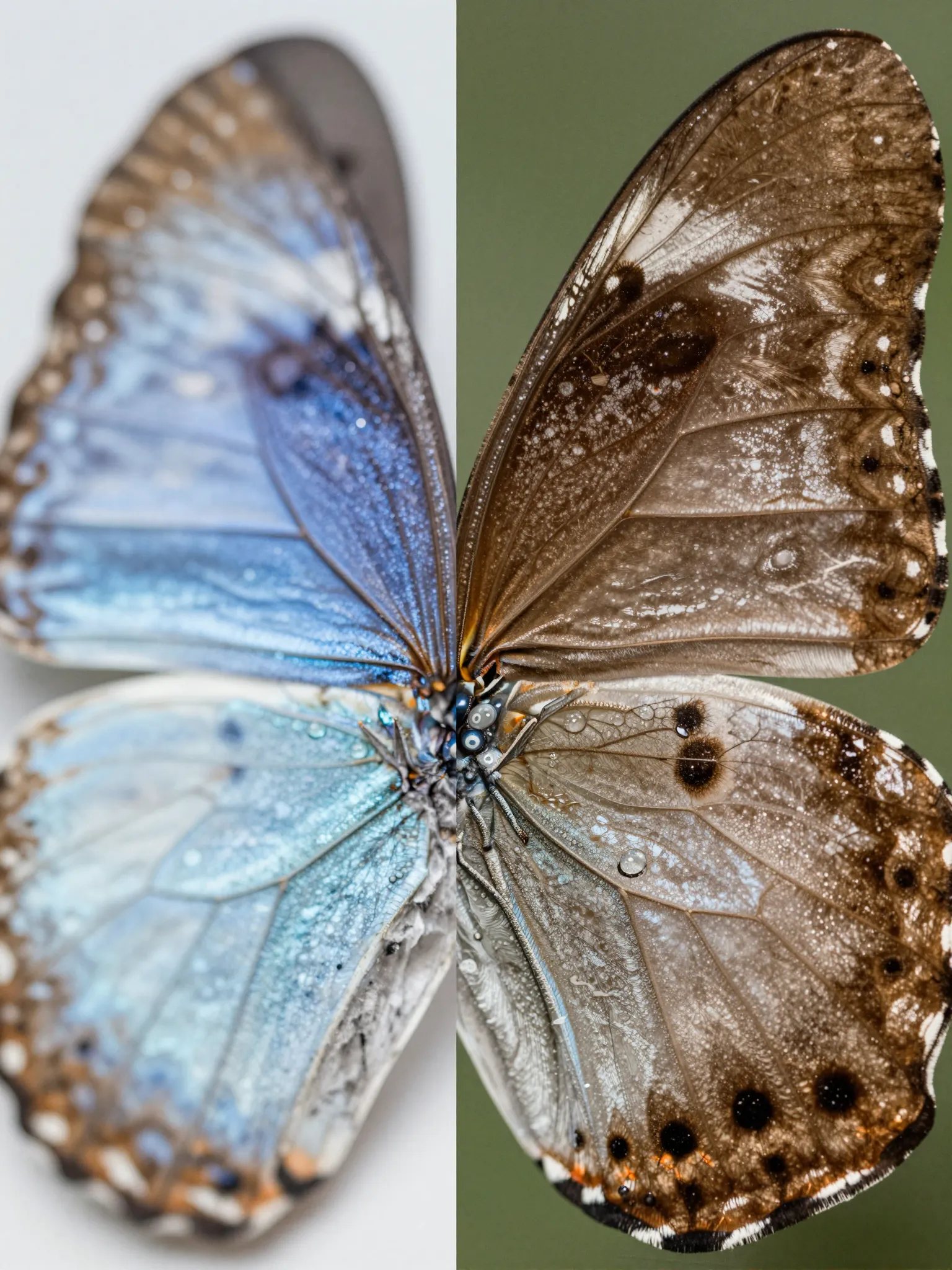
Refine a specific area with inpainting, expand the canvas, or remove a background with dedicated editing tools.
Try it Now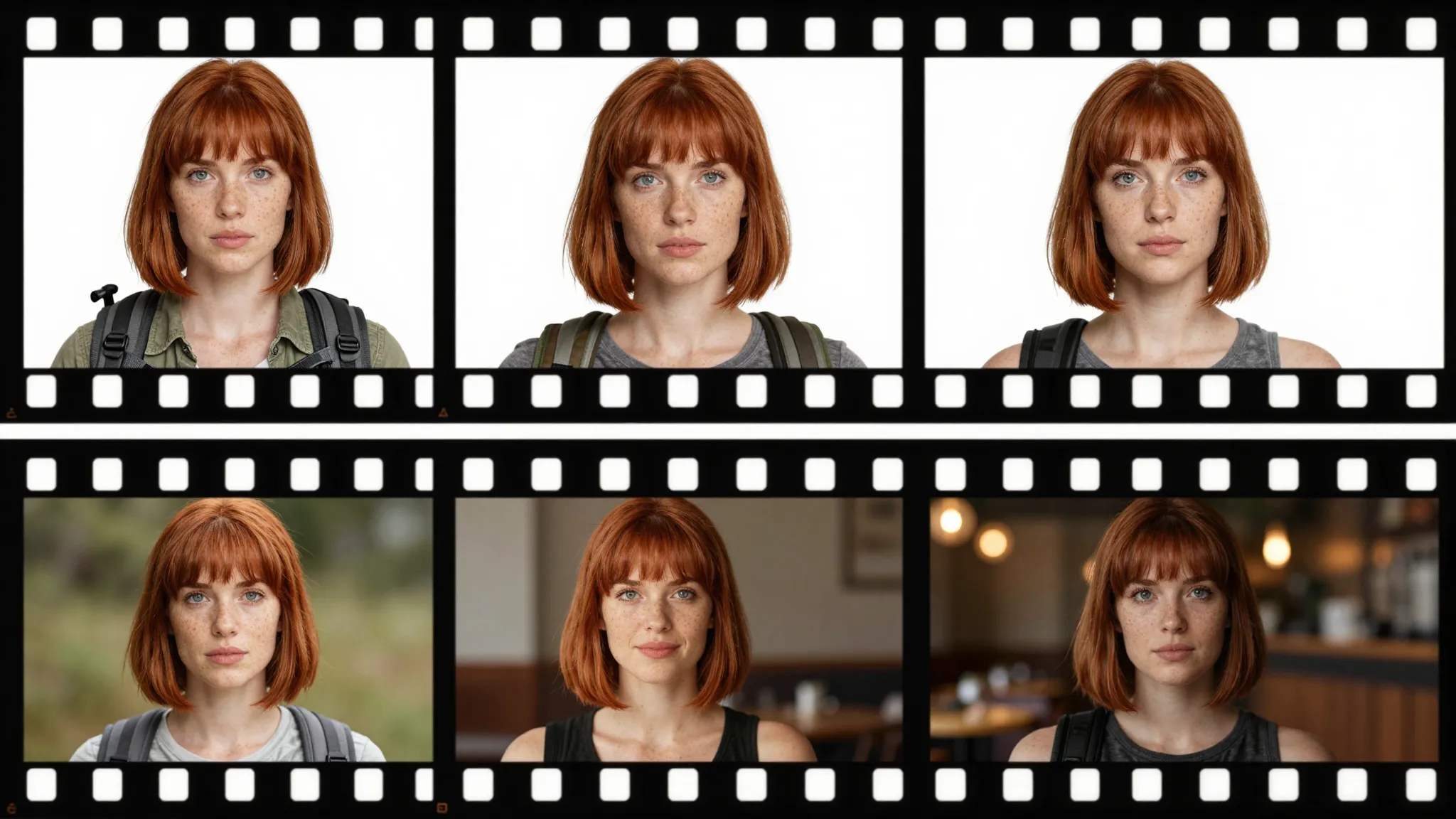
Reuse reference images as you explore new poses, settings, and looks for the same character or product.
Try it Now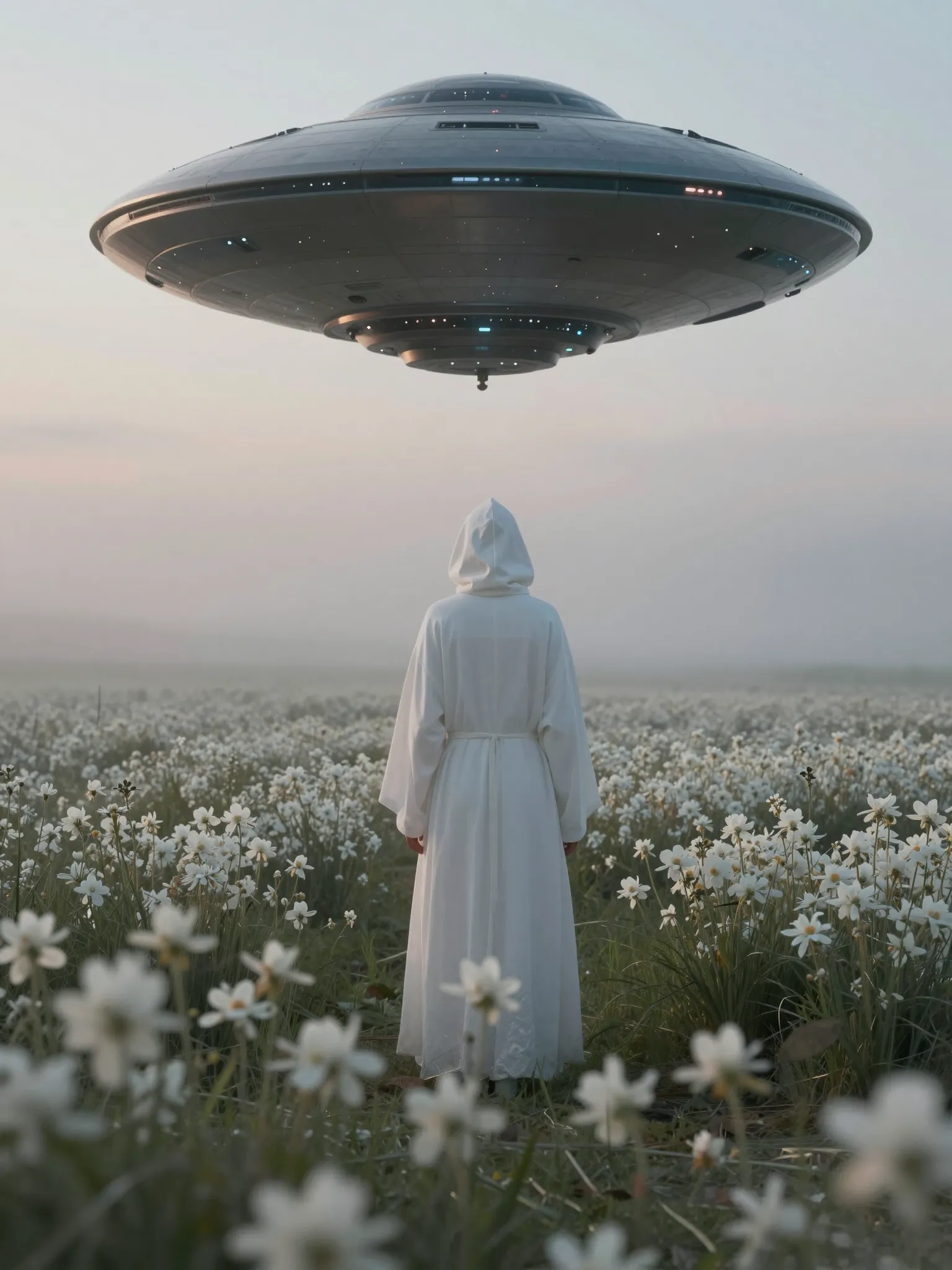
Turn a reference image into a detailed prompt. Adjust the description and use it as a starting point for something new.
Try it Now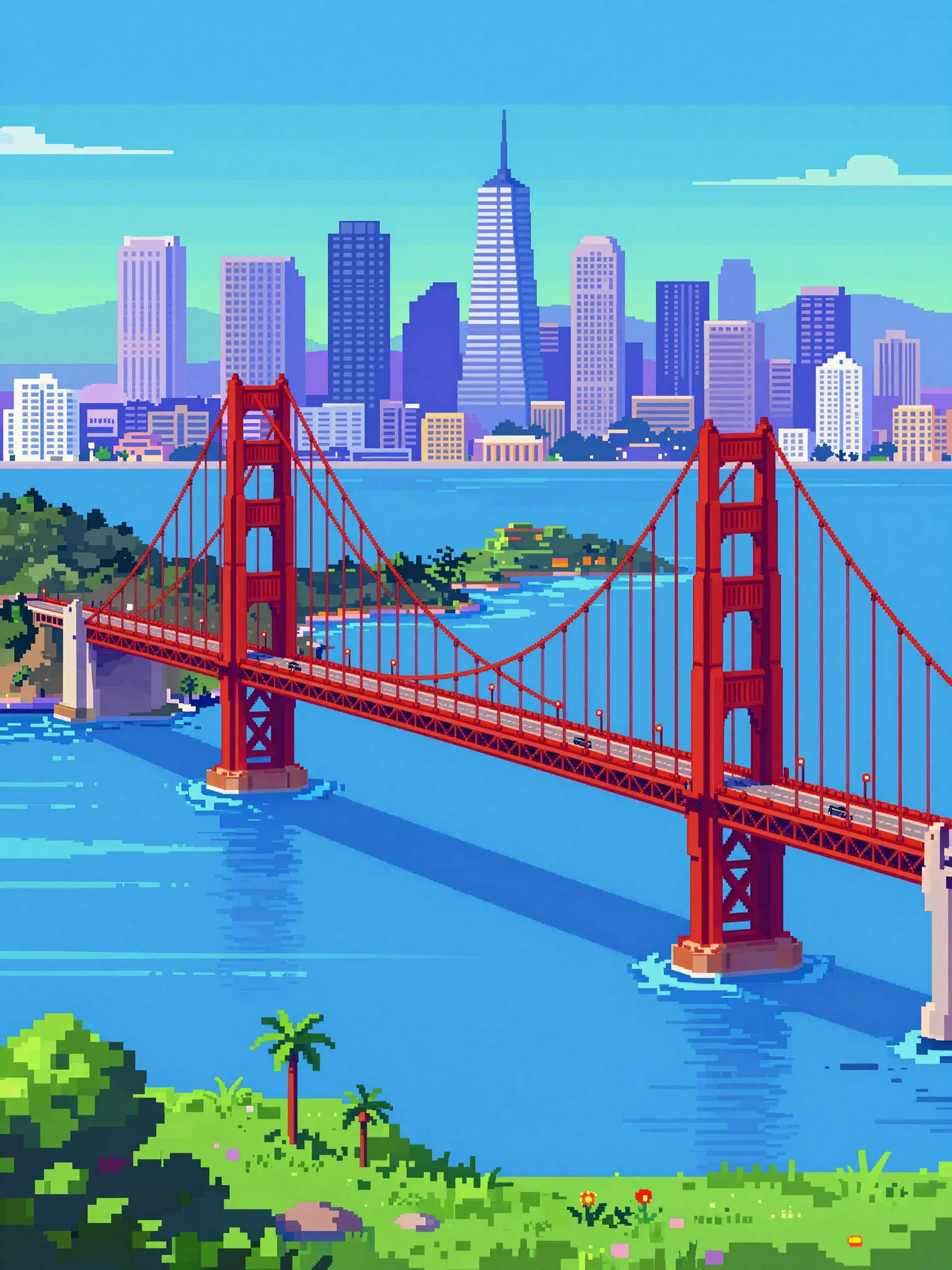
Try a different image model for a new interpretation of your idea. Compare creative directions in one workspace.
Try it NowOne workspace, more choice
Explore the image models available on Cuta. Open a model page to see its capabilities and start creating.
Explore image modelsExplore image creation and reference-based editing with OpenAI.
Create images from text with Google’s image model.
Work with text prompts and visual references.
Explore generation and editing with visual references.
Try another interpretation of your text prompt.
A simple place to start
Write what you want to see. Add a reference image in the workspace to guide the composition or style.
Pick a model and aspect ratio. Add the lighting, mood, and details that matter to your image.
Review the result, adjust your prompt, or continue with editing tools. Download when it feels right.
Your ideas, your projects
From a personal experiment to your next campaign, build the visuals your project needs.
Explore characters, color palettes, and imagined worlds before taking a direction further.
Create post visuals, thumbnails, and covers with a style you can make your own.
Develop product scenes and campaign concepts, then refine your chosen direction.
Turn a personal idea into a picture. Start with a description and see where it takes you.
The next step
Refine your result with dedicated tools for editing, backgrounds, composition, and detail.
A few things to know before you start creating.
Start with a text description to explore portraits, illustrations, product scenes and imagined worlds. Add reference images in the workspace when the selected model supports them.
Yes. Open the image workspace and add a reference image. Choose a model that supports image input, then describe what you want to create or change.
Explore the model pages to see their supported inputs and features. Try the same idea with different models in the workspace, then choose the result that fits your project.
You can continue with tools for inpainting, expanding the canvas, upscaling and removing backgrounds. Open the tool you need and add the image you want to refine.
Describe the subject, setting, lighting and visual style. Start with the details that matter most, then adjust one part of the description at a time.
Open the workspace to see the selected model's available settings and credit estimate before generating. Options and costs depend on the model and parameters.
Cuta · AI image generator
A portrait, a campaign, or a world that only exists in your imagination. Bring it to life in Cuta.
Get Started for Free