Extend the scene beyond the crop
Choose the new frame and describe what should continue outside the original: landscape, light, furniture or background texture.

Uncrop & Expand Image
Uncrop a photo with Cuta's AI image expansion tool. Generate new content beyond the image edges to widen the scene or make room for a different layout.
Choose the new frame and describe what should continue outside the original: landscape, light, furniture or background texture.
Add the materials to their named inputs. Original image: one image.
Available settings include Target aspect ratio (1:1, 16:9, 9:16, 3:2, 2:3). Review the full options in Studio before generation.
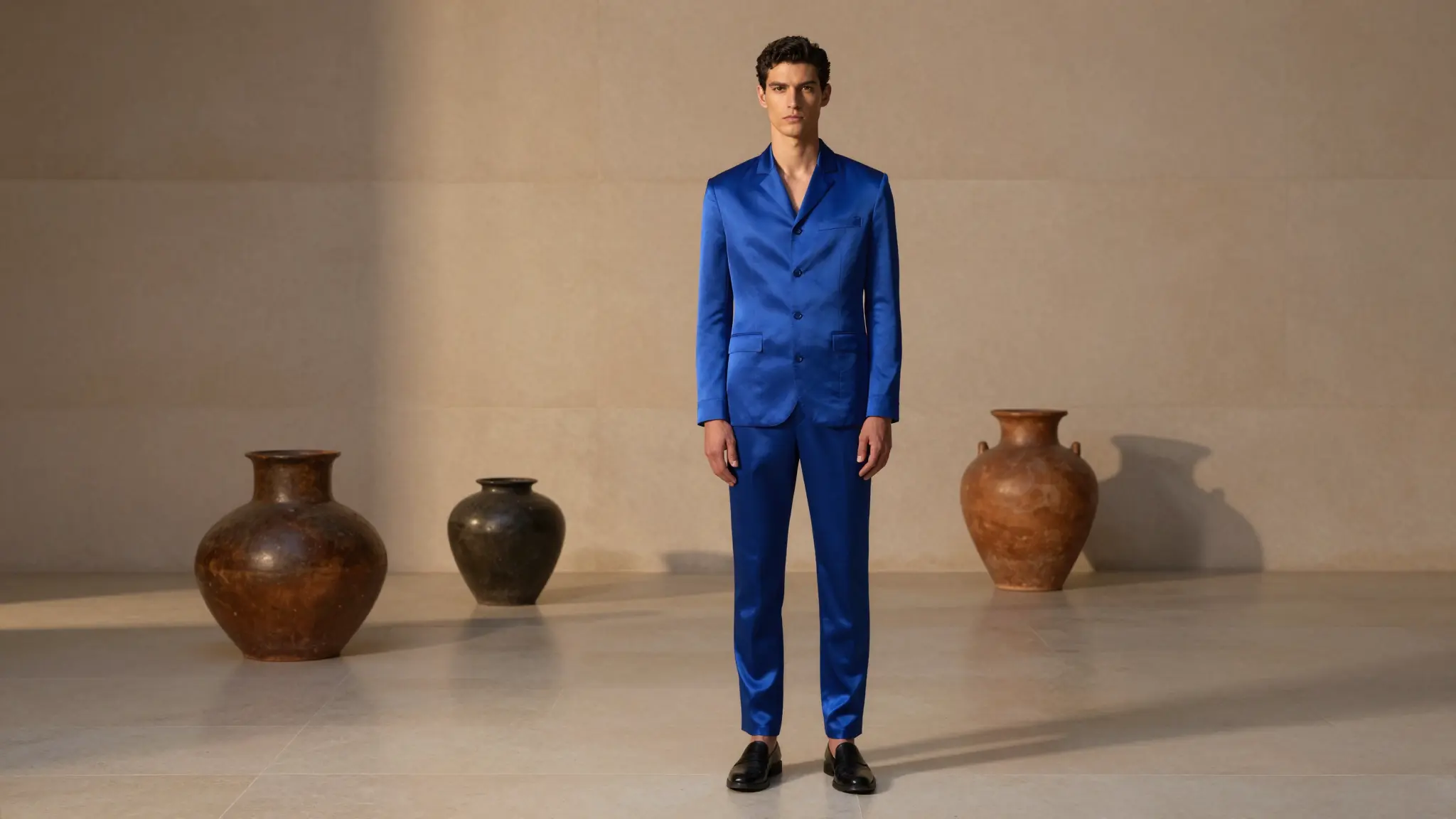
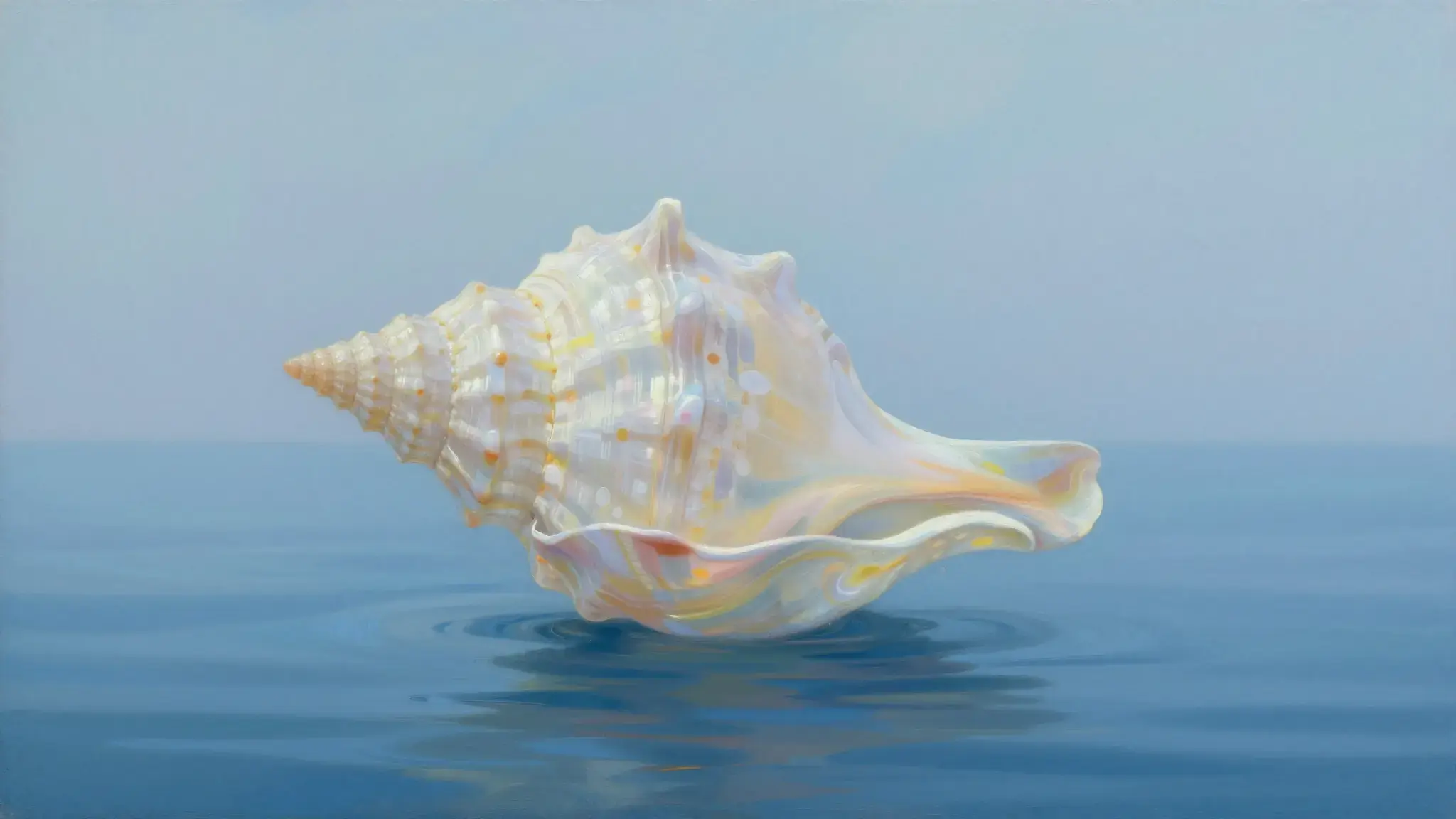
Illustrative artwork shows the intended visual direction. Your result depends on your source materials and settings.
A small central photographic print of a sailboat seamlessly expanding outward into a much wider coastal landscape, clear continuous sea and sky, physical paper-to-full-scene composition. gentle side lighting, warm cream and natural neutral tones
Try it nowFrom idea to creation
Add the materials to their named inputs. Original image: one image.
Available settings include Target aspect ratio (1:1, 16:9, 9:16, 3:2, 2:3). Review the full options in Studio before generation.
Inspect the join with the source image. New surroundings are inferred, so perspective, repeated objects and shadows can differ from the original scene.
Extend a background beside the subject so a title can sit in the composition without covering important details.
Explore a wider or taller version of a tightly cropped image and check how the new edges fit the original.
Add the materials to their named inputs. Original image: one image.
Keep exploring
Your next creation starts here
Start with your own content in Uncrop & Expand Image. Review the settings in Studio and create your result.