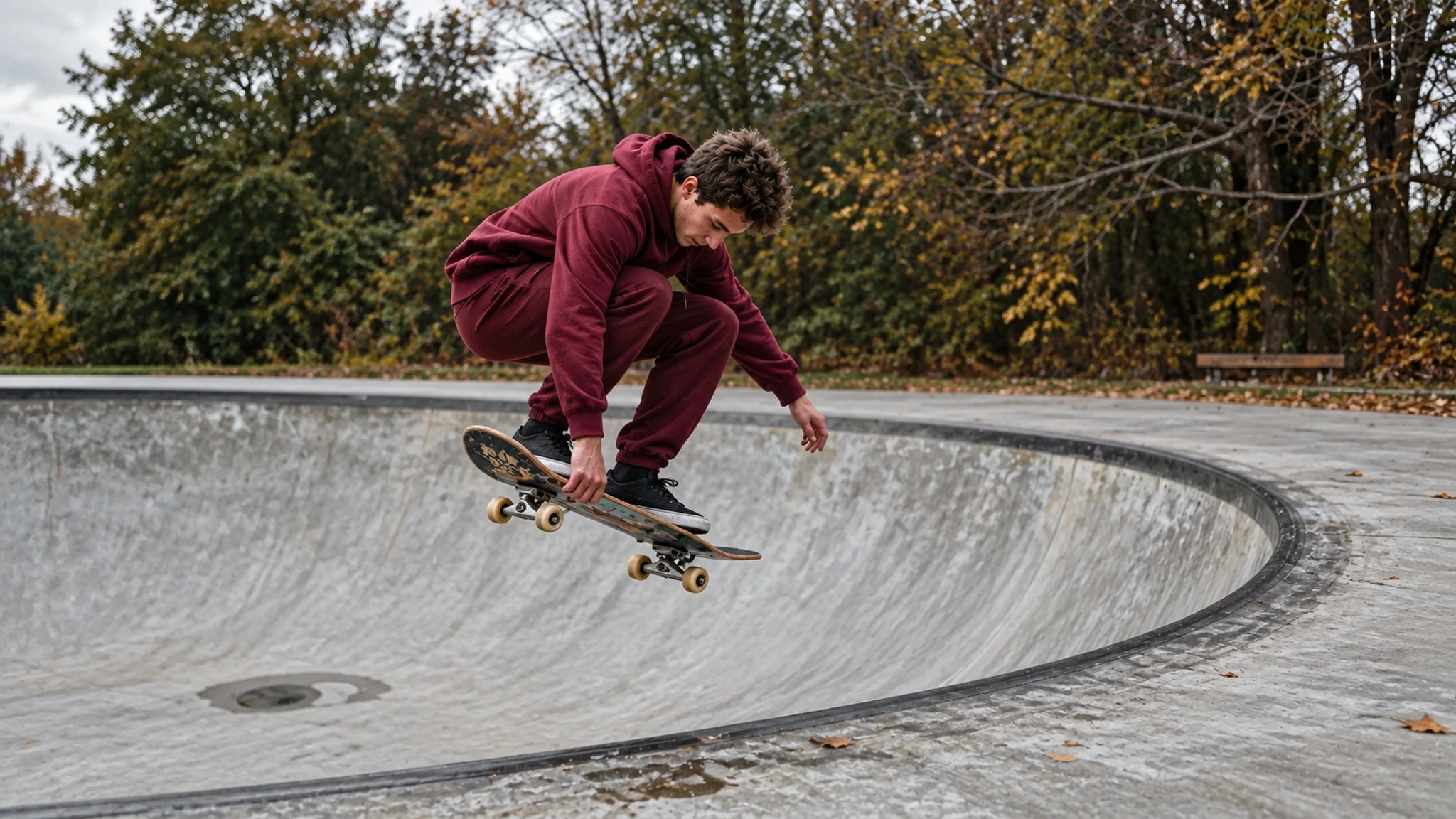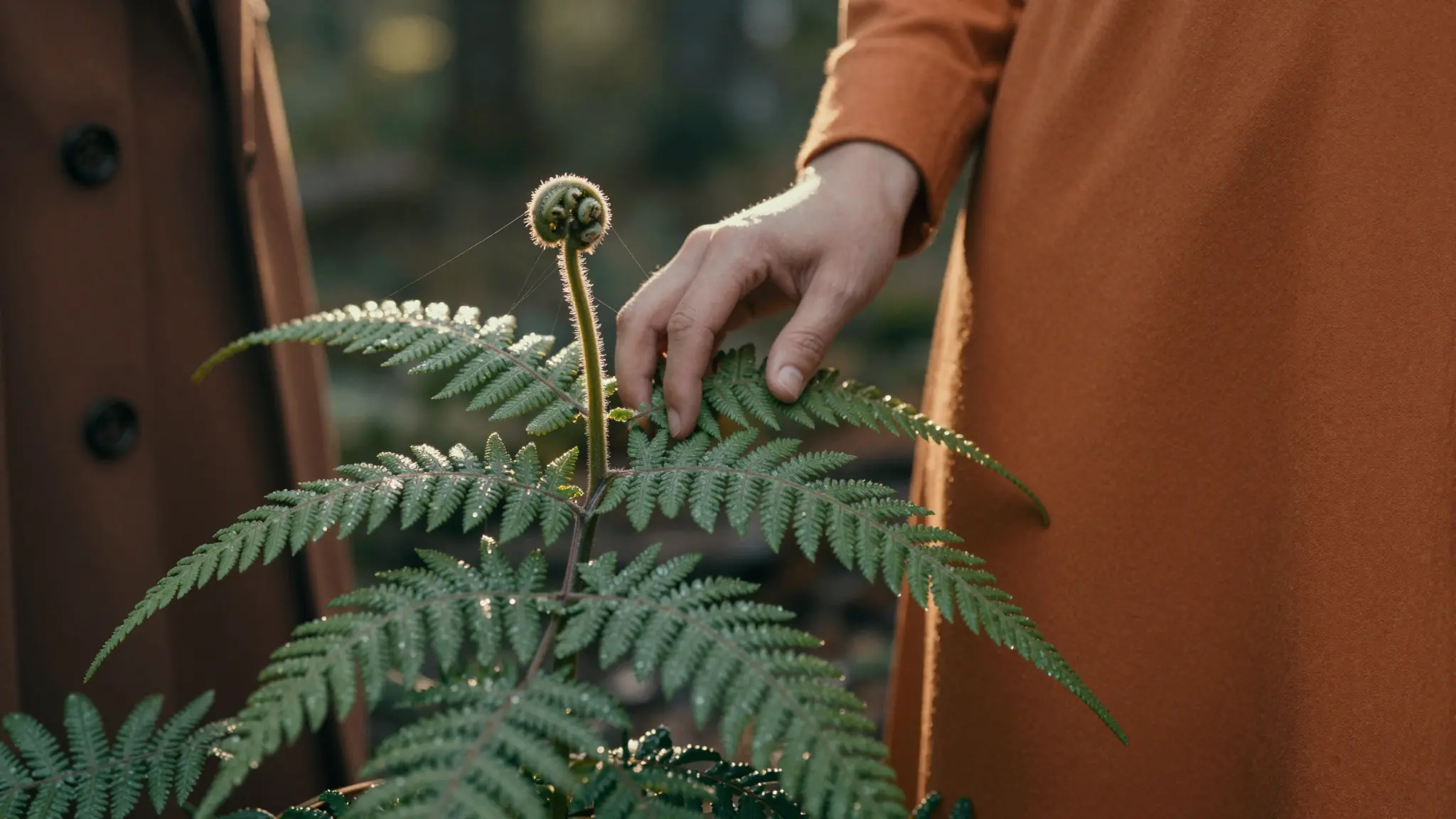
Describe the distraction to remove
Upload the source image and identify the unwanted object or area. Explain the background that should fill the gap.
Try it now
Upload the source image and identify the unwanted object or area. Explain the background that should fill the gap.
Try it nowRemove the empty chair from the terrace and continue the stone paving naturally.
Try it nowInspect repeated textures, lines and nearby subjects where the removed object used to be.
Try it nowFrom idea to creation
Upload the source image and identify the unwanted object or area. Explain the background that should fill the gap.
Remove the empty chair from the terrace and continue the stone paving naturally.
Inspect repeated textures, lines and nearby subjects where the removed object used to be.
Upload the source image and identify the unwanted object or area. Explain the background that should fill the gap.
Find your next creative tool
Your next creation starts here
Start with your own content in Magic Remover. Review the settings in Studio and create your result.