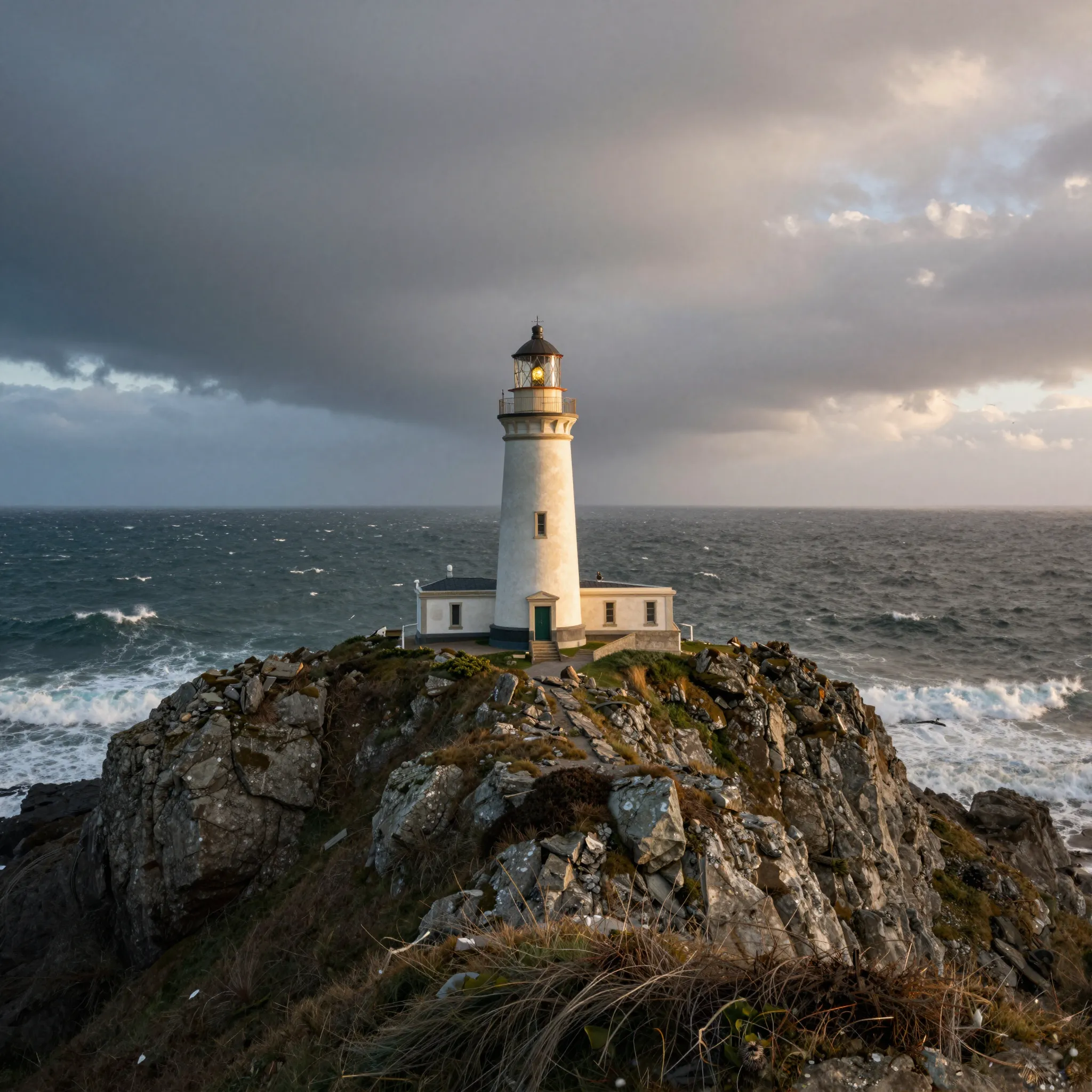
Give a cropped image more space
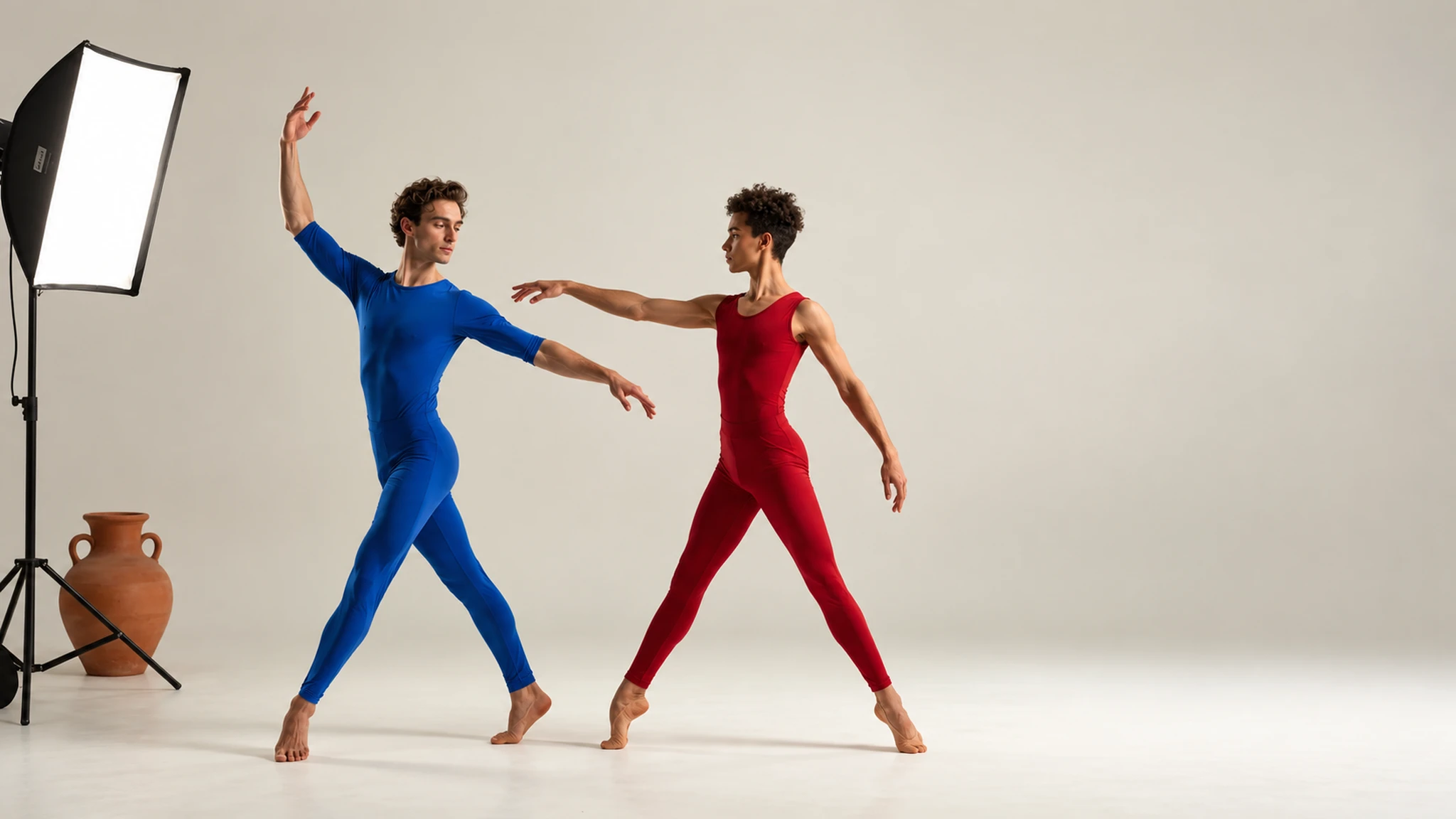
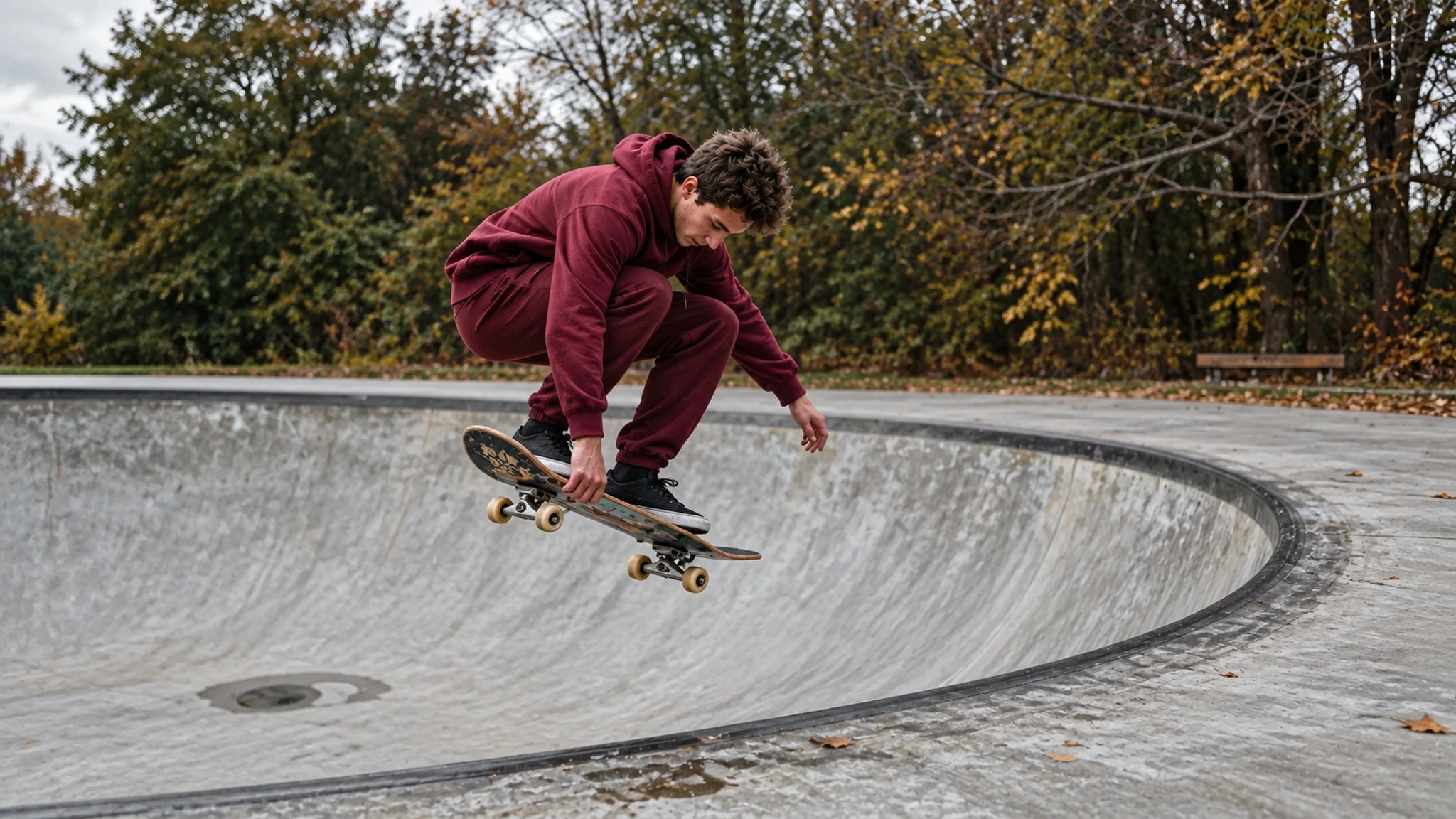
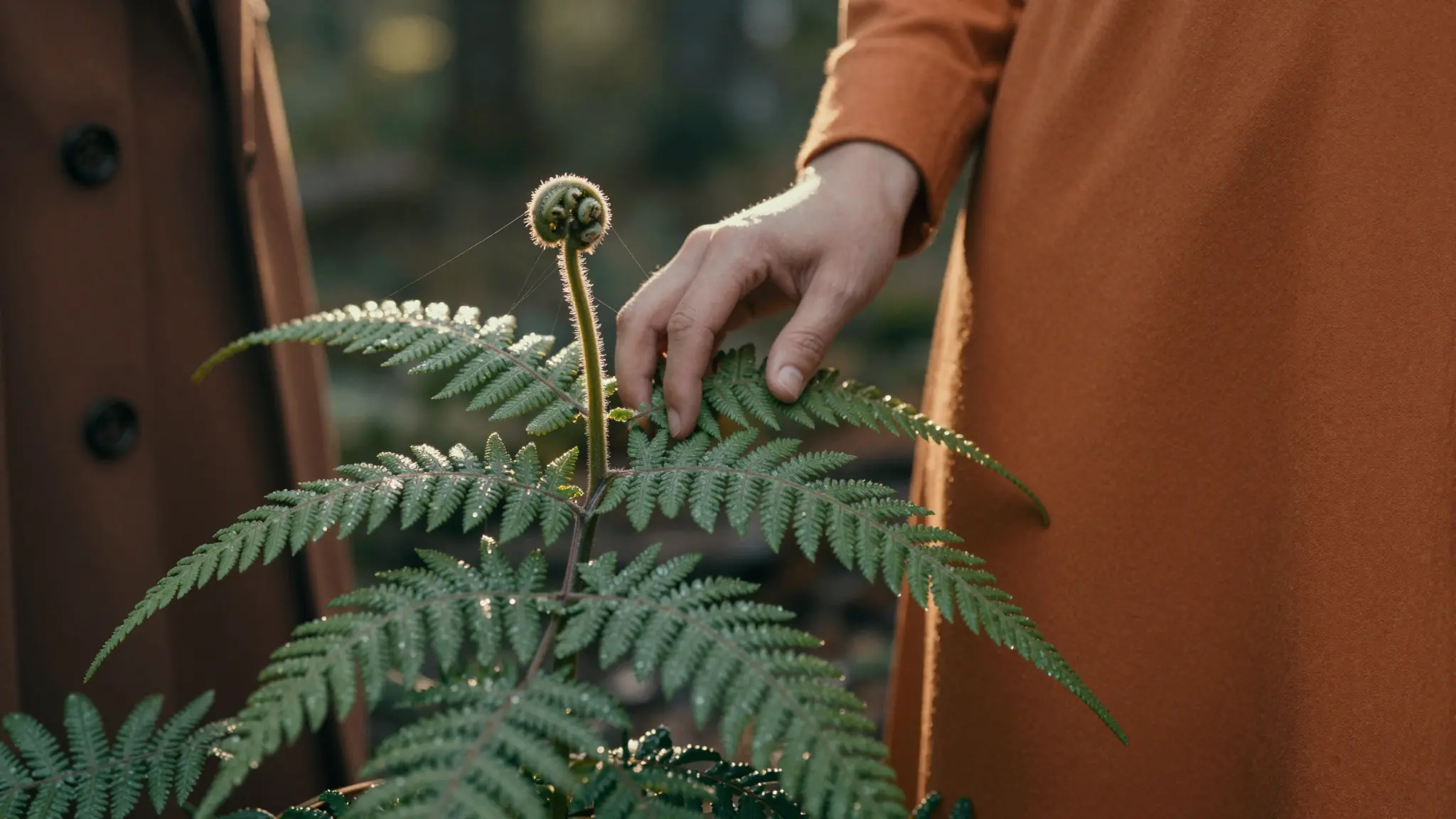
Upload the original, choose the extension direction and describe the surroundings to continue beyond the source edges.
Try it now
Upload the original, choose the extension direction and describe the surroundings to continue beyond the source edges.
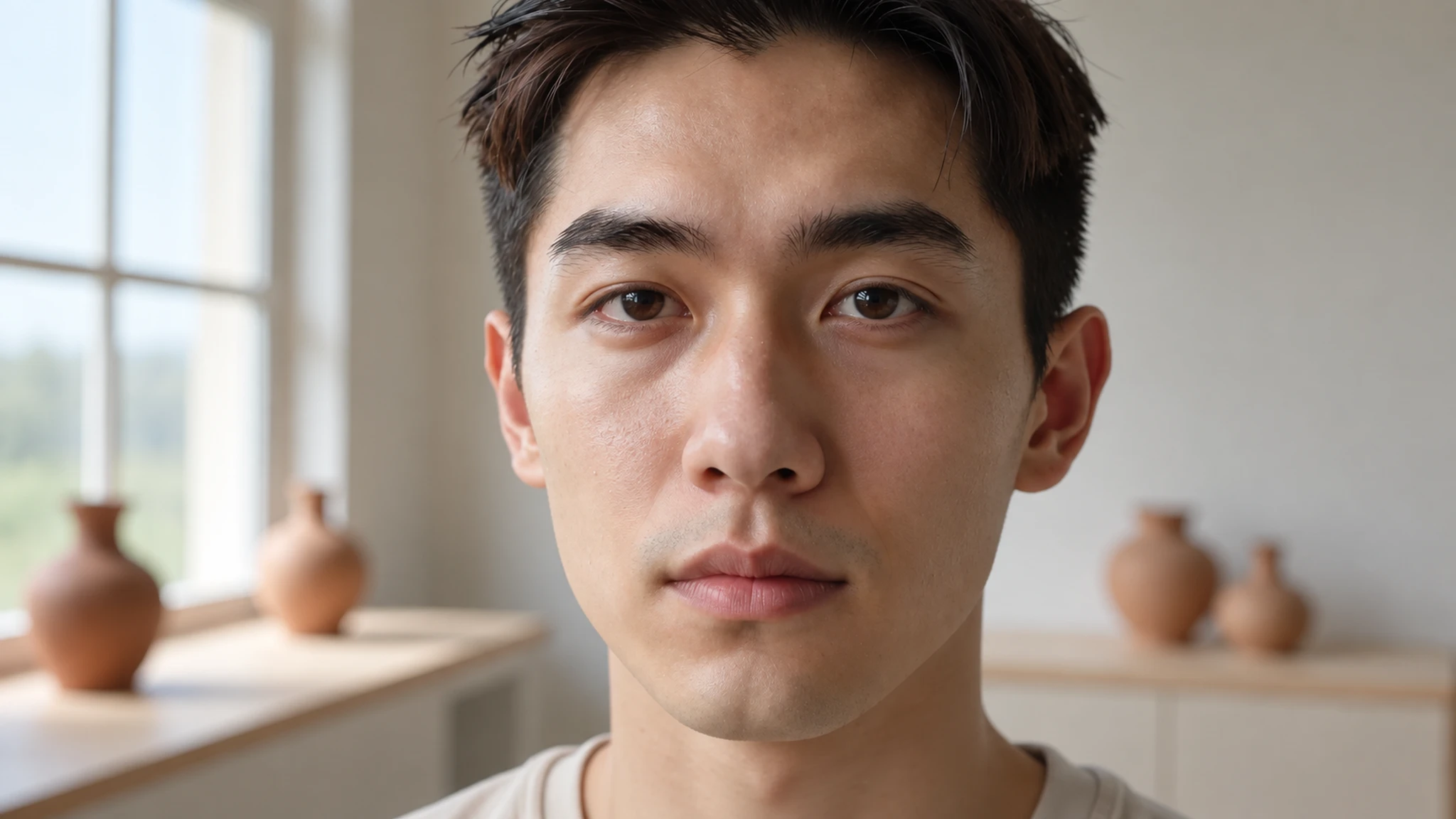
Try it nowContinue the meadow on both sides of the portrait, keeping the horizon and afternoon light consistent.
Try it nowInspect the join, perspective and new objects. Expanded areas are imagined from the original scene.
Try it nowFrom idea to creation
Upload the original, choose the extension direction and describe the surroundings to continue beyond the source edges.
Continue the meadow on both sides of the portrait, keeping the horizon and afternoon light consistent.
Inspect the join, perspective and new objects. Expanded areas are imagined from the original scene.
Upload the original, choose the extension direction and describe the surroundings to continue beyond the source edges.
Find your next creative tool
Your next creation starts here
Start with your own content in Expand Canvas. Review the settings in Studio and create your result.