Plan variations around the same product
Choose the supported formats and supply shared product information. Keep the product reference and approved message consistent across the batch.

Bulk Create Viral Videos
Create multiple product video ads from your photos with Cuta. Choose ad formats and quantities for unboxing, demonstrations, try-ons and promotional concepts.
Choose the supported formats and supply shared product information. Keep the product reference and approved message consistent across the batch.
Add the materials to their named inputs. Product images: up to 5 images; Person: one image (optional).
Available settings include Try-on video count; Product close-up count; Unboxing video count; UGC video count; Commercial video count; Before-and-after video count; Tutorial video count. Review the full options in Studio before generation.
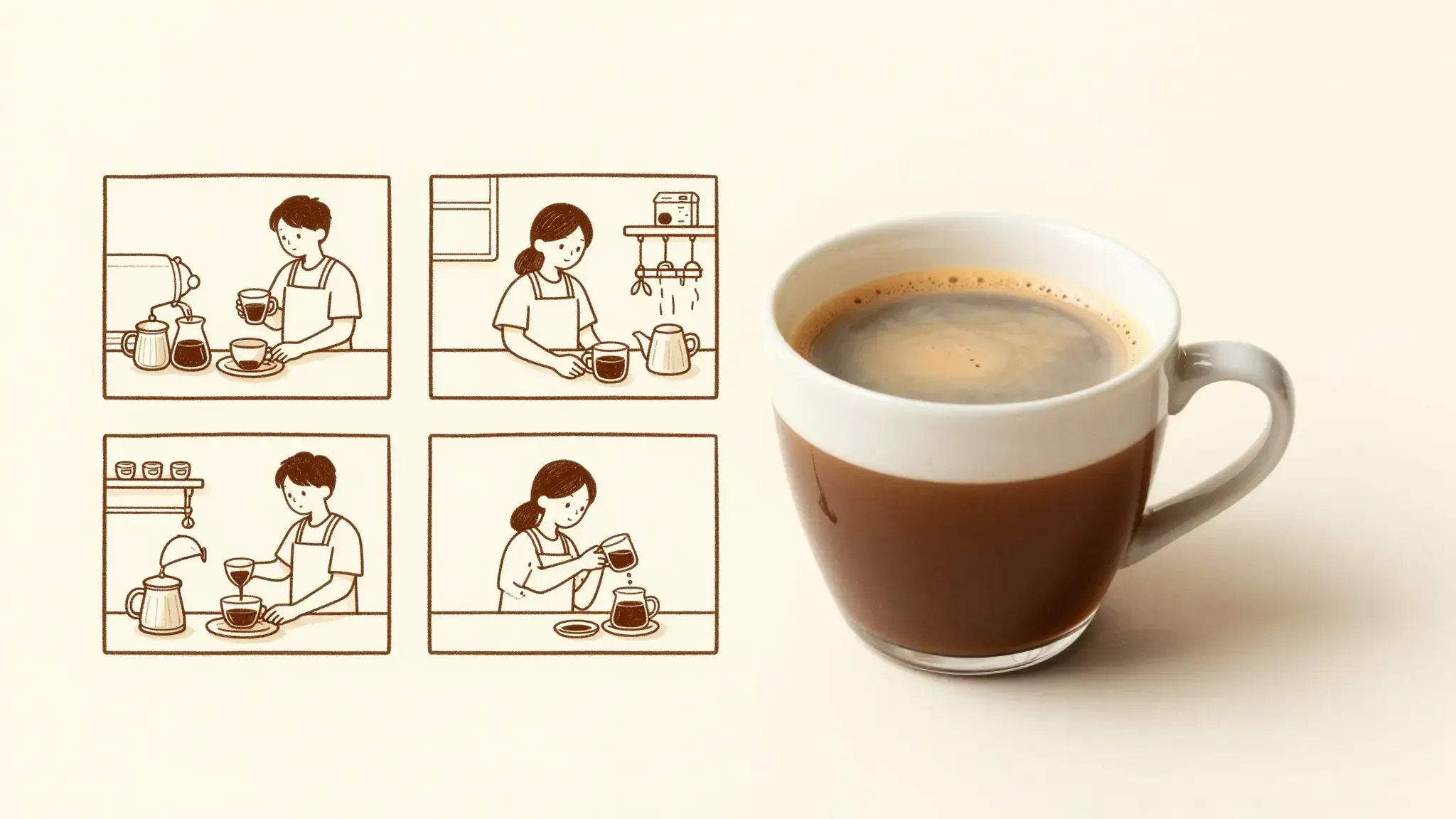
Illustrative artwork shows the intended visual direction. Your result depends on your source materials and settings.
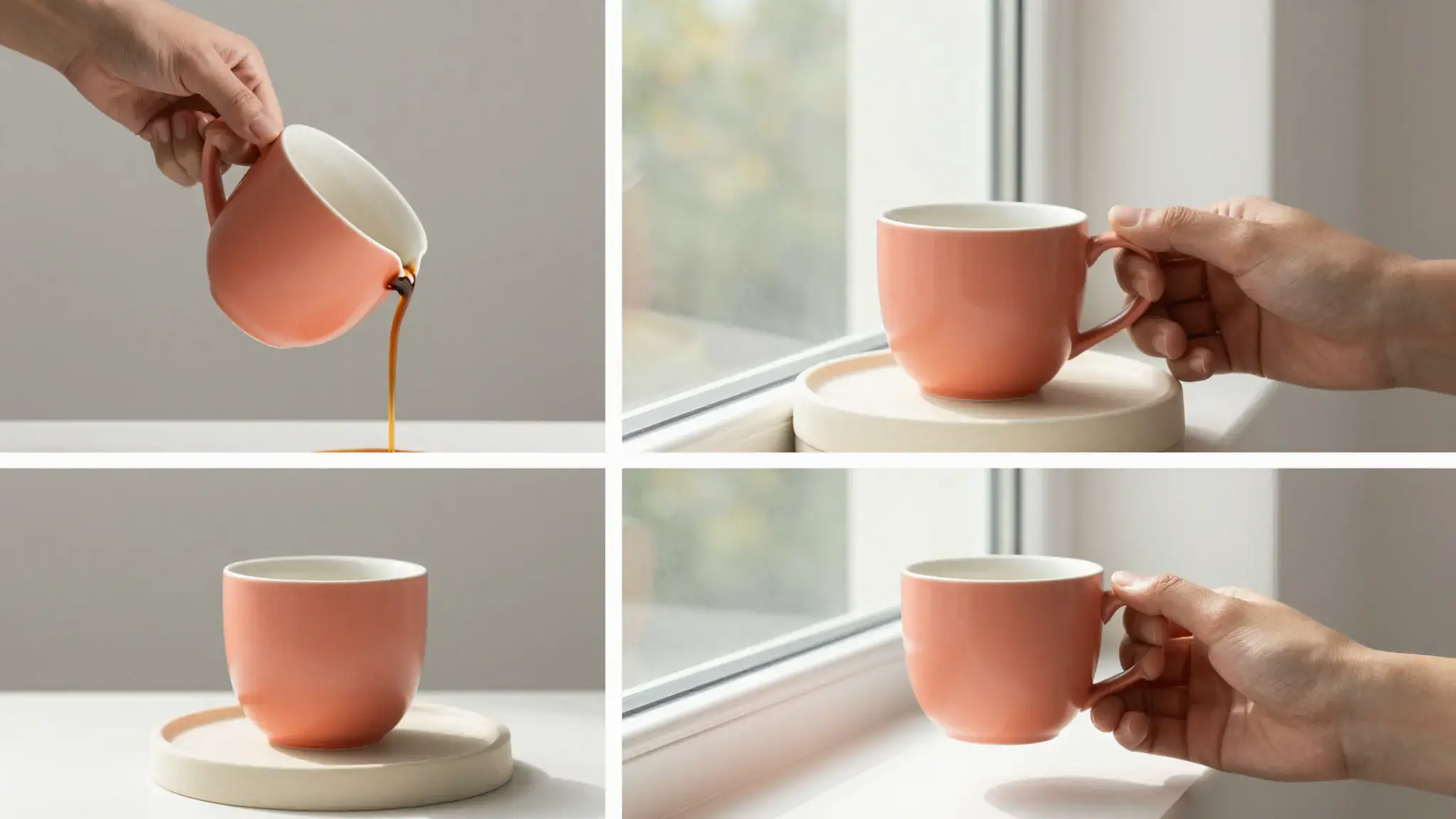
One coral ceramic mug across a pouring close-up, a clean studio product shot and a creator holding the mug by a window. Keep the product shape and color consistent across the batch.
Try it nowExplore demonstrations, reveals or creator-style openings from the same product material.
Compare a set of creative directions before choosing which versions to develop further.
From idea to creation
Add the materials to their named inputs. Product images: up to 5 images; Person: one image (optional).
Available settings include Try-on video count; Product close-up count; Unboxing video count; UGC video count; Commercial video count; Before-and-after video count; Tutorial video count. Review the full options in Studio before generation.
Review every variation separately. A successful first clip does not establish that the rest have accurate product details or suitable pacing.
Add the materials to their named inputs. Product images: up to 5 images; Person: one image (optional).
Keep exploring
Your next creation starts here
Start with your own content in Bulk Create Viral Videos. Review the settings in Studio and create your result.