Explore a subject from another viewpoint
Name the desired view and describe the defining shape, material and details to retain. Include reference views when available.

Image Shots
Generate alternative camera views of an image subject with Cuta. Explore shot angles and framing for product presentations, character studies and visual planning.
Name the desired view and describe the defining shape, material and details to retain. Include reference views when available.
Add the materials to their named inputs. Subject image: one image.
Available settings include Shot count. Review the full options in Studio before generation.
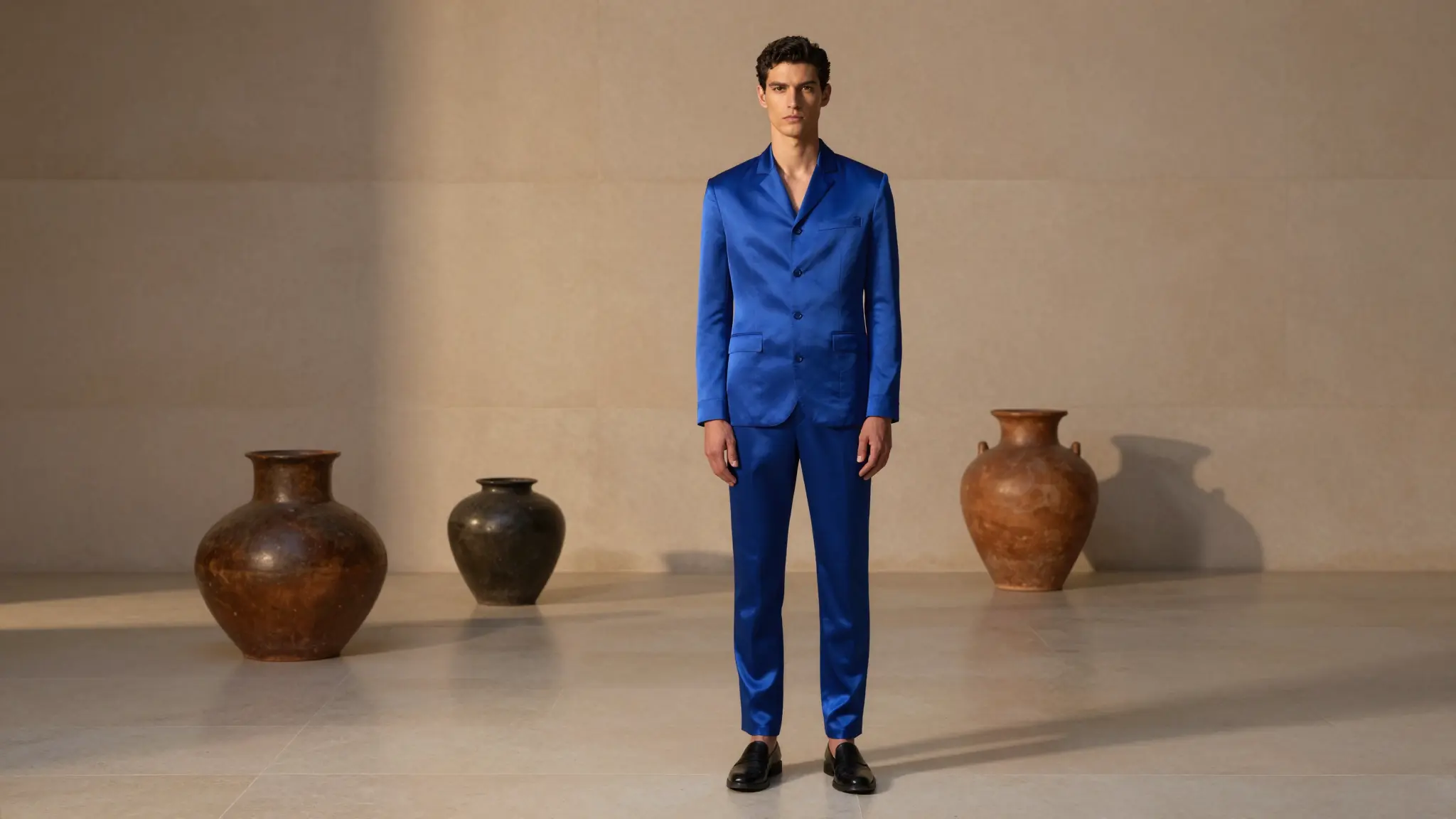
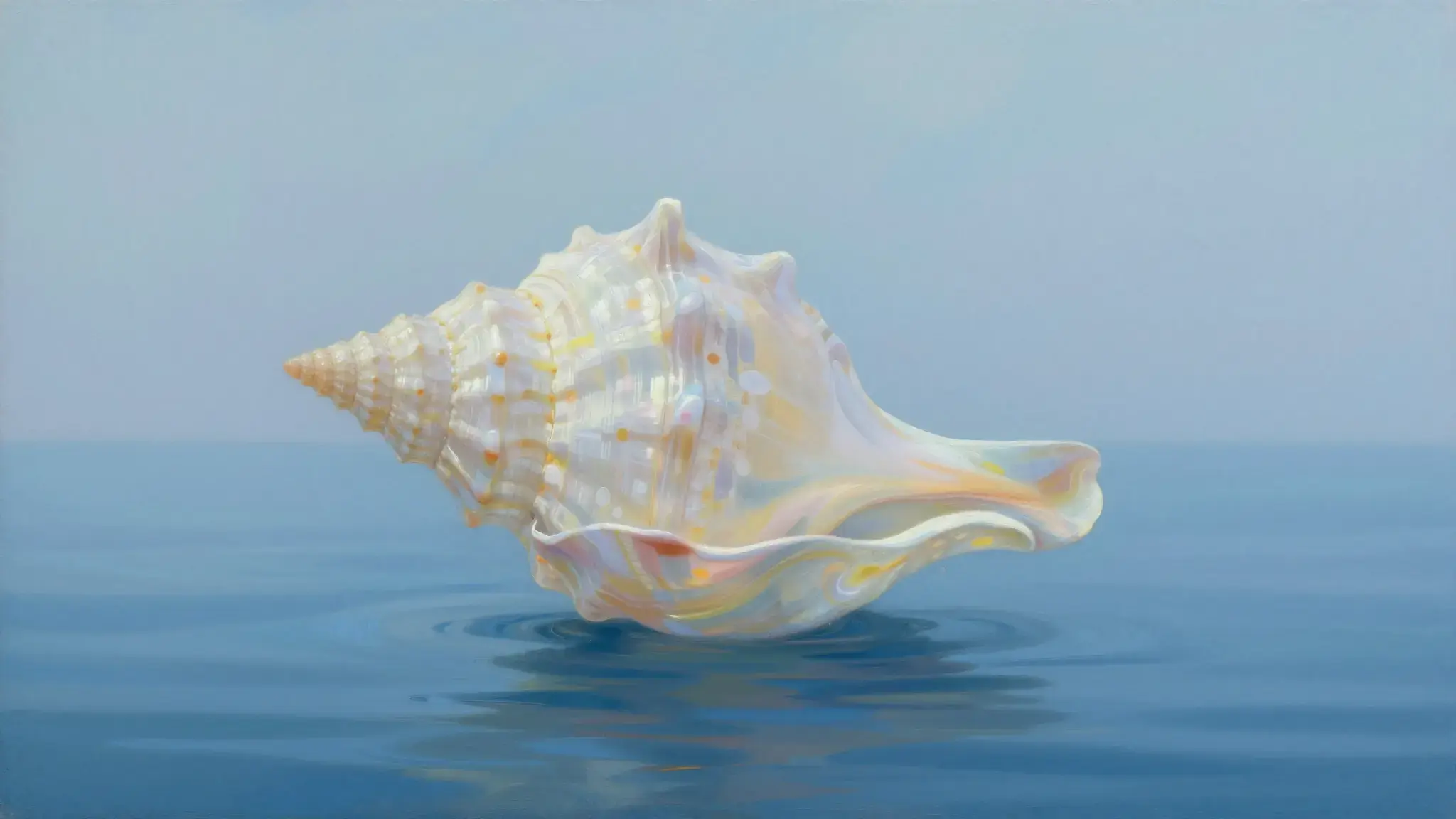
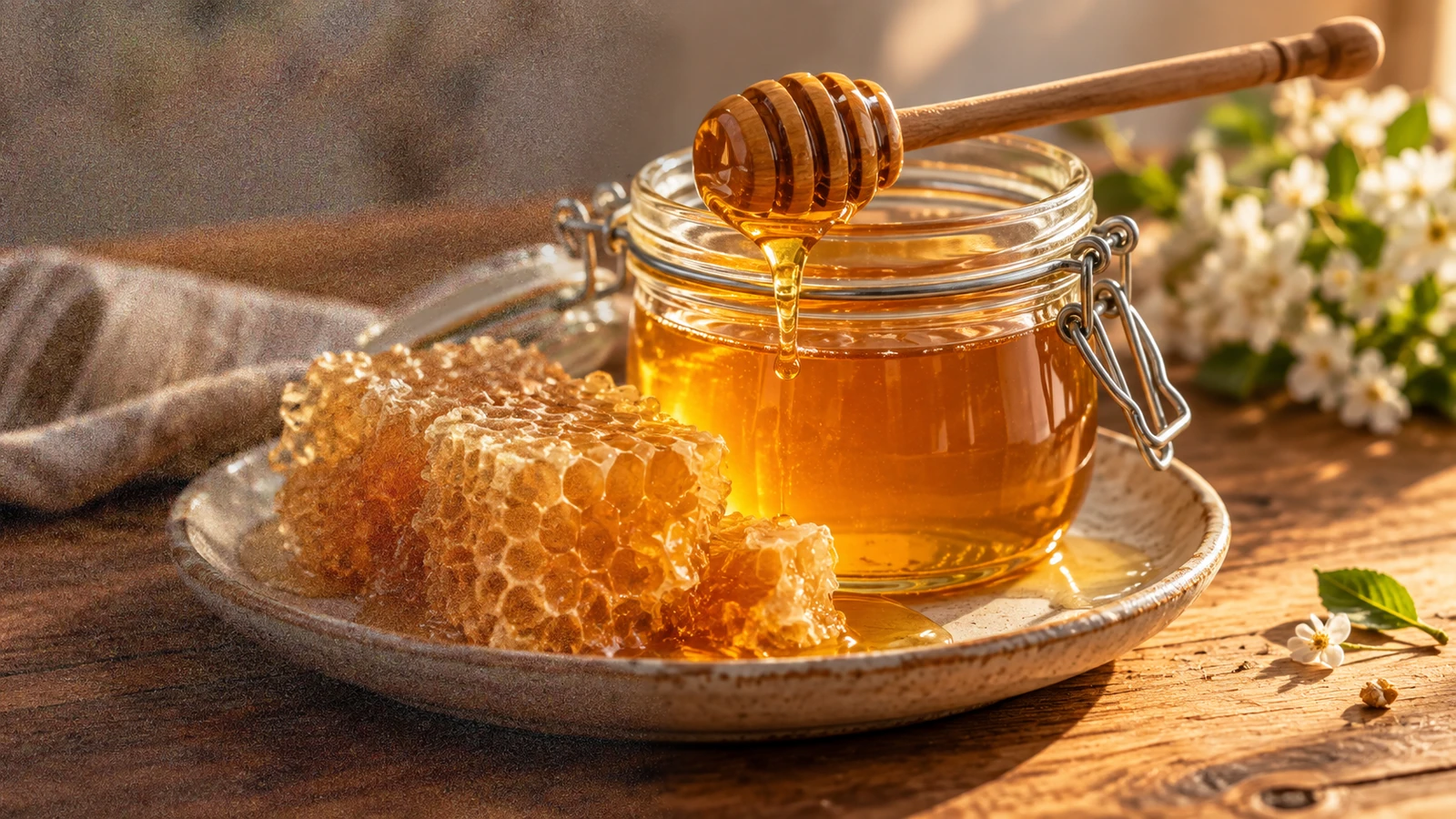
Illustrative artwork shows the intended visual direction. Your result depends on your source materials and settings.
Three matched photographic views of the same unmarked cream ceramic teapot, overhead, eye-level and close-up of the handle, consistent lighting and material
Try it nowFrom idea to creation
Add the materials to their named inputs. Subject image: one image.
Available settings include Shot count. Review the full options in Studio before generation.
Unseen surfaces are imagined. Compare proportions and repeated details across views; this does not provide measured geometry.
Explore an alternate view of an item and check whether recognizable details carry across.
Compare front, side or three-quarter interpretations before drawing a consistent character sheet.
Add the materials to their named inputs. Subject image: one image.
Keep exploring
Your next creation starts here
Start with your own content in Image Shots. Review the settings in Studio and create your result.