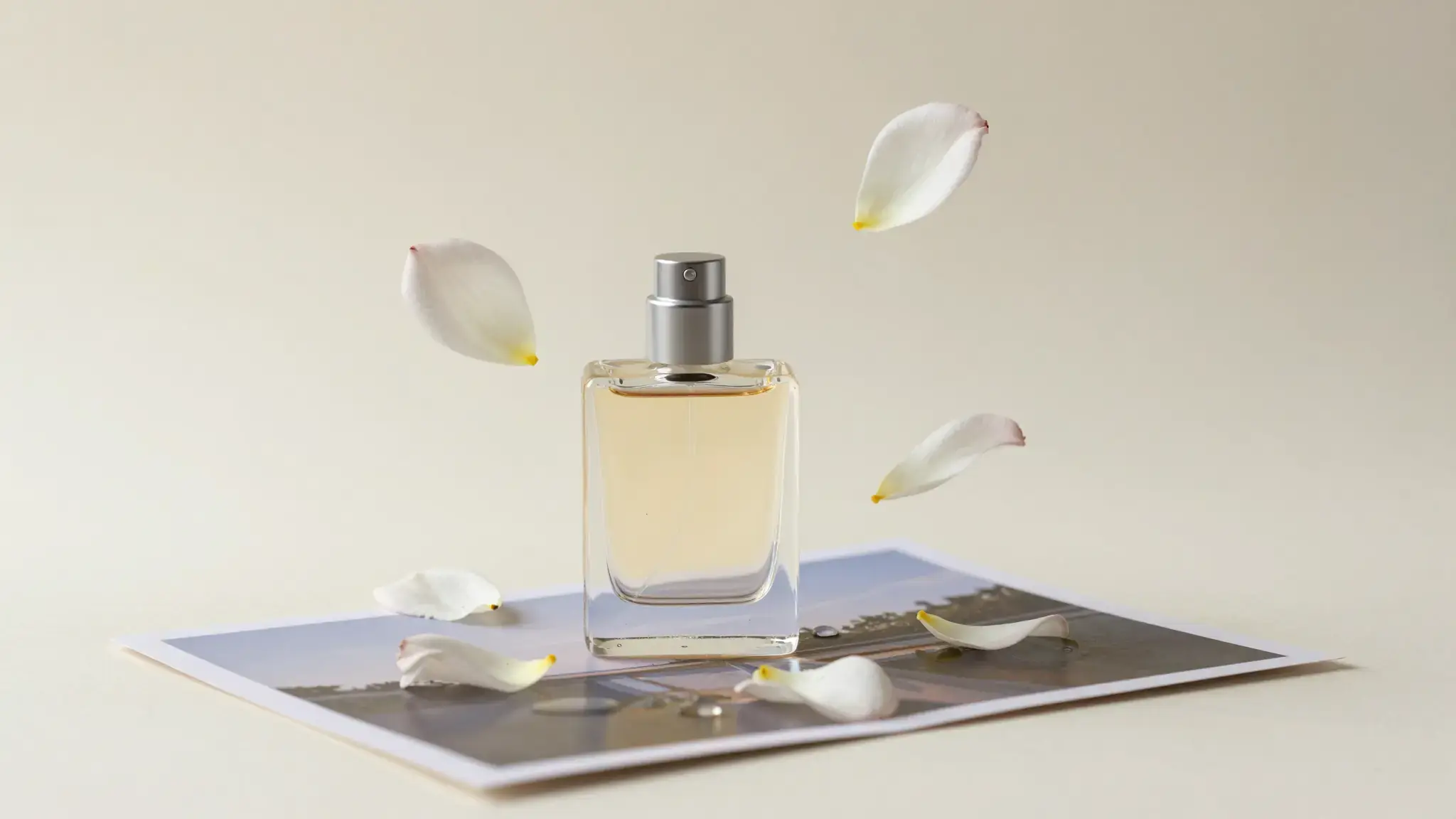
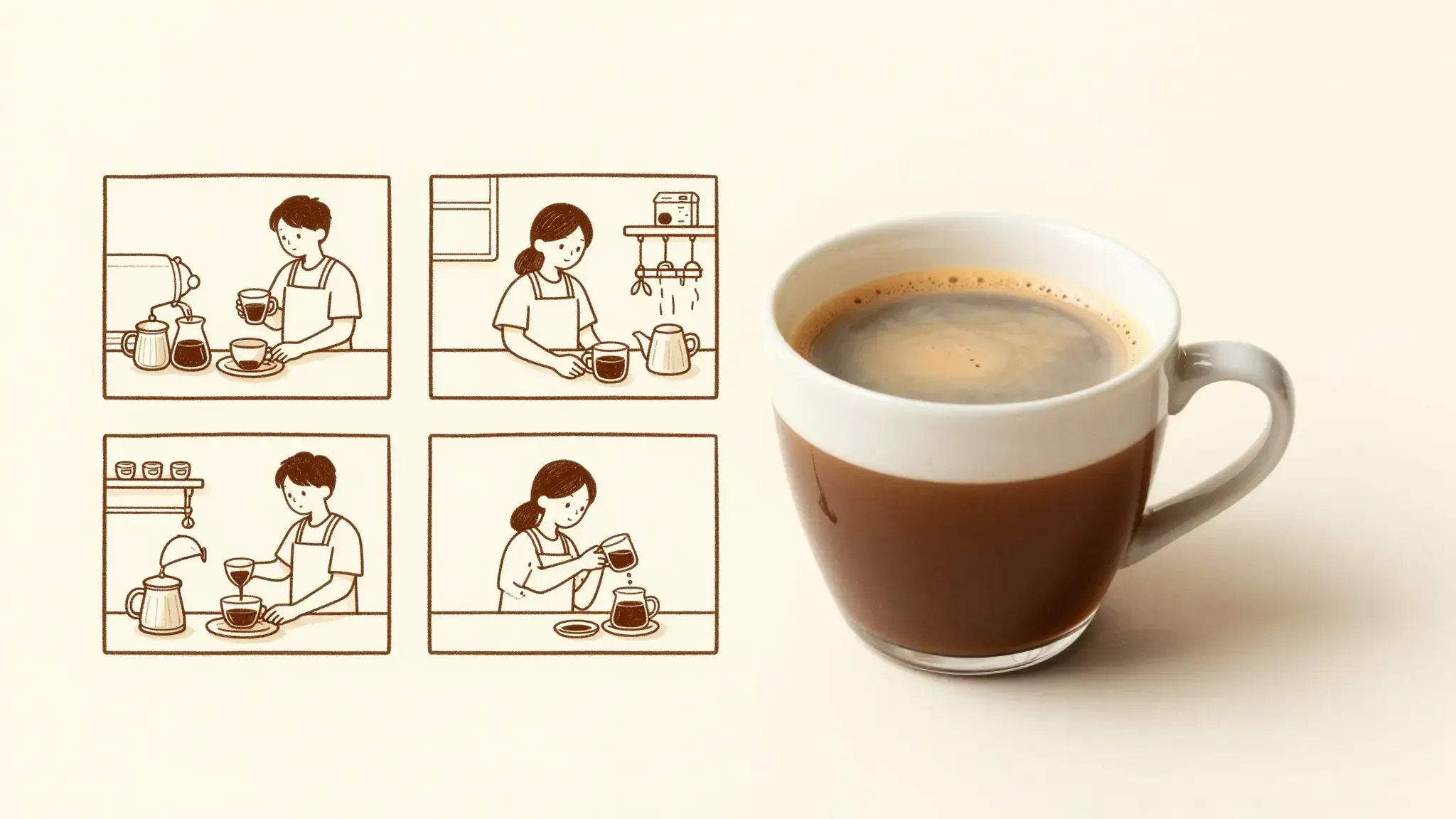
Lead with the product and a clear message
Describe the hook, product demonstration and closing action. Supply verified product details and references that show its shape, colors and labels.

UGC Virtual Try-On
UGC Virtual Try-On Maker: create videos from images with Cuta. Develop product scenes and promotional concepts for your next campaign.
Describe the hook, product demonstration and closing action. Supply verified product details and references that show its shape, colors and labels.
Add the materials to their named inputs. Source image: up to 5 images.
Available settings include Product name; Key selling points; Offer or discount; Audience; Call to action; Brand name; Offer deadline. Review the full options in Studio before generation.
Illustrative artwork shows the intended visual direction. Your result depends on your source materials and settings.
Two full-body views of the same adult fashion model, one wearing a cream shirt and jeans, the other an olive trench coat, identical neutral pose, elegant light gray studio
Try it nowPlan one visible action that explains the item, followed by the detail that supports the message.
Keep the product and approved message fixed while exploring another scene, audience or opening.
From idea to creation
Add the materials to their named inputs. Source image: up to 5 images.
Available settings include Product name; Key selling points; Offer or discount; Audience; Call to action; Brand name; Offer deadline. Review the full options in Studio before generation.
Watch for changes in the product between shots. Review the narration, claims, pacing and closing message before publishing.
Add the materials to their named inputs. Source image: up to 5 images.
Keep exploring
Your next creation starts here
Start with your own content in UGC Virtual Try-On. Review the settings in Studio and create your result.