The details to include
Supply exact dates, times, labels, and the order you want people to follow.
Try it now
AI image tools
Turn a set of activities into a schedule image you can share or print.
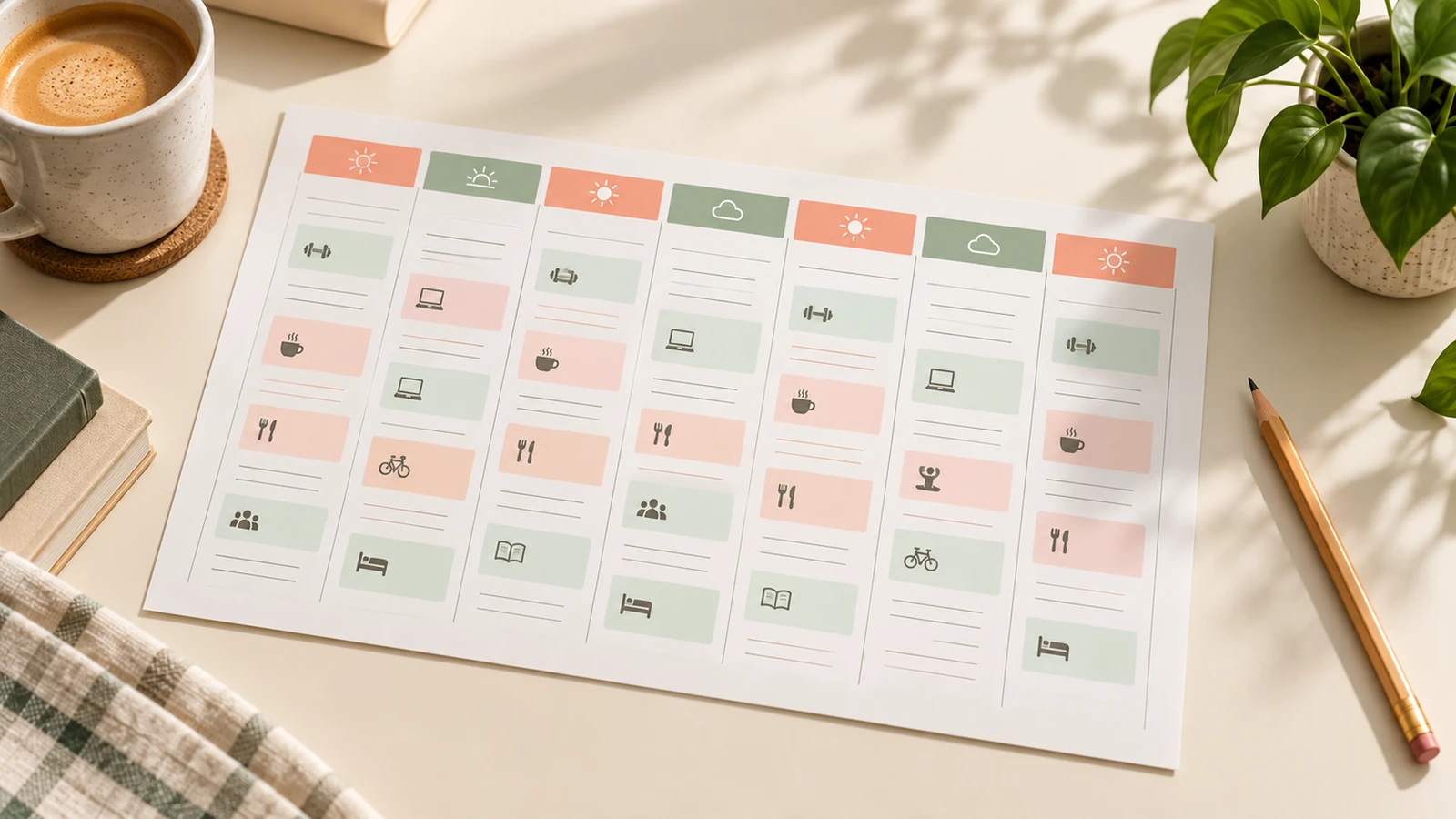
Supply exact dates, times, labels, and the order you want people to follow.
Try it nowA workshop schedule: 10:00 Welcome, 10:30 Clay preparation, 12:00 Lunch, 13:00 Wheel practice. Clean cream-and-blue layout.
Try it nowFrom idea to creation
Start with a written brief. This tool uses text input, so include the details you want to appear in the image.
Supply exact dates, times, labels, and the order you want people to follow.
Proofread all times and dates. This creates a schedule graphic rather than calendar events or reminders.
Creative possibilities
Illustrative concepts show framing and visual treatment. Use your own brief and references to create a version for your project.
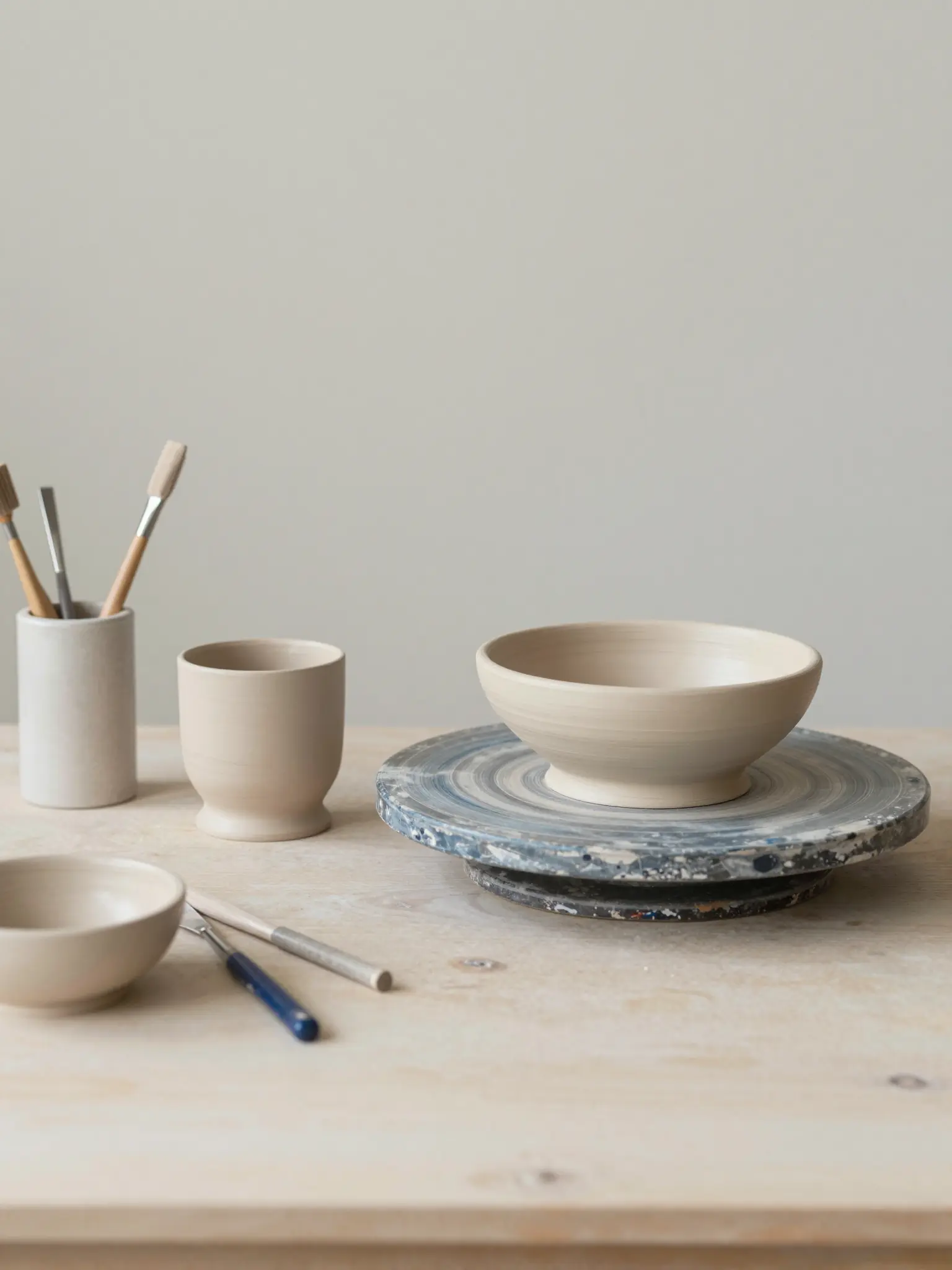
A restrained composition leaves room for the main message.
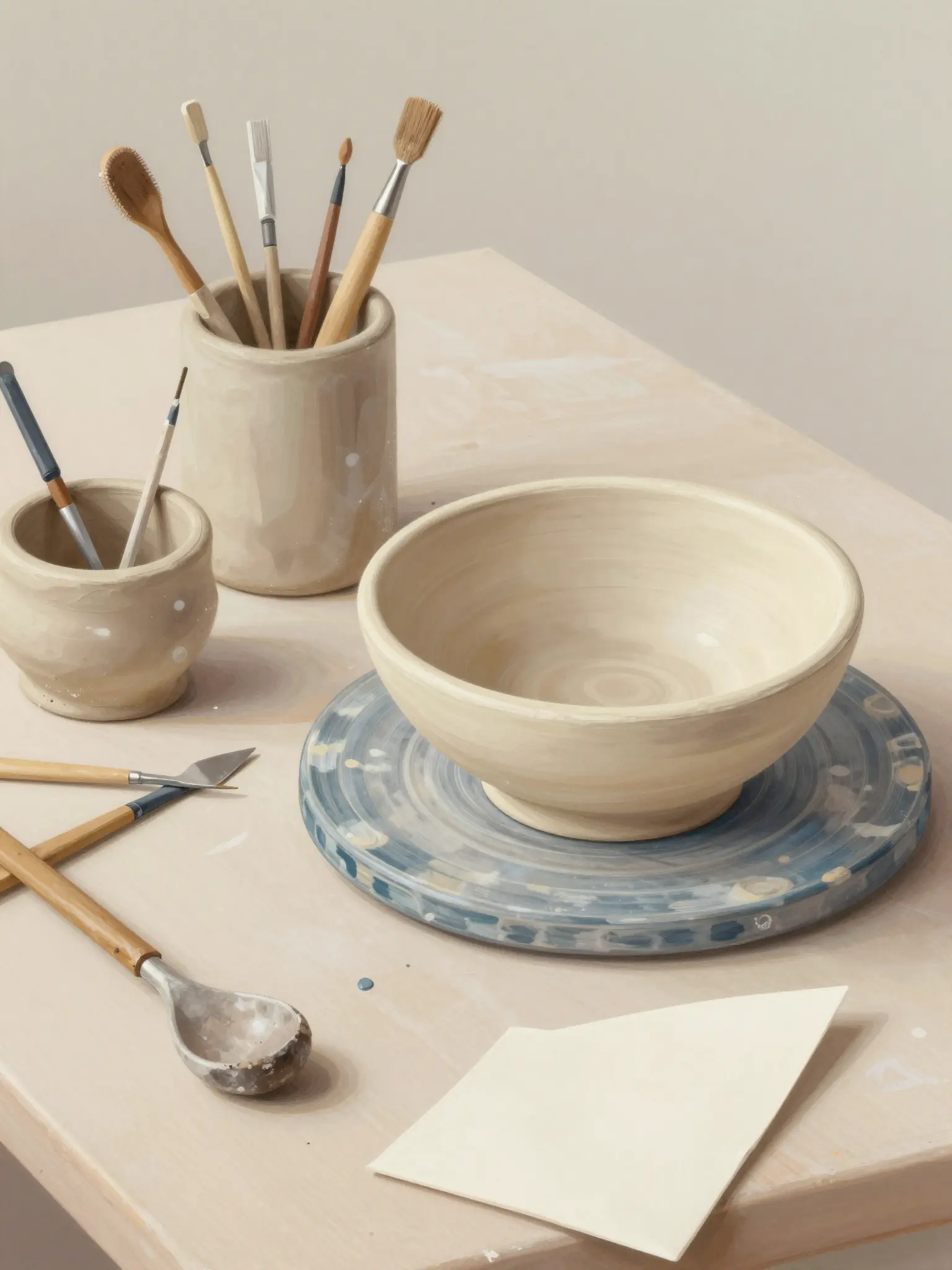
Richer color and illustration give the concept more energy.
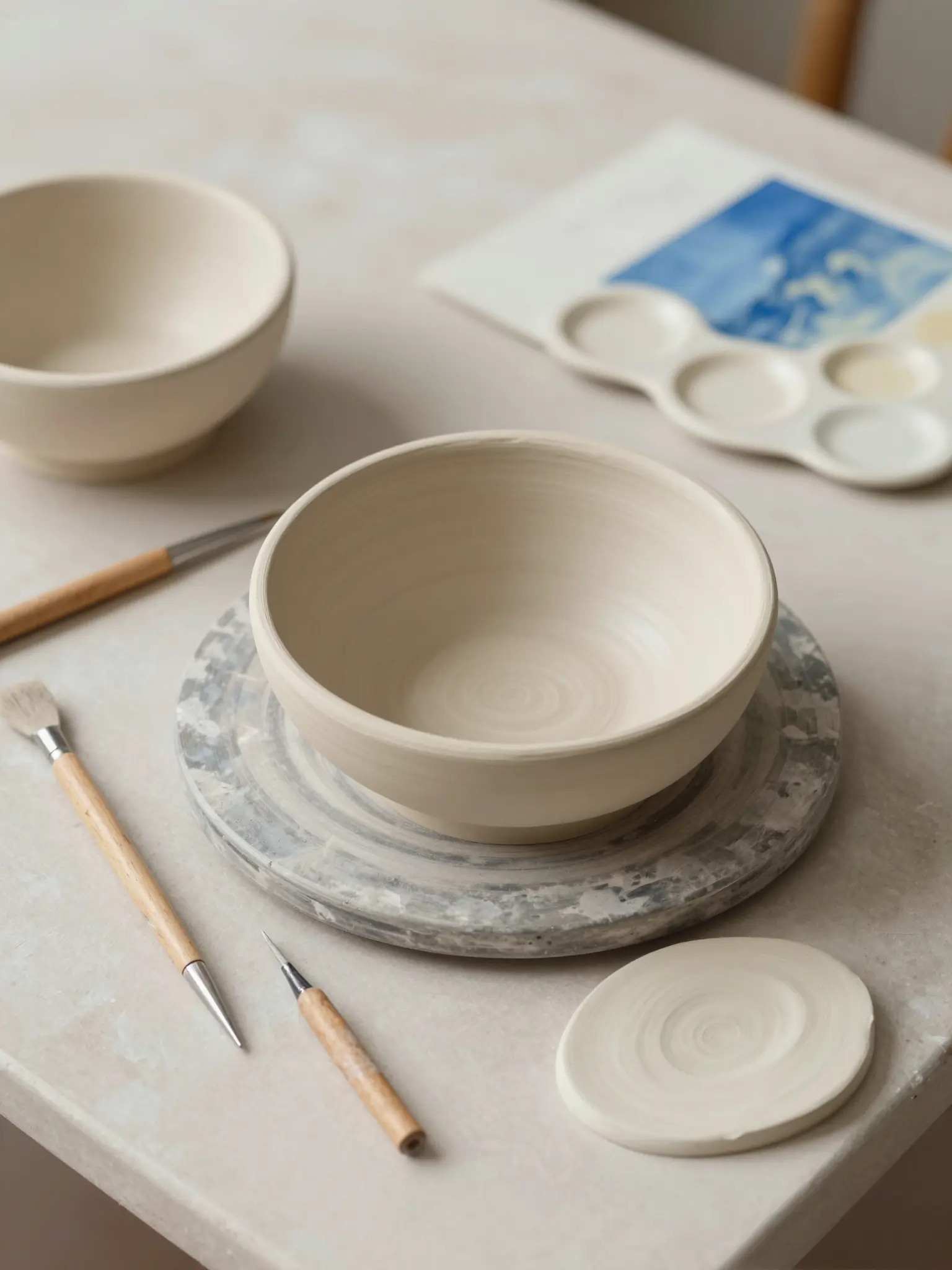
Texture and material add depth to the presentation.
Proofread all times and dates. This creates a schedule graphic rather than calendar events or reminders.
Find your next creative tool
Your next creation starts here
Start with your own content in AI Schedule Maker. Review the settings in Studio and create your result.