The details to include
Provide the exact text and describe letter shapes, spacing, stroke weight, and mood.
Try it now
AI image tools
Explore a lettering style for a word, title, or short phrase.
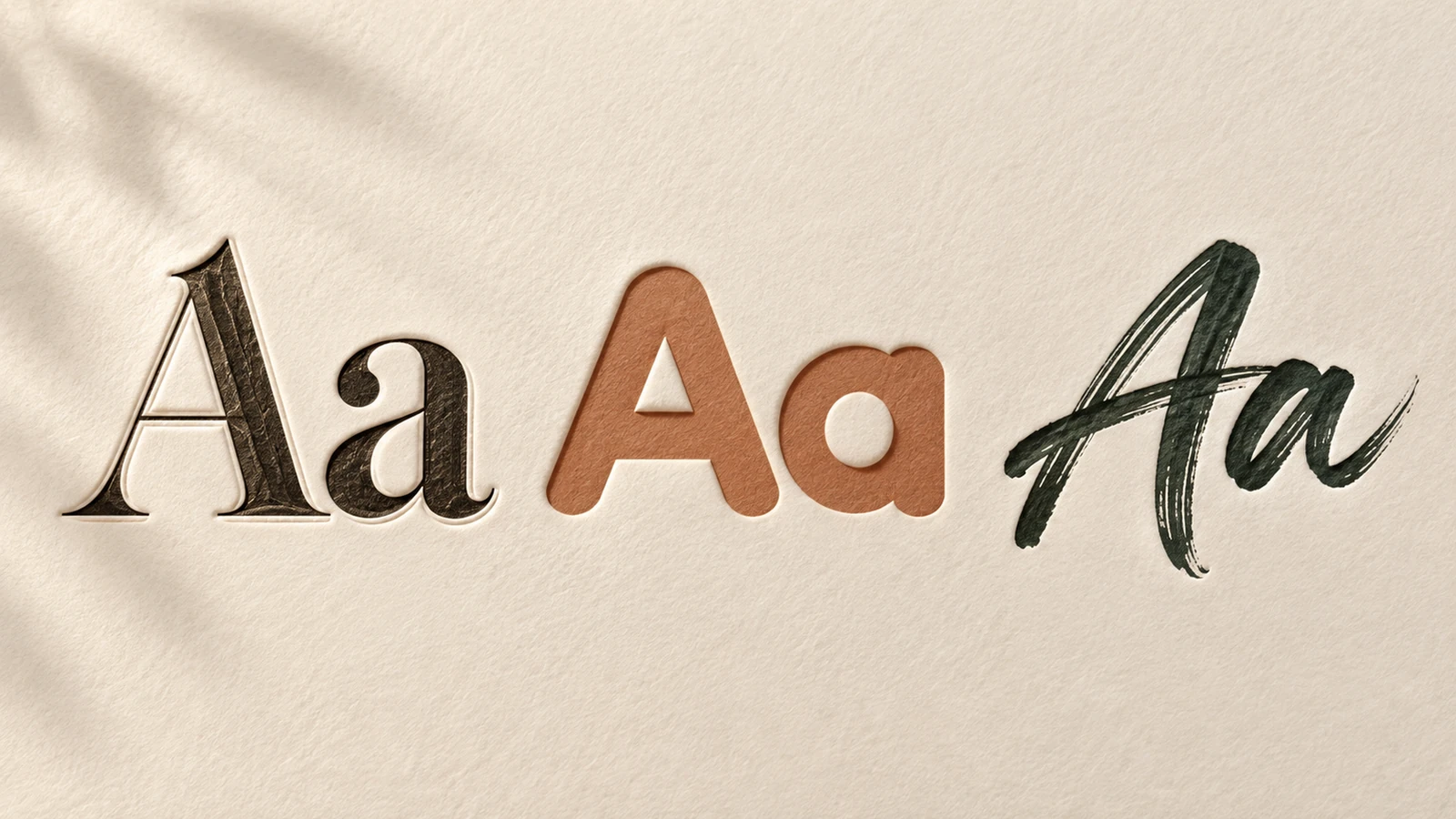
Provide the exact text and describe letter shapes, spacing, stroke weight, and mood.
Try it nowThe word ORCHARD in a rounded serif lettering style, generous spacing, dark green on cream.
Try it nowFrom idea to creation
Start with a written brief. This tool uses text input, so include the details you want to appear in the image.
Provide the exact text and describe letter shapes, spacing, stroke weight, and mood.
The output is lettering artwork in an image. It does not include an installable font or editable glyph set.
Creative possibilities
Illustrative concepts show framing and visual treatment. Use your own brief and references to create a version for your project.
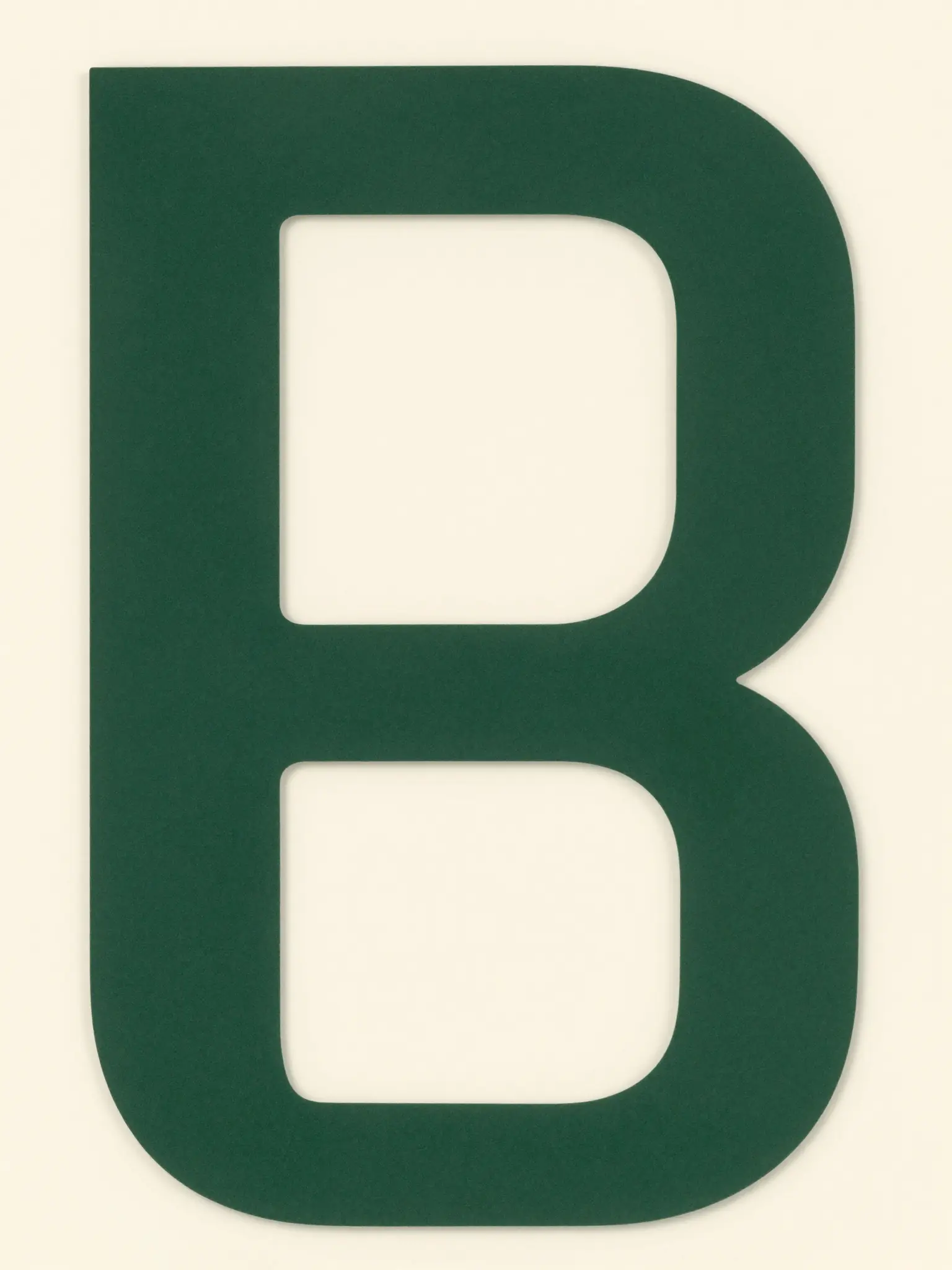
A restrained composition leaves room for the main message.
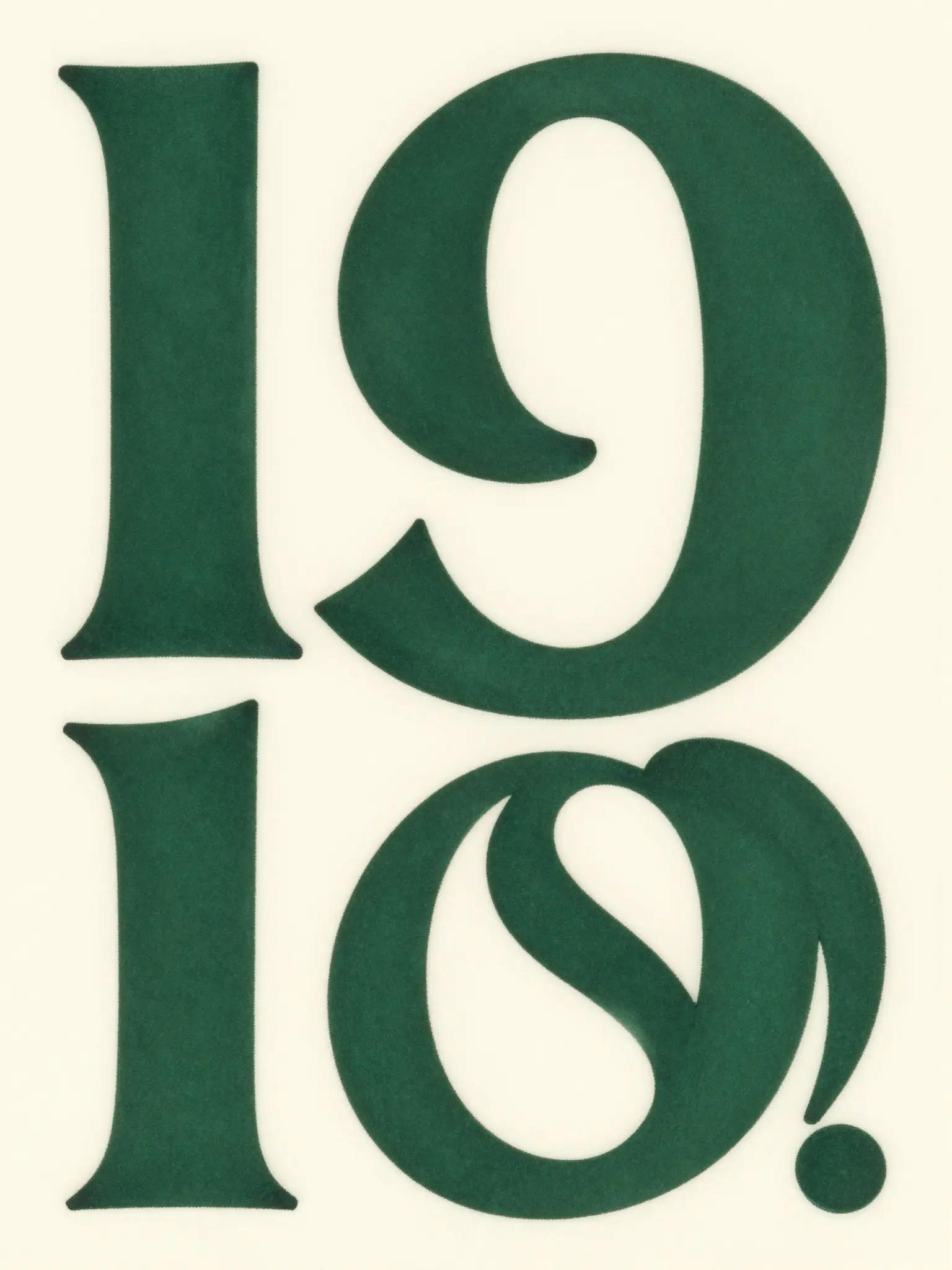
Richer color and illustration give the concept more energy.
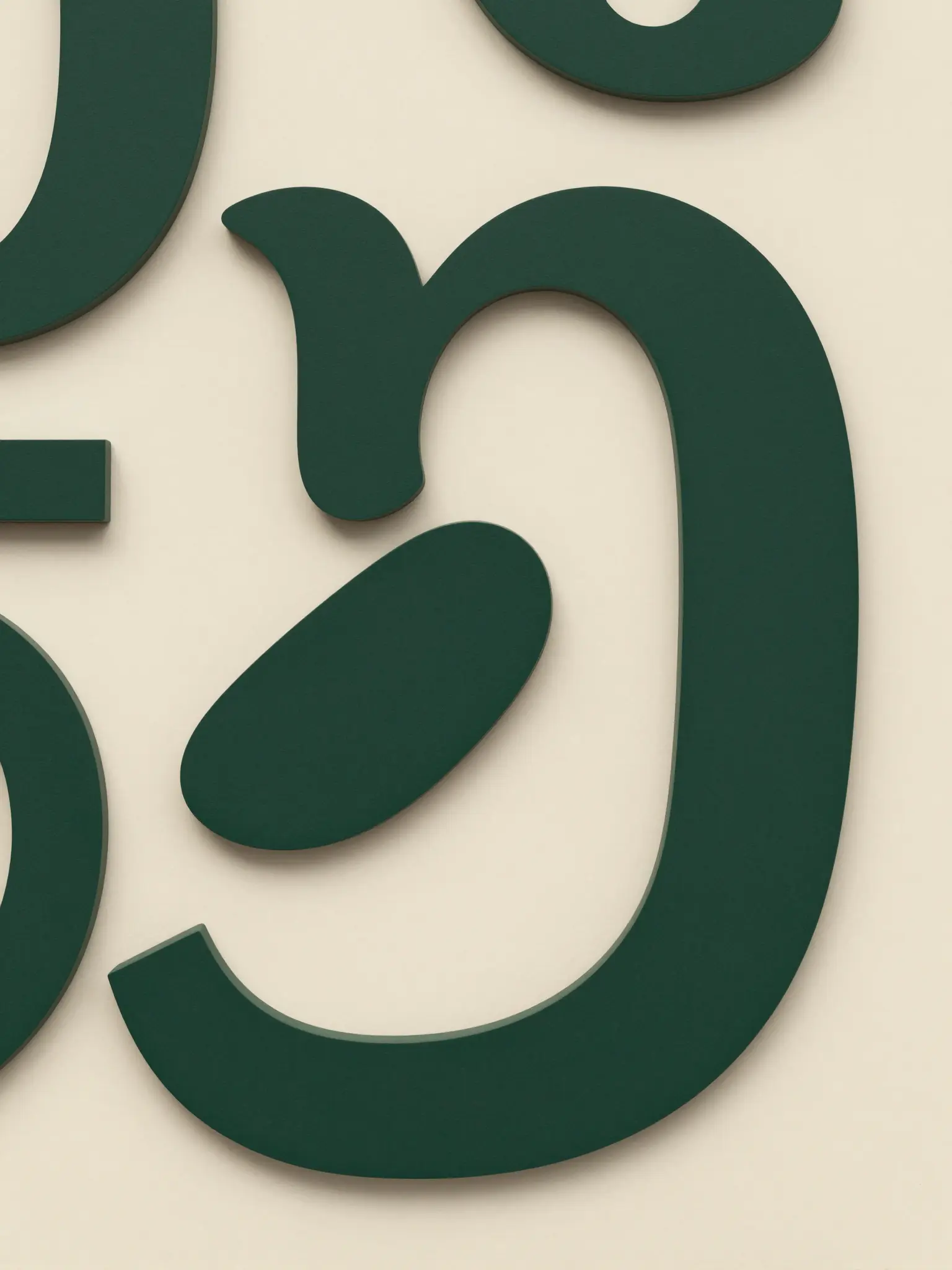
Texture and material add depth to the presentation.
The output is lettering artwork in an image. It does not include an installable font or editable glyph set.
Find your next creative tool
Your next creation starts here
Start with your own content in AI Font Generator. Review the settings in Studio and create your result.