Need sound with the picture?
Explore Veo, Kling, Seedance, or Flux 3 for video generation with an audio option.

Start from a prompt, animate an image, or guide a scene with references. Explore the video models available in Cuta, then create with the model you choose.
How to choose
Explore Veo, Kling, Seedance, or Flux 3 for video generation with an audio option.
Use Seedance, Kling, Wan, or MiniMax H3 to guide a scene with your existing images and references.
Try Grok Imagine, Flux 3, or Wan to animate a visual and compare different motion prompts.
Model lineup
Explore the video models available in Cuta, compare their capabilities, and open the model you want to create with.
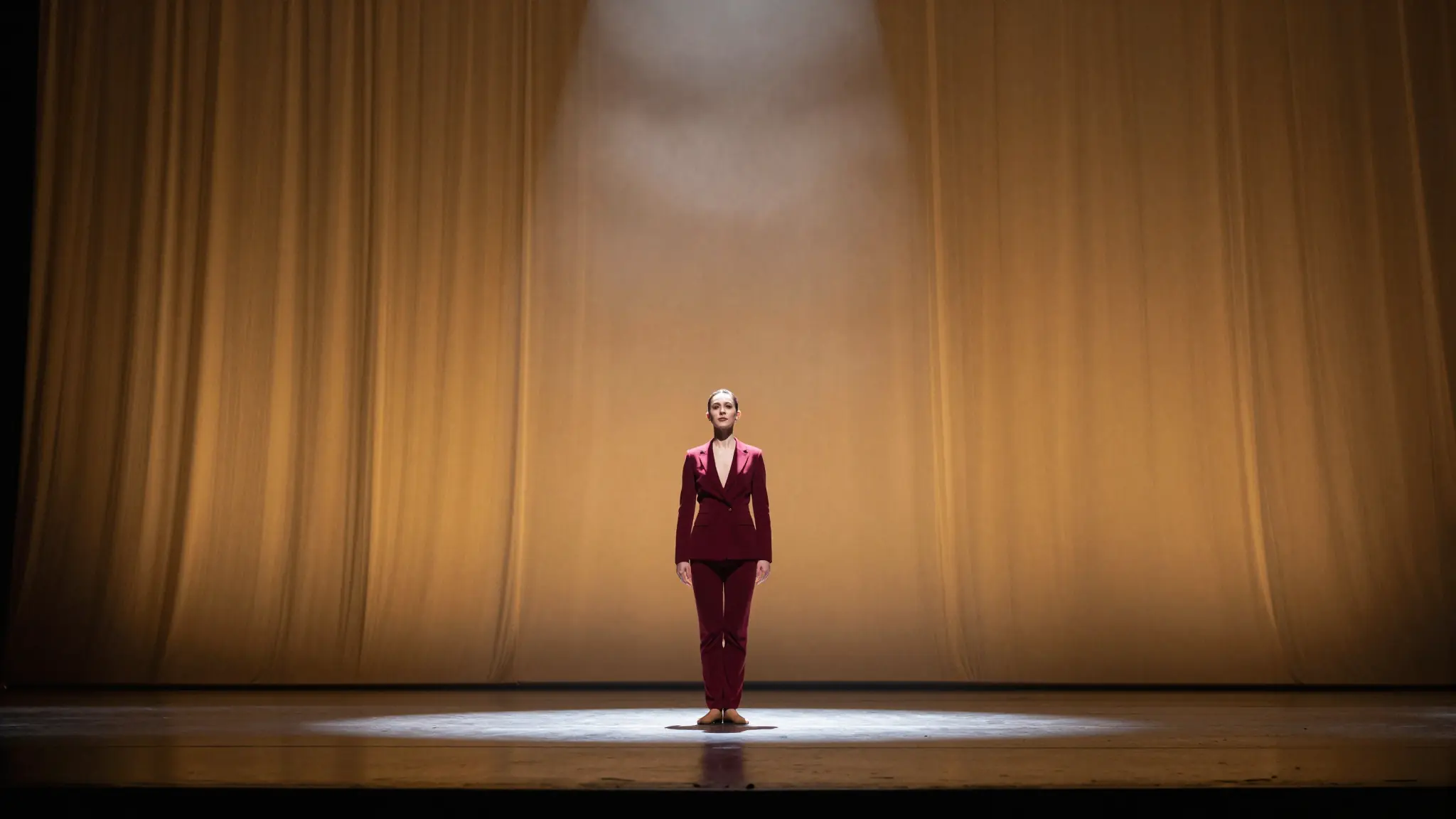
Seedance 2.0
More inputs. More control. More story.
Seedance 2.0 focuses on multi-modal input and synchronized audio—guide characters, style, and choreography with rich references.
Explore Seedance 2.0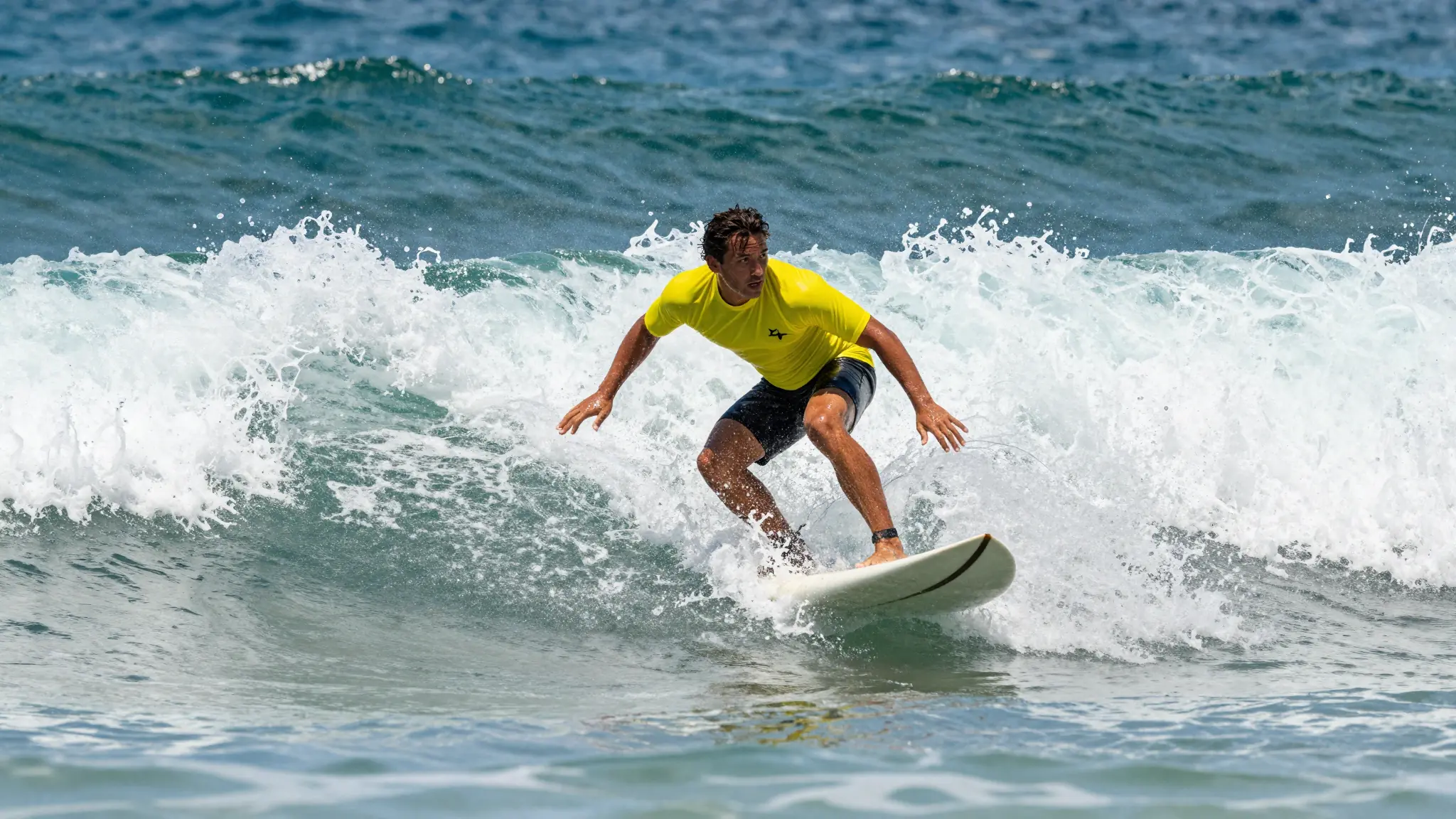
Kling 3.0
Multi-shot, audio-ready, story-friendly.
Kling emphasizes director-style control, multi-shot structure, and native audio-visual generation—built for narrative clips and polished social ads.
Explore Kling 3.0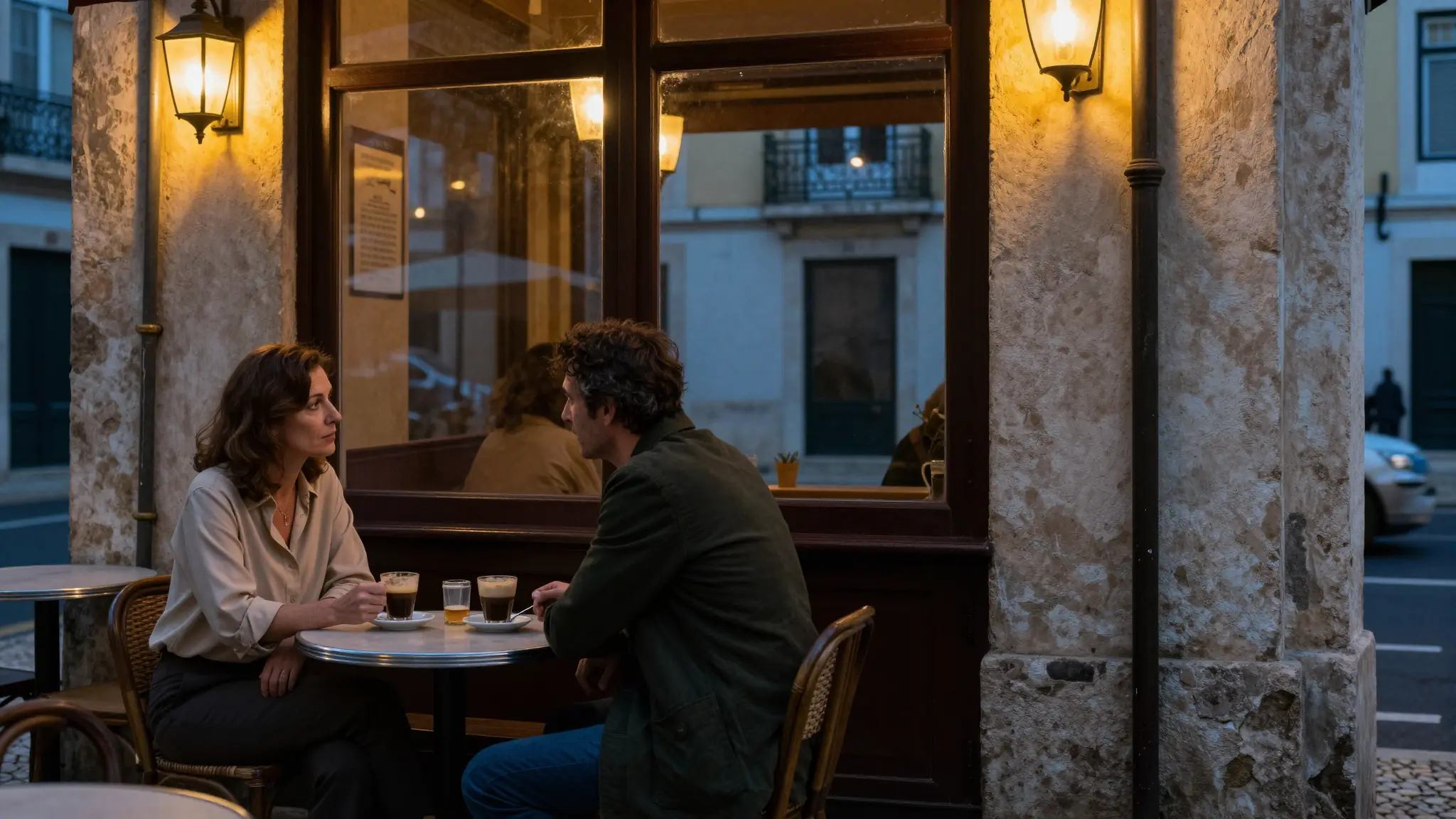
Veo 3.1
Audio-first, prompt-true, creator-ready.
Veo 3.1 pairs rich, natively synchronized audio with strong prompt adherence—built for bold ideas, fast iterations, and social-ready output.
Explore Veo 3.1
Wan 2.7
Start with text, an image, or references.
Wan 2.7 brings text, starting images, and visual references into your video workflow. Set the duration and format, then explore different motion directions.
Explore Wan 2.7
Grok Imagine
Write a scene. Bring an image to life.
Grok Imagine lets you start with a written scene or a still image. Describe the movement, choose your output settings, and explore different takes inside Cuta.
Explore Grok Imagine
Flux 3
Text, images, and room to frame your shot.
Flux 3 supports text and starting-image workflows with flexible clip lengths and aspect ratios. Shape a social visual, a product shot, or a widescreen concept in one workspace.
Explore Flux 3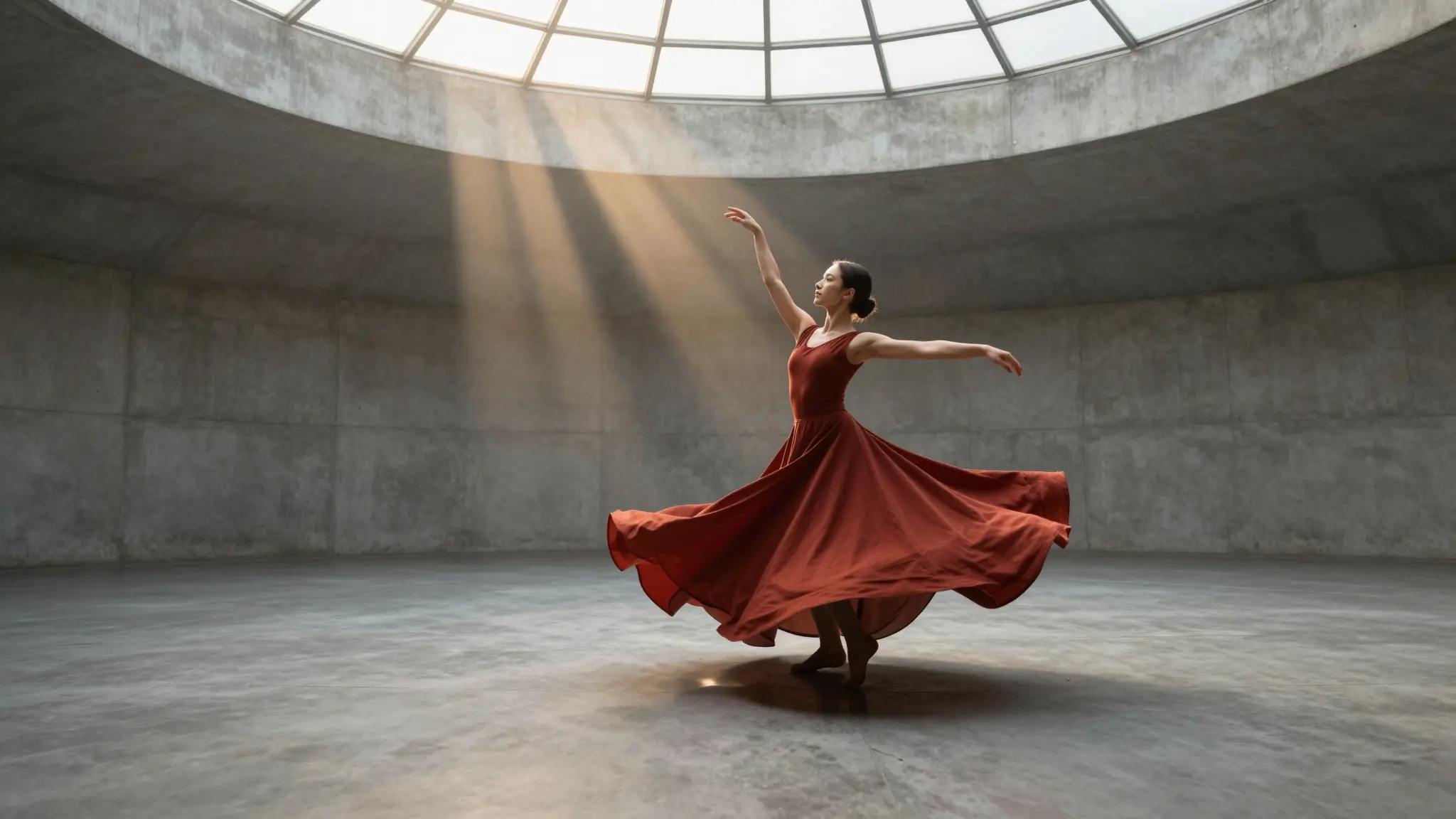
MiniMax H3
Your brief. Your references. Your next shot.
MiniMax H3 combines a written brief with image, video, and audio references. Bring the material that defines your scene, then choose the format and duration for the result.
Explore MiniMax H3