An example to adapt
An adult voice actor speaking expressively into a professional studio microphone with headphones on, warm acoustic panels and focused natural portrait. gentle side lighting, warm cream and natural neutral tones
Try it now
Voice Over Video
Add spoken narration to a video with Cuta. Pair your footage with a voiceover script for product demonstrations, lessons, explainers and presentations.
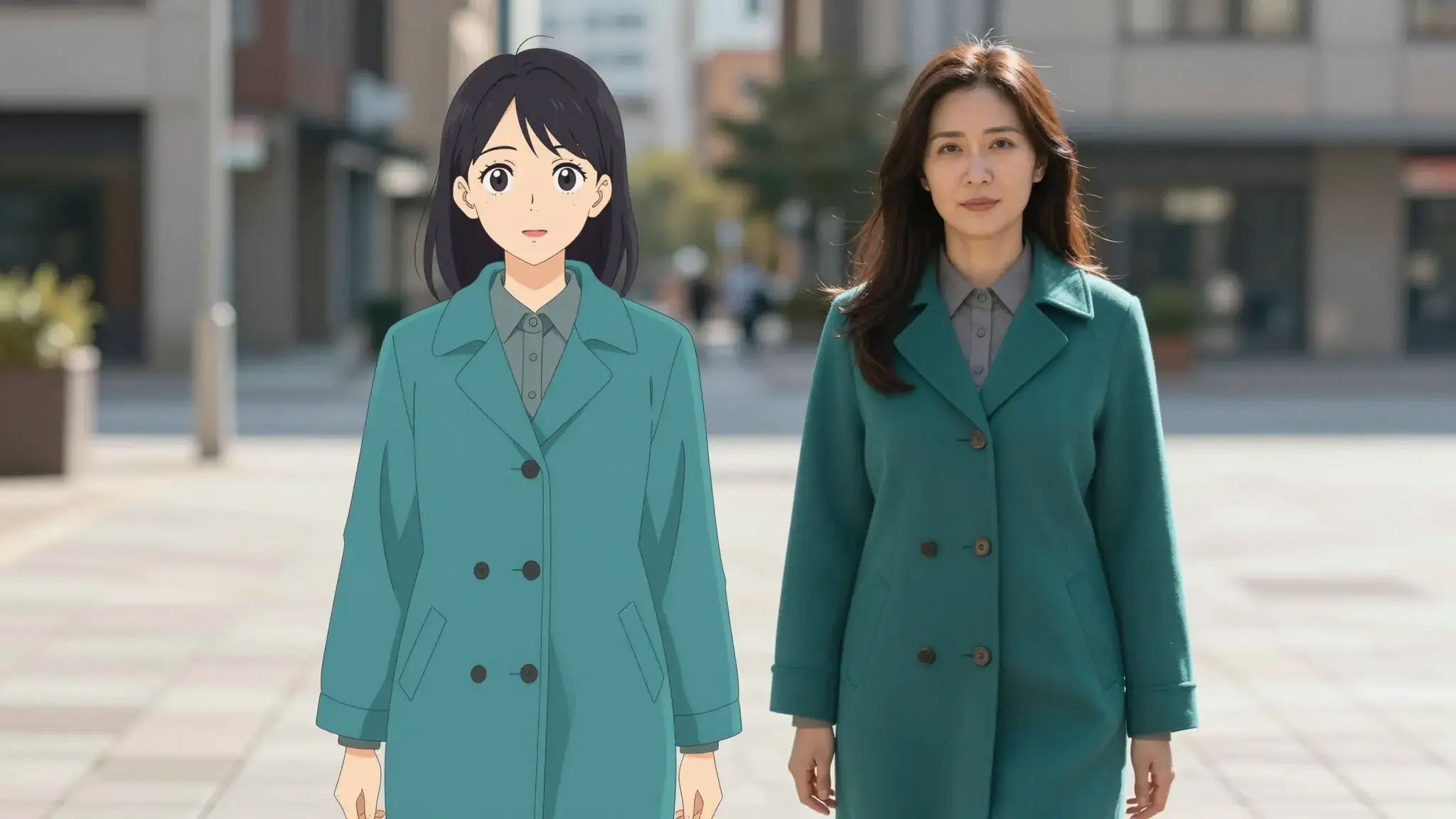
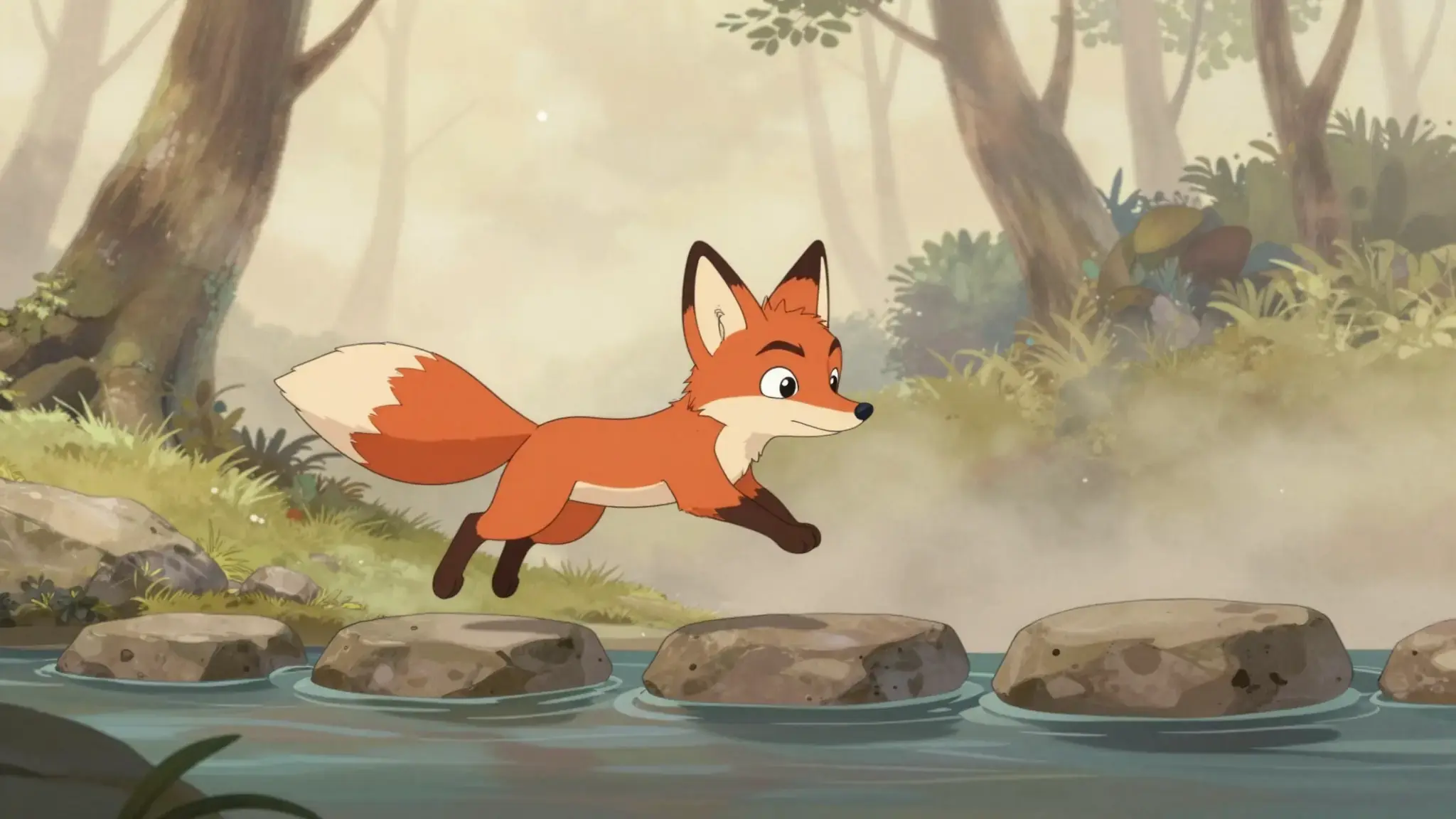
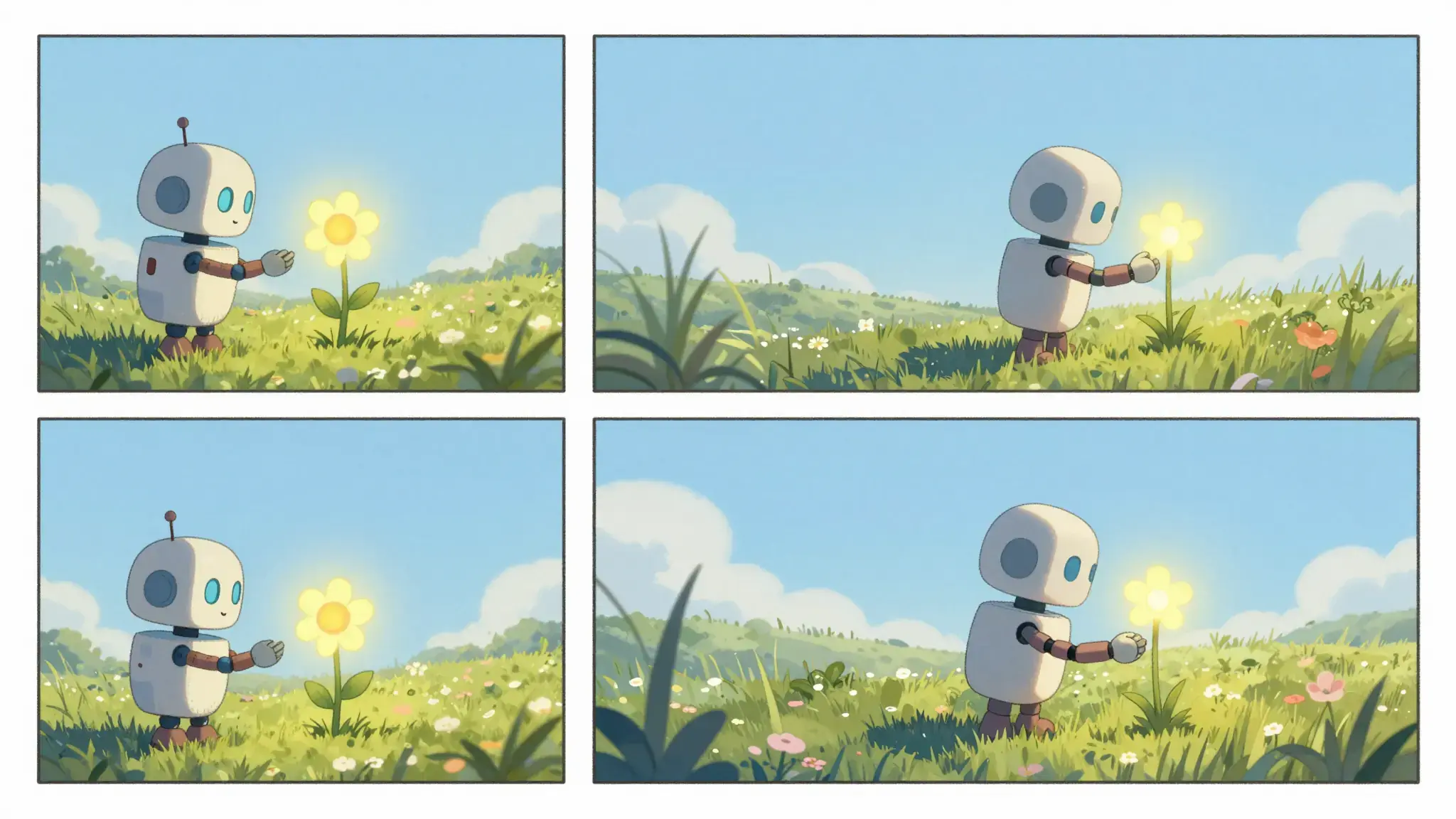
Illustrative artwork shows the intended visual direction. Your result depends on your source materials and settings.
An adult voice actor speaking expressively into a professional studio microphone with headphones on, warm acoustic panels and focused natural portrait. gentle side lighting, warm cream and natural neutral tones
Try it nowProvide the clip and narration brief or script. Decide which visuals the voice should explain and where pauses are needed.
Add the materials to their named inputs. Source video: one video.
Available settings include Audience; Visual style; Language. Review the full options in Studio before generation.
From idea to creation
Add the materials to their named inputs. Source video: one video.
Available settings include Audience; Visual style; Language. Review the full options in Studio before generation.
Listen through the complete result. Check pronunciation, timing and whether speech obscures important original sound.
Add a spoken explanation that follows the action in a product or process clip.
Use a short narration to establish the context before the main visual moment.
Add the materials to their named inputs. Source video: one video.
Keep exploring
Your next creation starts here
Start with your own content in Voice Over Video. Review the settings in Studio and create your result.