An example to adapt
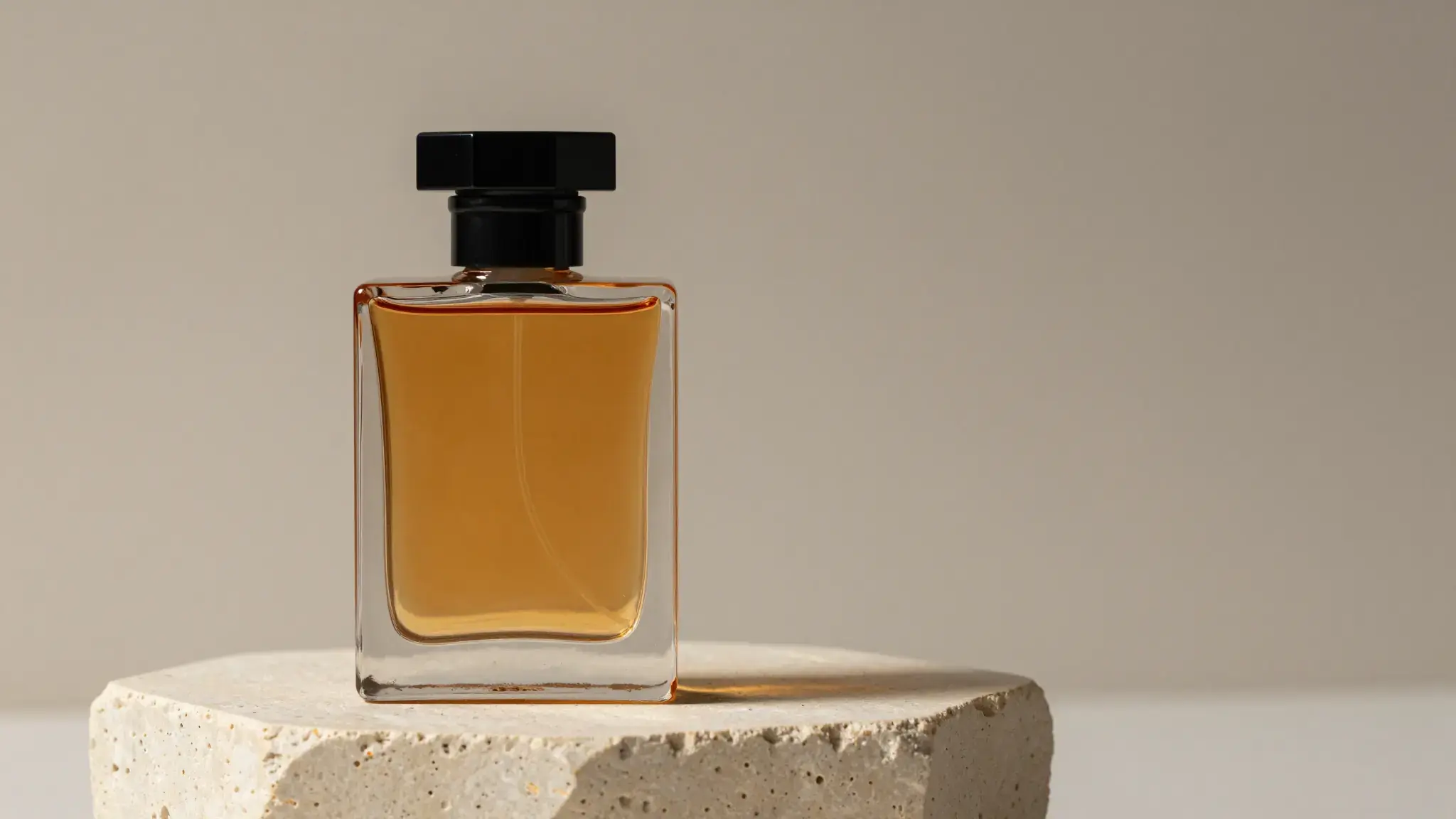
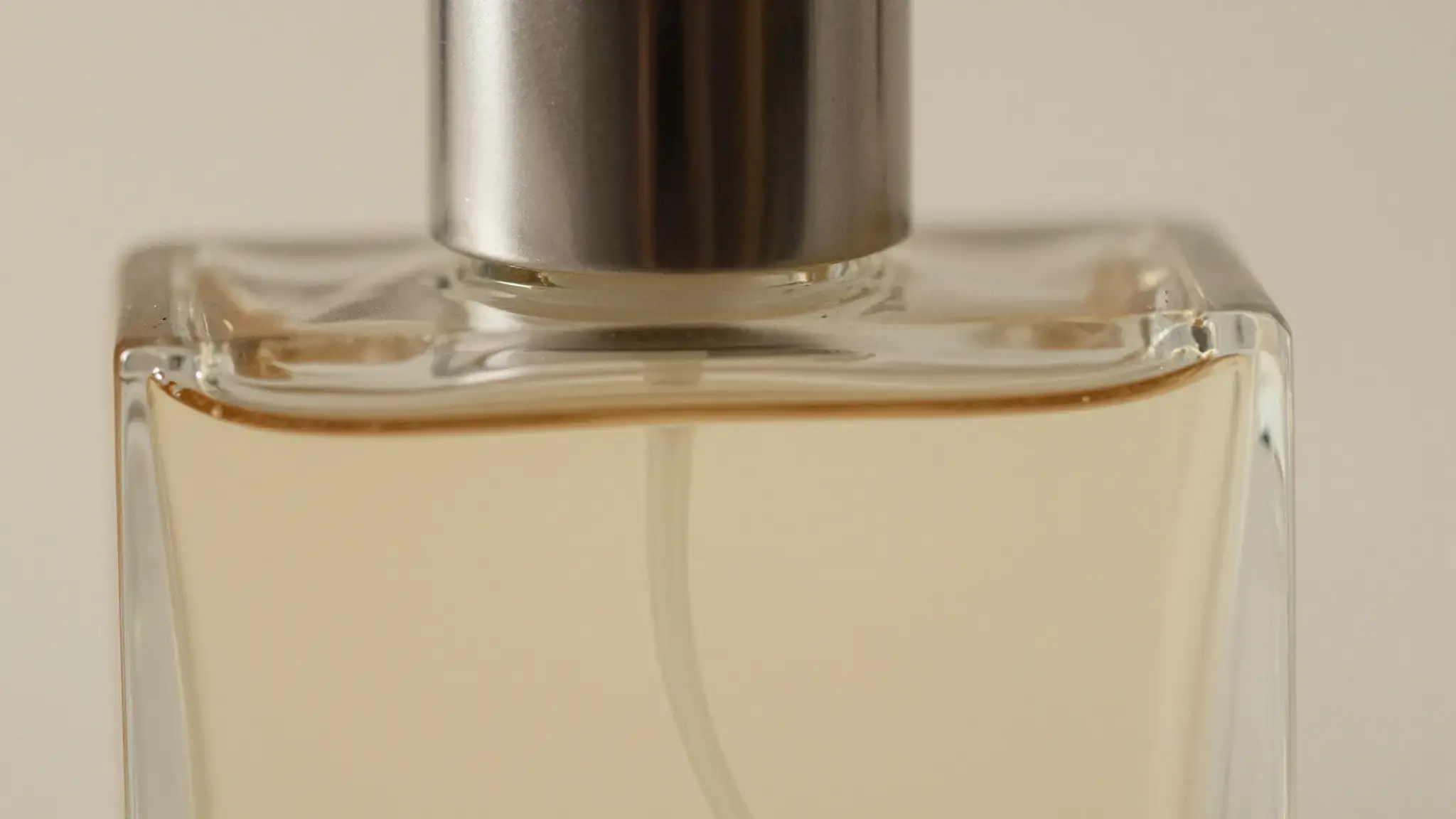
An extreme macro photograph of a plain perfume bottle glass edge and metal cap, beautiful precise reflections and tactile premium product detail. gentle side lighting, warm cream and natural neutral tones

Macro Product: transform your image with Cuta's AI photo effects. Reimagine your image through a themed visual concept.
Illustrative artwork shows the intended visual direction. Your result depends on your source materials and settings.
An extreme macro photograph of a plain perfume bottle glass edge and metal cap, beautiful precise reflections and tactile premium product detail. gentle side lighting, warm cream and natural neutral tones
Describe the visual change and name what should stay recognizable: the subject, pose, colors or background. A clear reference gives the edit a useful starting point.
Add the materials to their named inputs. Image 1: one image.
Step 01
Add the materials to their named inputs. Image 1: one image.
Step 02
Describe the visual change and name what should stay recognizable: the subject, pose, colors or background. A clear reference gives the edit a useful starting point.
Step 03
Compare the edited subject with your reference. AI may reinterpret facial features, small text, accessories and background details as well as the requested treatment.
Use your own reference to make a portrait or object image with this treatment, then inspect it at the size you plan to share.
Keep the reference fixed while adjusting the treatment, palette or intensity in the brief to compare visual directions.
Compare the edited subject with your reference. AI may reinterpret facial features, small text, accessories and background details as well as the requested treatment.
Add the materials to their named inputs. Image 1: one image.