Cuta
All tools

GTA Screenshot

GTA Screenshot

GTA Screenshot: transform your image with Cuta's AI photo effects. Explore a new artistic look for the subject and scene.

Try GTA Screenshot
Creative illustrationImage

Start with your content

Add your source now, or later in Studio.

Review settings and cost in Studio before generating. Your selected files and inputs will be carried over.

A starting direction for GTA Screenshot

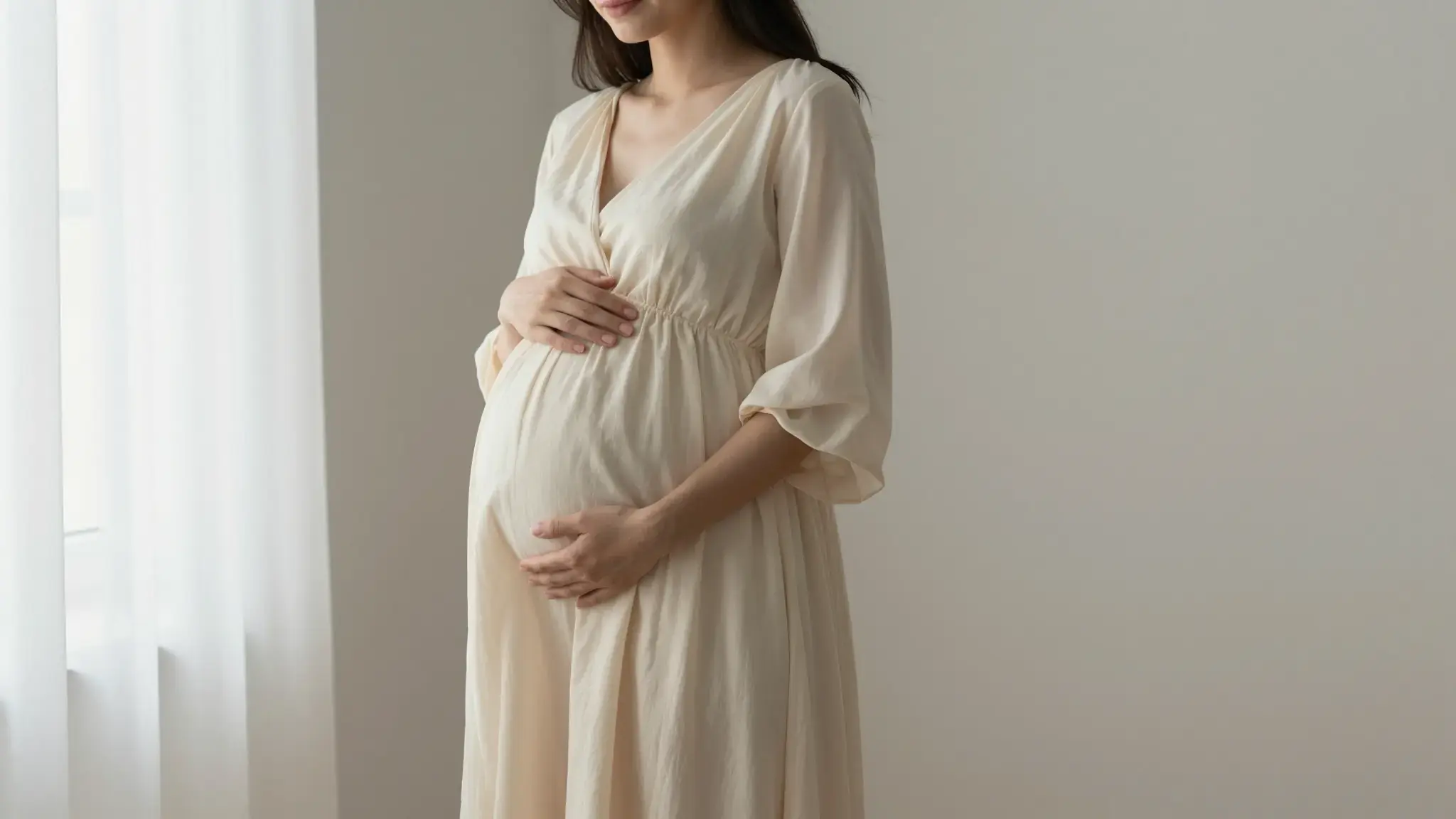
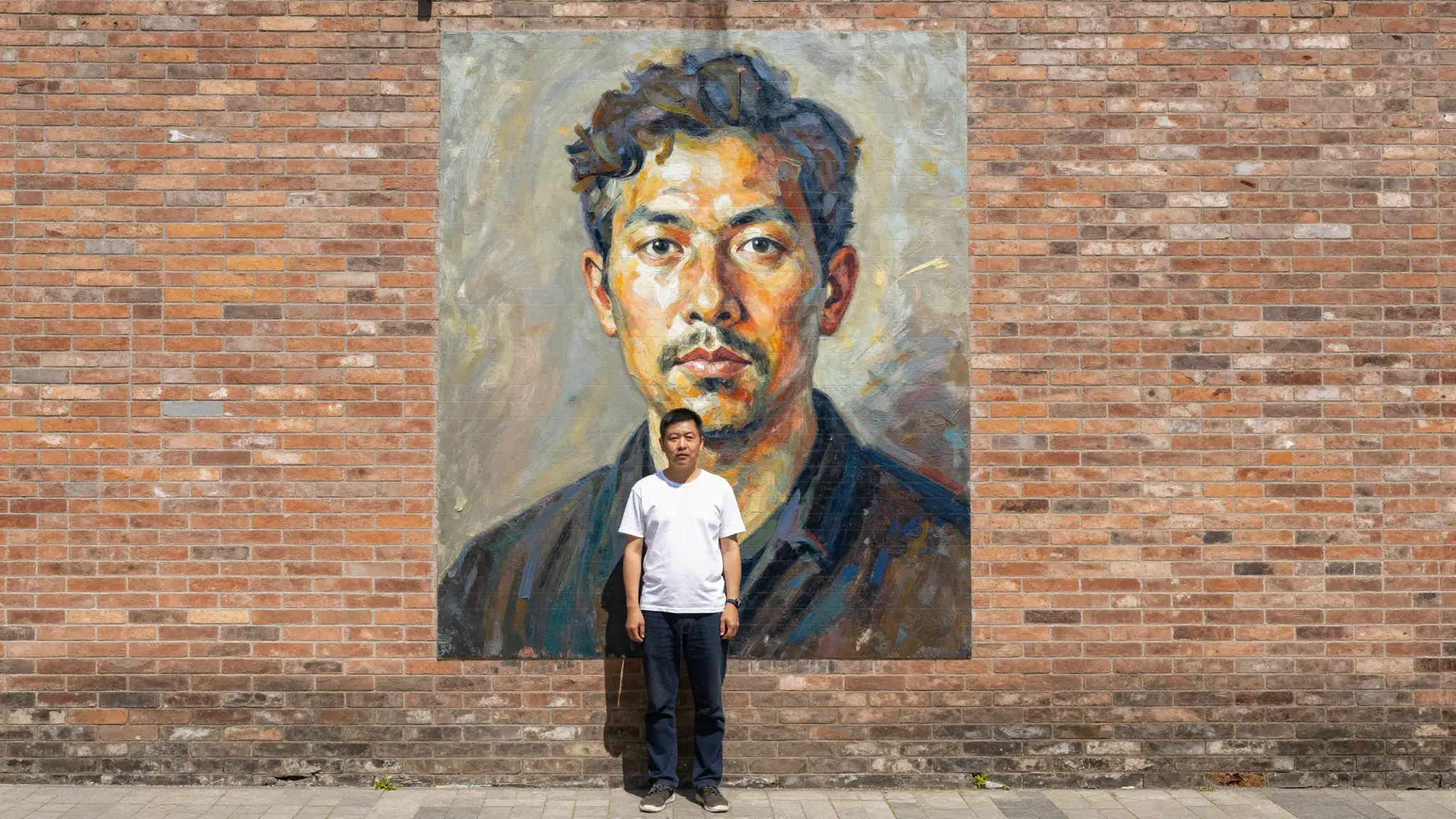
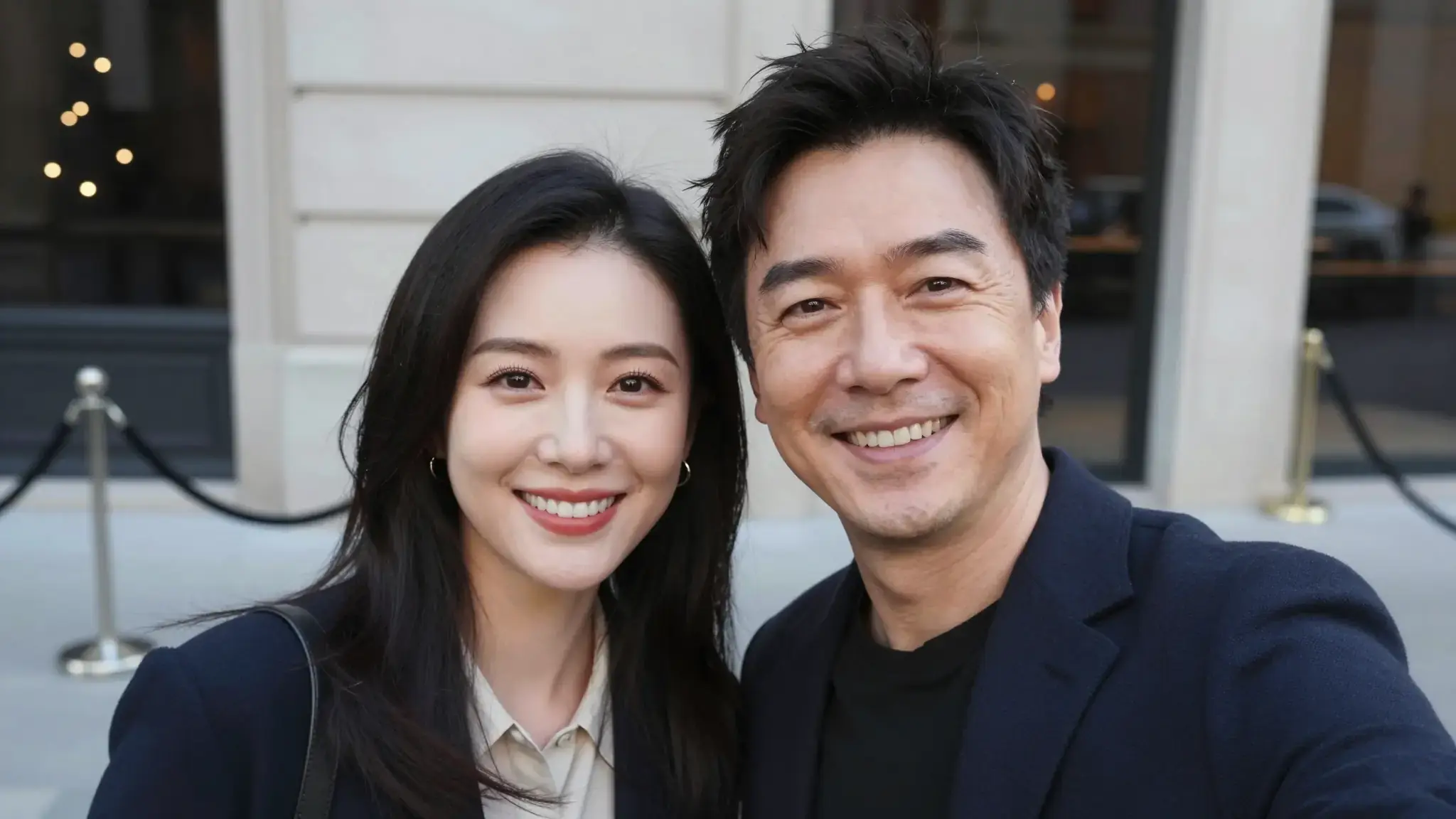
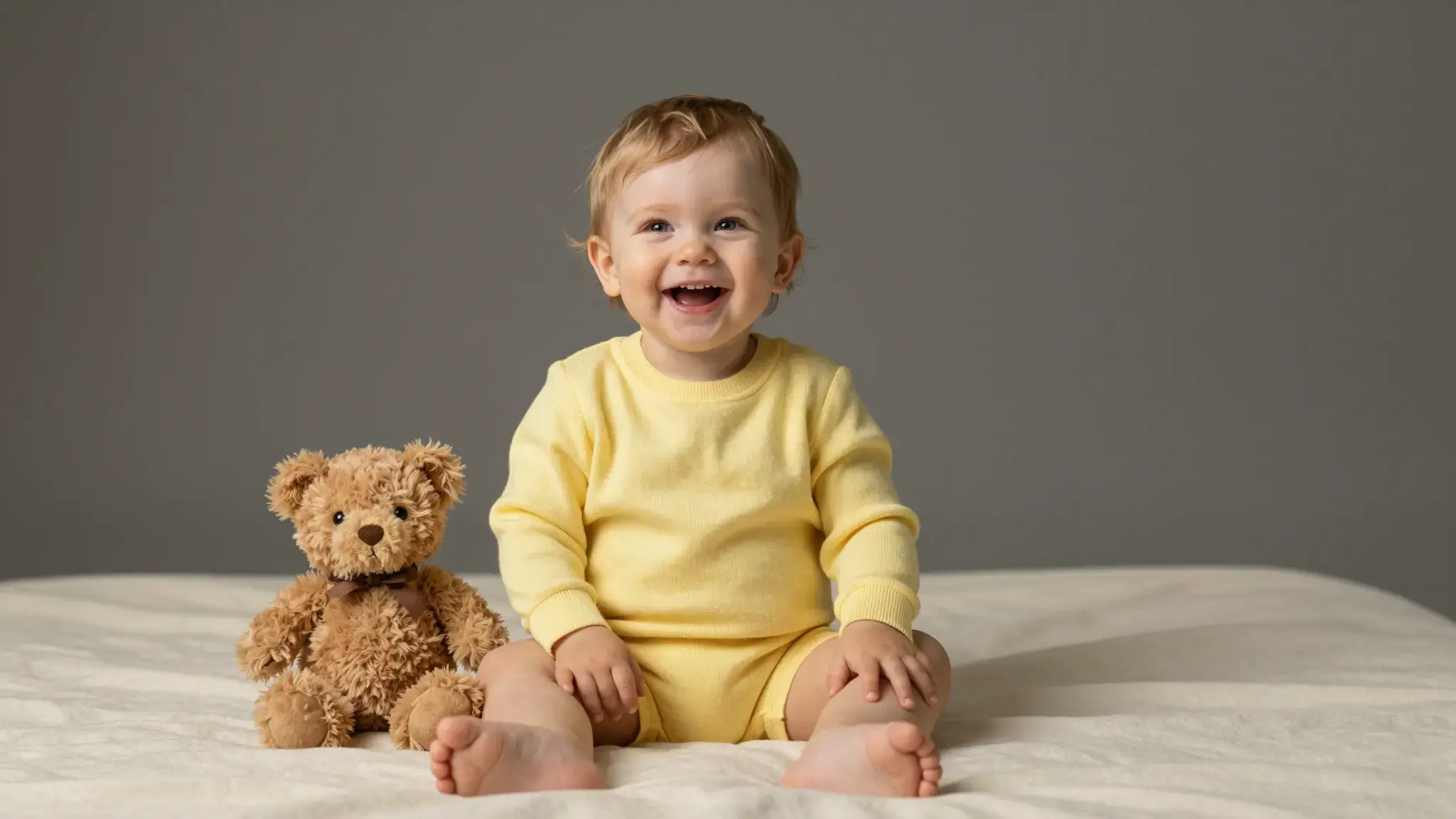
Illustrative artwork shows the intended visual direction. Your result depends on your source materials and settings.

An example to adapt

An original stylized 3D game scene of an adult in a cream jacket beside a boxy blue coupe on a sunlit urban street, visibly rendered polygonal geometry and game-like shading, no interface, signs or branding. gentle side lighting, warm cream and natural neutral tones

Try it now
Working with GTA Screenshot

Shape the treatment around your reference

Describe the visual change and name what should stay recognizable: the subject, pose, colors or background. A clear reference gives the edit a useful starting point.

Materials for this task

Add the materials to their named inputs. Image 1: one image.

From idea to creation

How to use GTA Screenshot

  1. Add the source

    Add the materials to their named inputs. Image 1: one image.

  2. Shape the treatment

    Describe the visual change and name what should stay recognizable: the subject, pose, colors or background. A clear reference gives the edit a useful starting point.

  3. Review the result in Studio

    Compare the edited subject with your reference. AI may reinterpret facial features, small text, accessories and background details as well as the requested treatment.

Ideas for GTA Screenshot

A personal visual

Use your own reference to make a portrait or object image with this treatment, then inspect it at the size you plan to share.

A style study

Keep the reference fixed while adjusting the treatment, palette or intensity in the brief to compare visual directions.

Frequently asked questions

Add the materials to their named inputs. Image 1: one image.

Your next creation starts here

Make something worth sharing.

Start with your own content in GTA Screenshot. Review the settings in Studio and create your result.

Start creating