Explain what moves and why
Provide the available visual references and describe the order, direction and pacing of the graphic movement.

Motion Graphics Video
Create motion graphics with Cuta. Develop animated text and graphic elements for title sequences, product explainers, presentations and social videos.
Provide the available visual references and describe the order, direction and pacing of the graphic movement.
Add the materials to their named inputs. Reference images: up to 4 images (optional).
From idea to creation
Add the materials to their named inputs. Reference images: up to 4 images (optional).
Provide the available visual references and describe the order, direction and pacing of the graphic movement.
Review shape continuity, wording and timing. A rendered motion concept may require a separate editable animation workflow.
Illustrative artwork shows the intended visual direction. Your result depends on your source materials and settings.
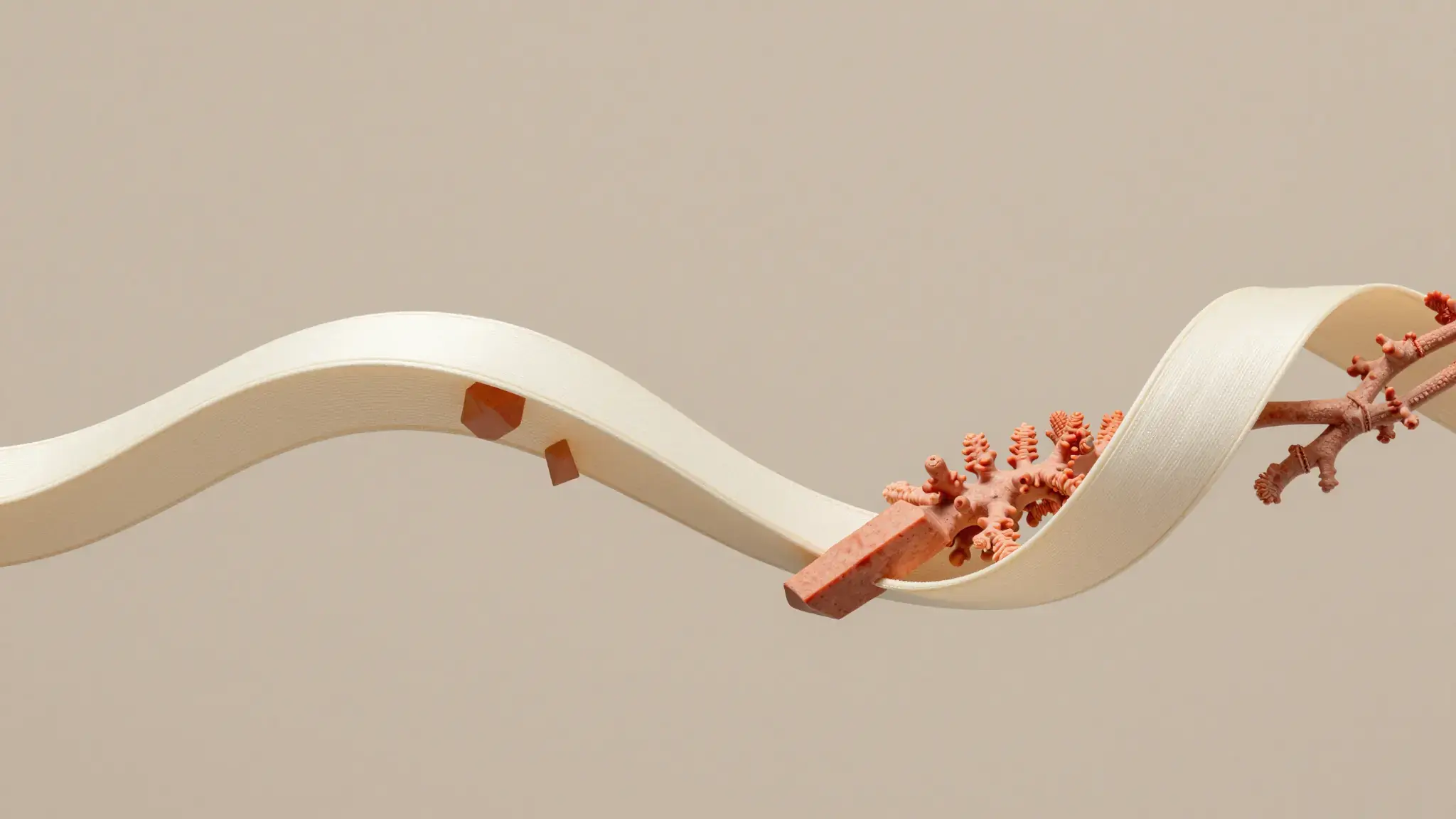
Elegant glossy coral spheres, cream rings and teal ribbons flowing in a clear curved arc through a bright three-dimensional studio, precise material highlights, abstract motion design without text
Try it nowExplore an animated visual direction for a title or short introduction.
Plan movement that helps a viewer follow a relationship or sequence.
Add the materials to their named inputs. Reference images: up to 4 images (optional).
Keep exploring
Your next creation starts here
Start with your own content in Motion Graphics Video. Review the settings in Studio and create your result.