Shape the treatment around your reference
Describe the visual change and name what should stay recognizable: the subject, pose, colors or background. A clear reference gives the edit a useful starting point.

Image Relight
Change the lighting in a photo with Cuta. Explore different light directions, contrast and moods for portraits, product shots and creative image concepts.
Describe the visual change and name what should stay recognizable: the subject, pose, colors or background. A clear reference gives the edit a useful starting point.
Add the materials to their named inputs. Original image: one image.
Available settings include Light direction; Light color; Light intensity. Review the full options in Studio before generation.
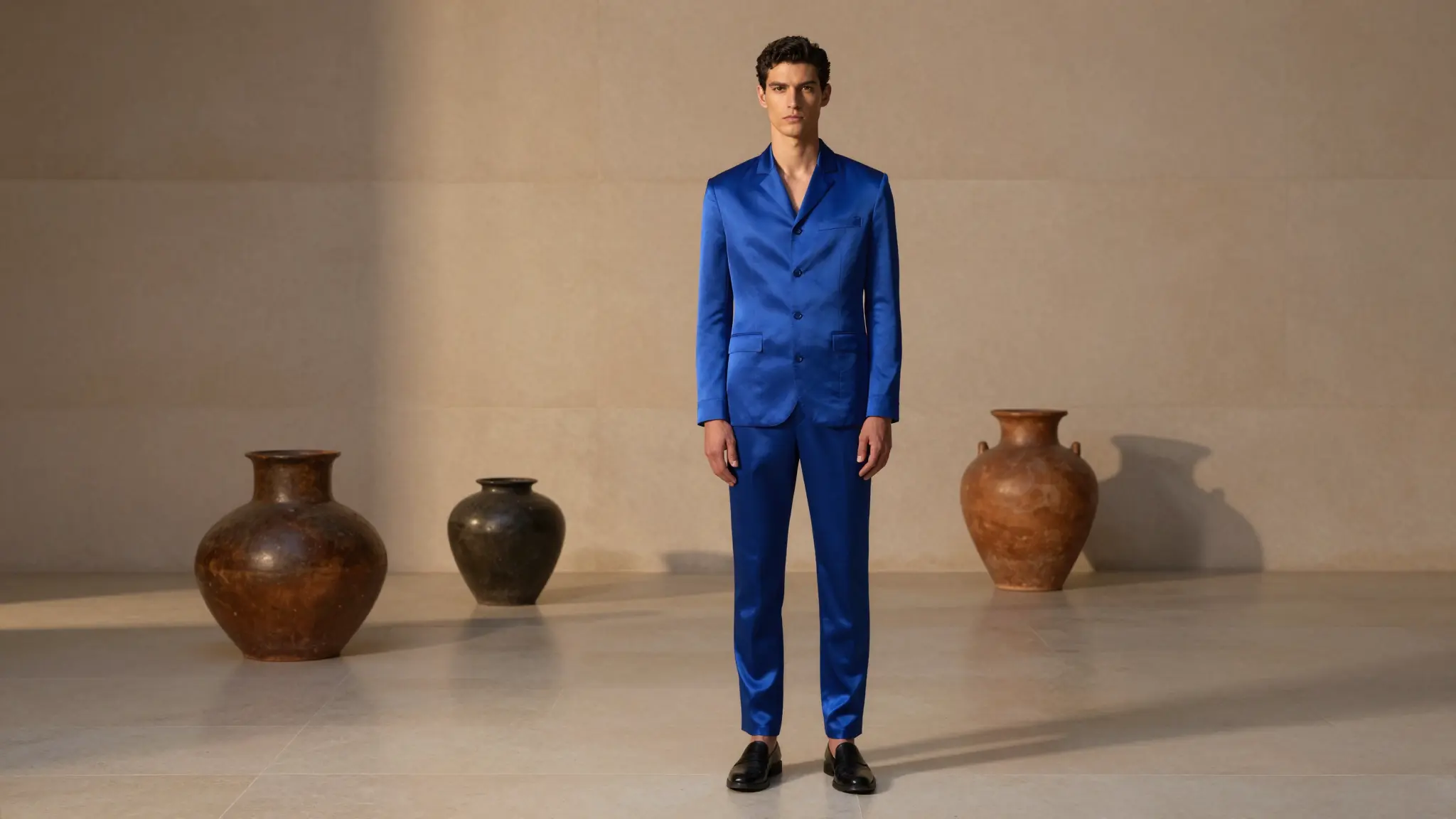
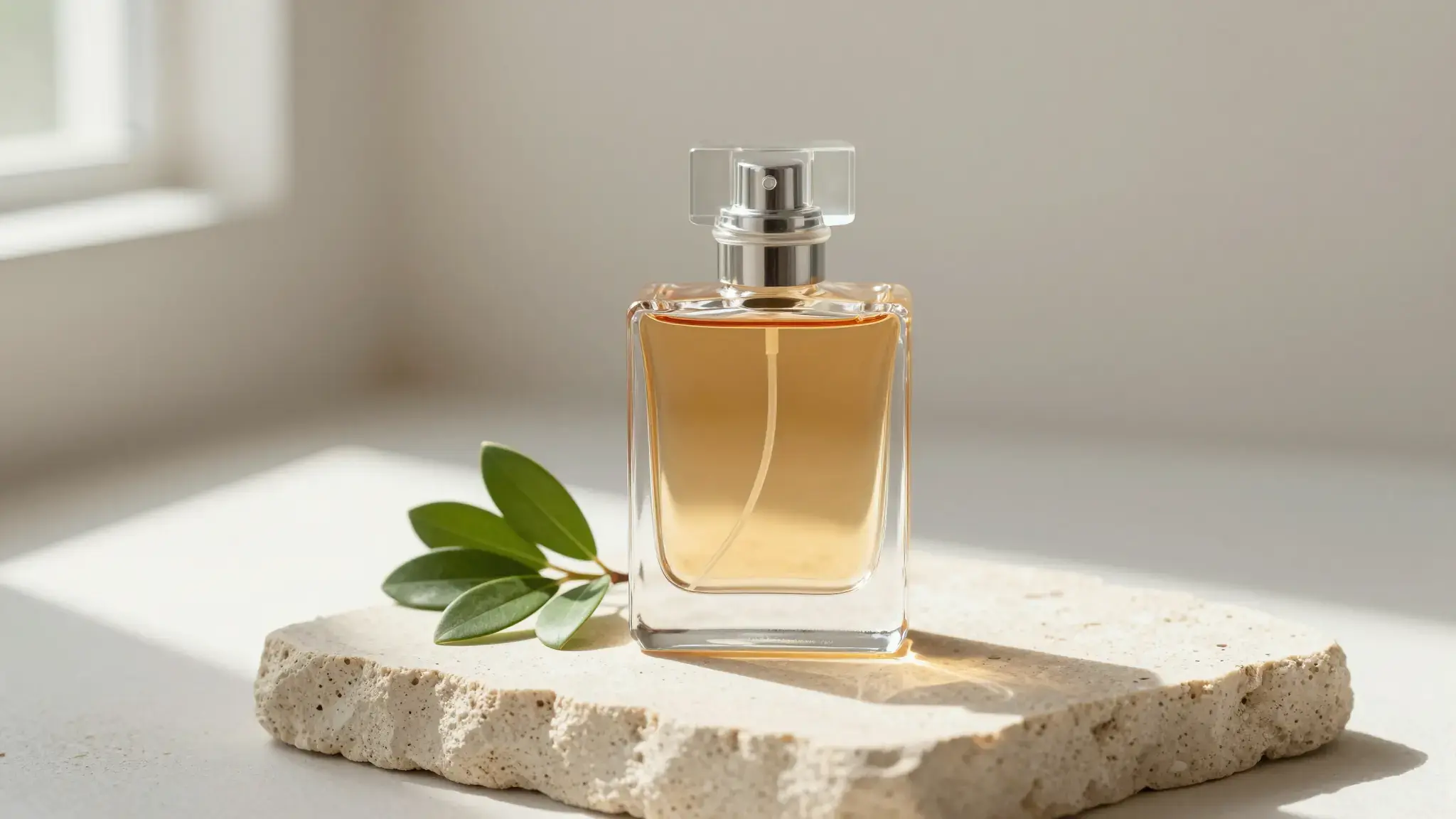
Illustrative artwork shows the intended visual direction. Your result depends on your source materials and settings.
Two matching portraits of the same adult woman, one under cool flat light and one illuminated by warm directional window light, identical pose and natural realistic skin
Try it nowFrom idea to creation
Add the materials to their named inputs. Original image: one image.
Available settings include Light direction; Light color; Light intensity. Review the full options in Studio before generation.
Compare the edited subject with your reference. AI may reinterpret facial features, small text, accessories and background details as well as the requested treatment.
Use your own reference to make a portrait or object image with this treatment, then inspect it at the size you plan to share.
Keep the reference fixed while adjusting the treatment, palette or intensity in the brief to compare visual directions.
Add the materials to their named inputs. Original image: one image.
Keep exploring
Your next creation starts here
Start with your own content in Image Relight. Review the settings in Studio and create your result.