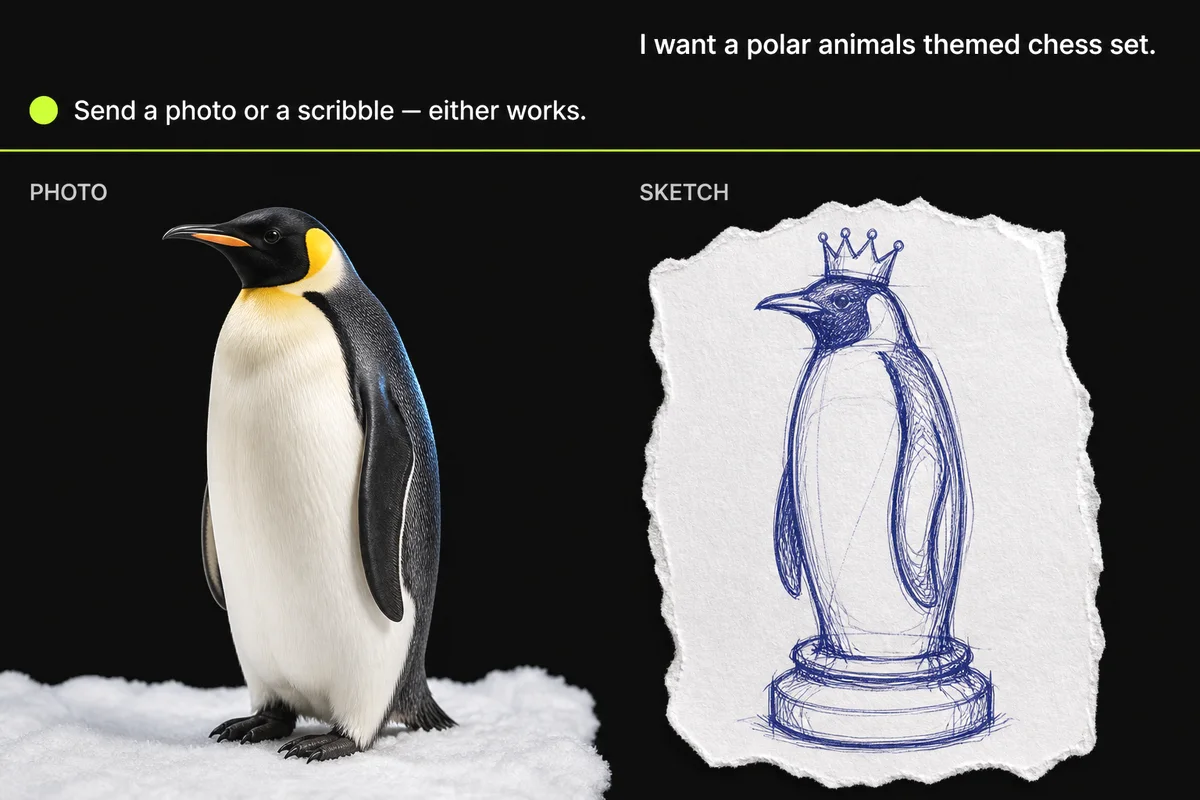
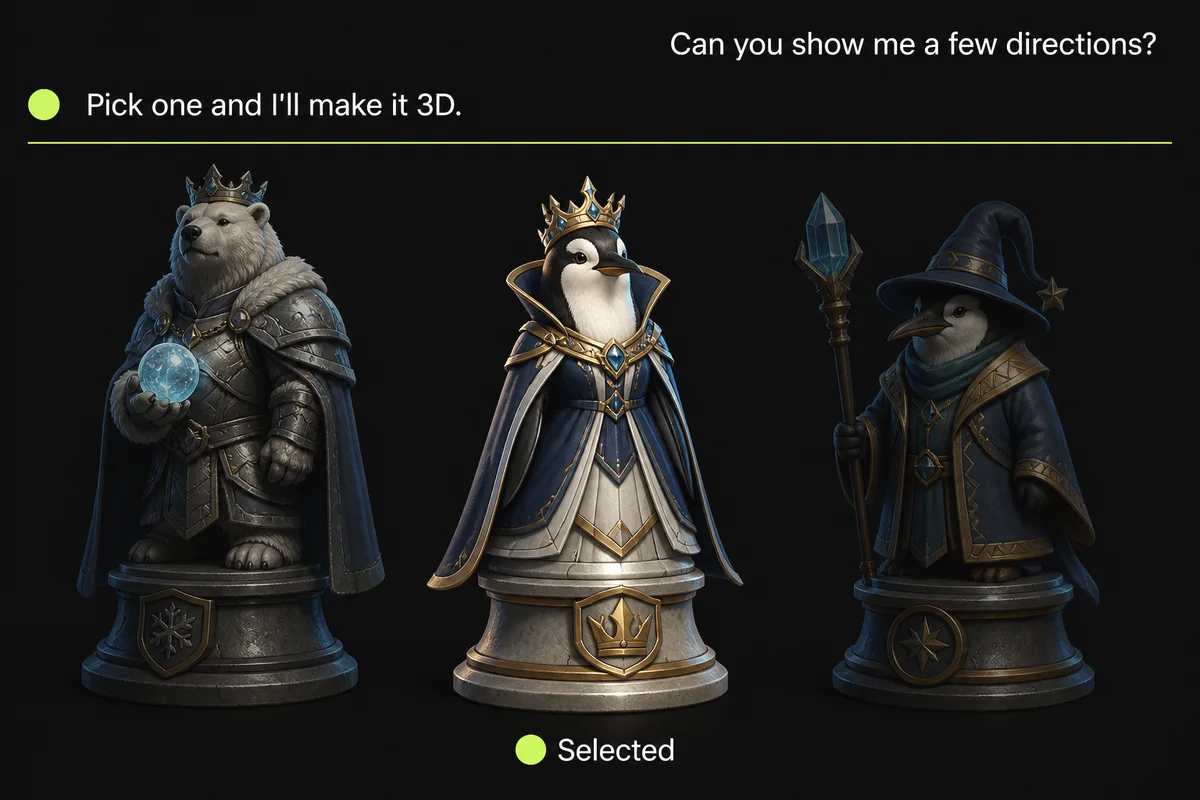
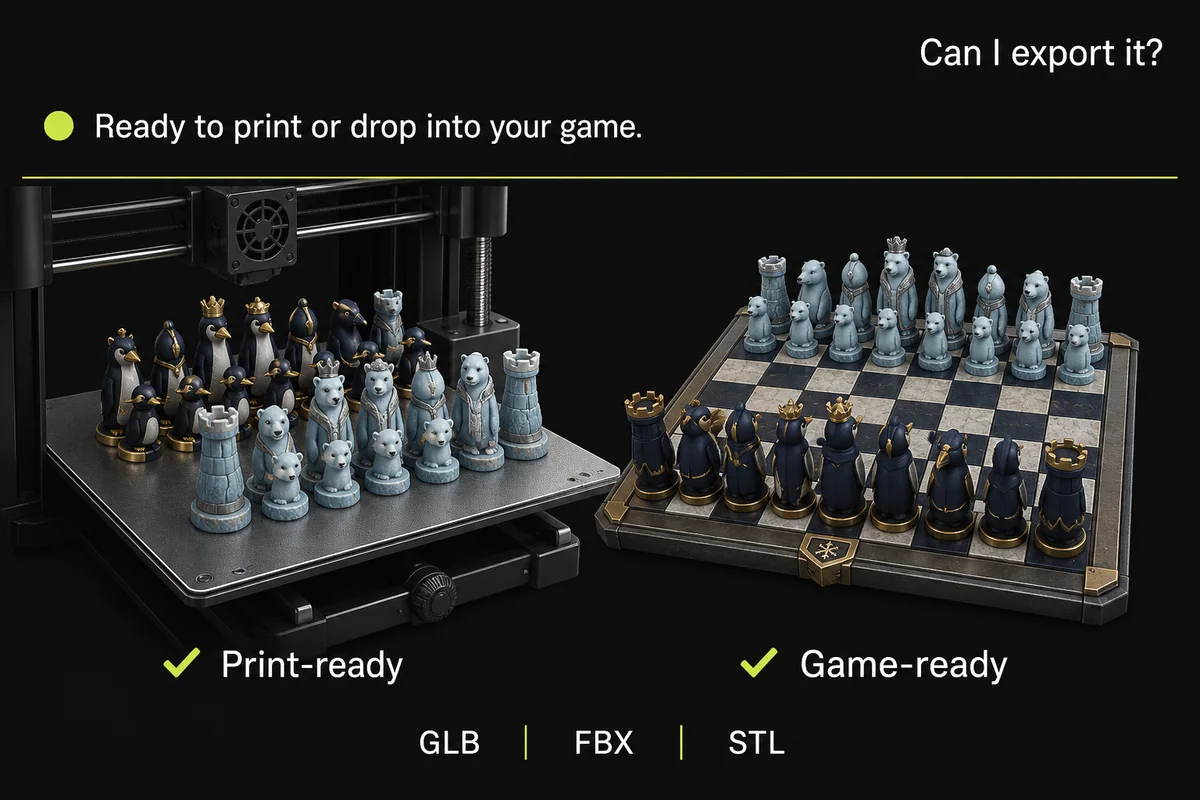

Think it through. Then make it.
Explore ideas in your conversation, then find a model and create the first visual when you are ready.
Cuta MCP
Intégrez Cuta à la conversation. Créez des images, des vidéos et de l'audio avec votre assistant IA préféré, en utilisant les mêmes projets, ressources et crédits.
Choisissez votre client, ajoutez Cuta, et connectez-vous pour commencer à créer.
Already in a Claude Code, Cursor or Codex session? Paste this and your agent will guide you through setup.
Connect Cuta MCP to Claude Desktop: https://api.cuta.app/mcp
Use Streamable HTTP and OAuth. Help me sign in through the browser; never ask me to paste credentials into this chat.Quit and restart Claude Desktop. Complete the browser login when the bridge connects.
What is my Cuta credit balance?Then ask for the image, video or audio you want.
Using ChatGPT? Add Cuta as a custom connection in developer mode, then follow the authorization steps. Ouvrir les plugins ChatGPT
Describe your goal in your connected AI client. Your Agent can find Cuta tools, choose a workflow and bring the results back.
One connection brings 10 Cuta tools into your conversation. Generation is just the beginning.
Explore ideas in your conversation, then find a model and create the first visual when you are ready.

Use existing project assets as references for a set of related images, product shots and creative variations.

Start with your own image or an earlier creation. Find a compatible model and keep refining the result.

Read model parameters, check your balance and get a credit quote. Your Agent works with live Cuta information.
One connection. Every tool discoverable by name.
Start with a conversation. Your Agent fits into the work you already do — from game concepts to product imagery and visual design.
>Use Cuta to create an image of a chibi ice dragon game character, cartoon style, with detailed icy textures. Show me the model and credit quote before generating.
cuta_generate
MCP est un protocole ouvert qui permet aux assistants d'intelligence artificielle d'utiliser des outils externes. Cuta MCP connecte votre assistant aux modèles, aux tâches de génération, aux projets, aux ressources et aux crédits de Cuta.
Utilisez les guides ci-dessus pour Claude, ChatGPT, Cursor et Codex. Les autres clients nécessitent Streamable HTTP, OAuth avec PKCE et l'enregistrement dynamique des clients. La disponibilité de la connexion personnalisée peut dépendre du forfait ou de la politique d'espace de travail de votre client.
Non. Ajoutez l'URL du serveur MCP et connectez-vous avec votre compte Cuta via OAuth. Vérifiez l'accès demandé sur Cuta avant d'approuver la connexion.
Les générations utilisent le même système de tâches et de crédits Cuta que le site web, y compris les réductions applicables selon votre forfait. L'assistant peut demander un devis avant de soumettre une tâche. La connexion de votre compte et la consultation de vos projets ne consomment pas de crédits de génération.
On the website you choose tools directly. With MCP, your Agent discovers the tools and coordinates the workflow through conversation. Both use your Cuta account, projects and credits.
Timing depends on the model, settings and queue. Generation returns a task ID. Your Agent can check its status with cuta_get_task and retrieve the finished result.
Vérifiez l'URL du serveur et assurez-vous que votre client prend en charge MCP distant et OAuth. Si la connexion expire, démarrez une nouvelle connexion depuis le client. Un espace de travail géré peut nécessiter l'approbation d'un administrateur. Pour un rappel hébergé non pris en charge, contactez l'assistance Cuta en fournissant le nom du client et l'URL de rappel, sans envoyer de mots de passe ni de jetons.
Yes. Clients that support HTTP connect directly. For stdio clients, the mcp-remote bridge needs Node.js 18 or later. If your client cannot launch npx, use its documented Windows command configuration.
Usage rights depend on the applicable Cuta terms, selected model and any reference material you provide. Connecting through MCP does not change those terms.
Cuta provides a remote Streamable HTTP MCP server with OAuth. The commands above configure your existing AI client. A stdio bridge is only needed for clients that do not support remote MCP.
Name the connection cuta and explicitly ask your Agent to use Cuta. The Agent discovers the available tools and uses their descriptions to choose the appropriate operation.
Les résultats terminés sont enregistrés dans le projet Cuta sélectionné pour la tâche. Votre assistant récupère les liens des médias une fois la tâche terminée. L'affichage intégré des images ou des vidéos dépend du client.
Each person should authorize their own Cuta account. Account permissions, project access and credits continue to apply. Do not share access tokens or browser login credentials.
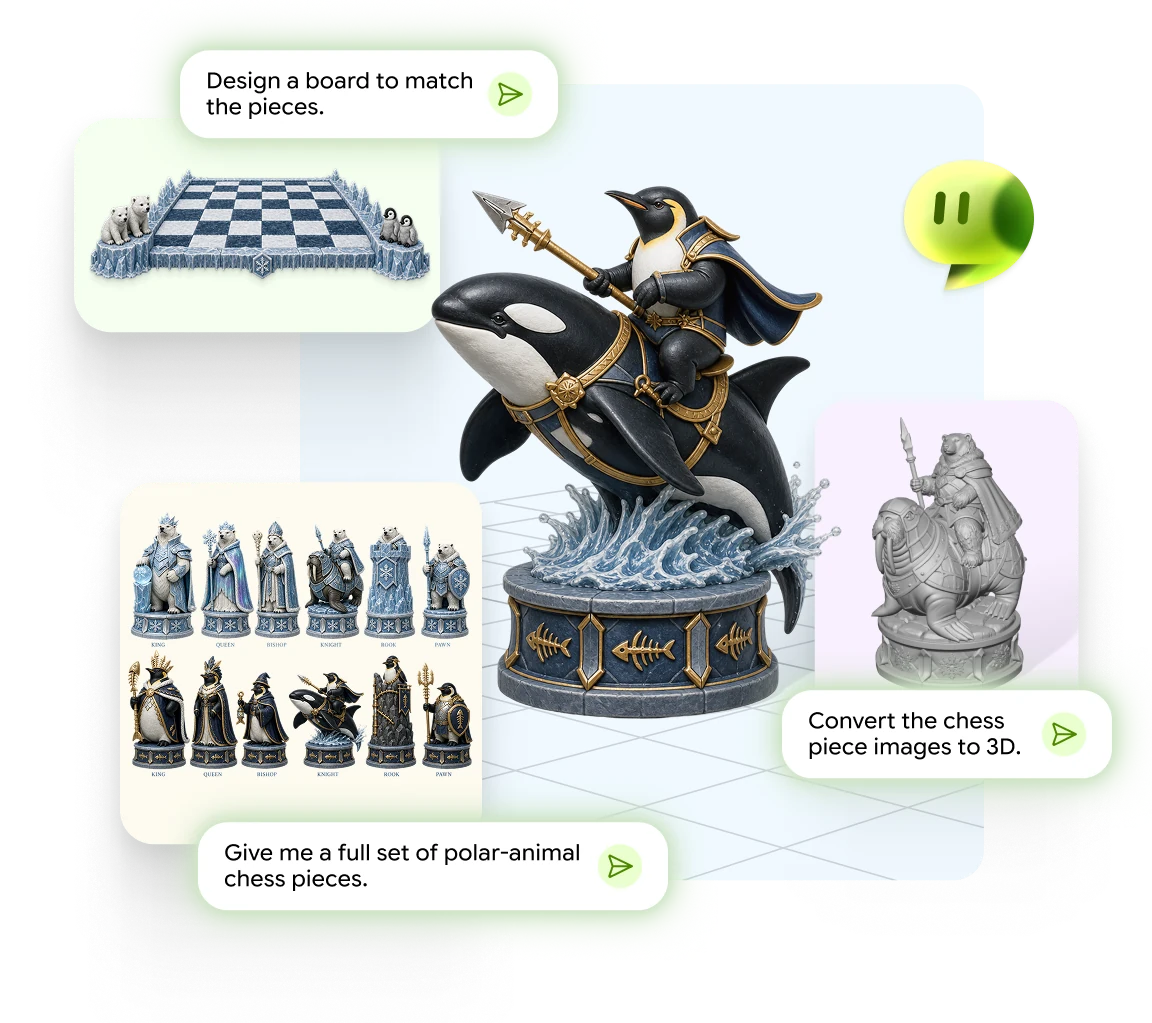
Bring ideas, references and creations together on one canvas.
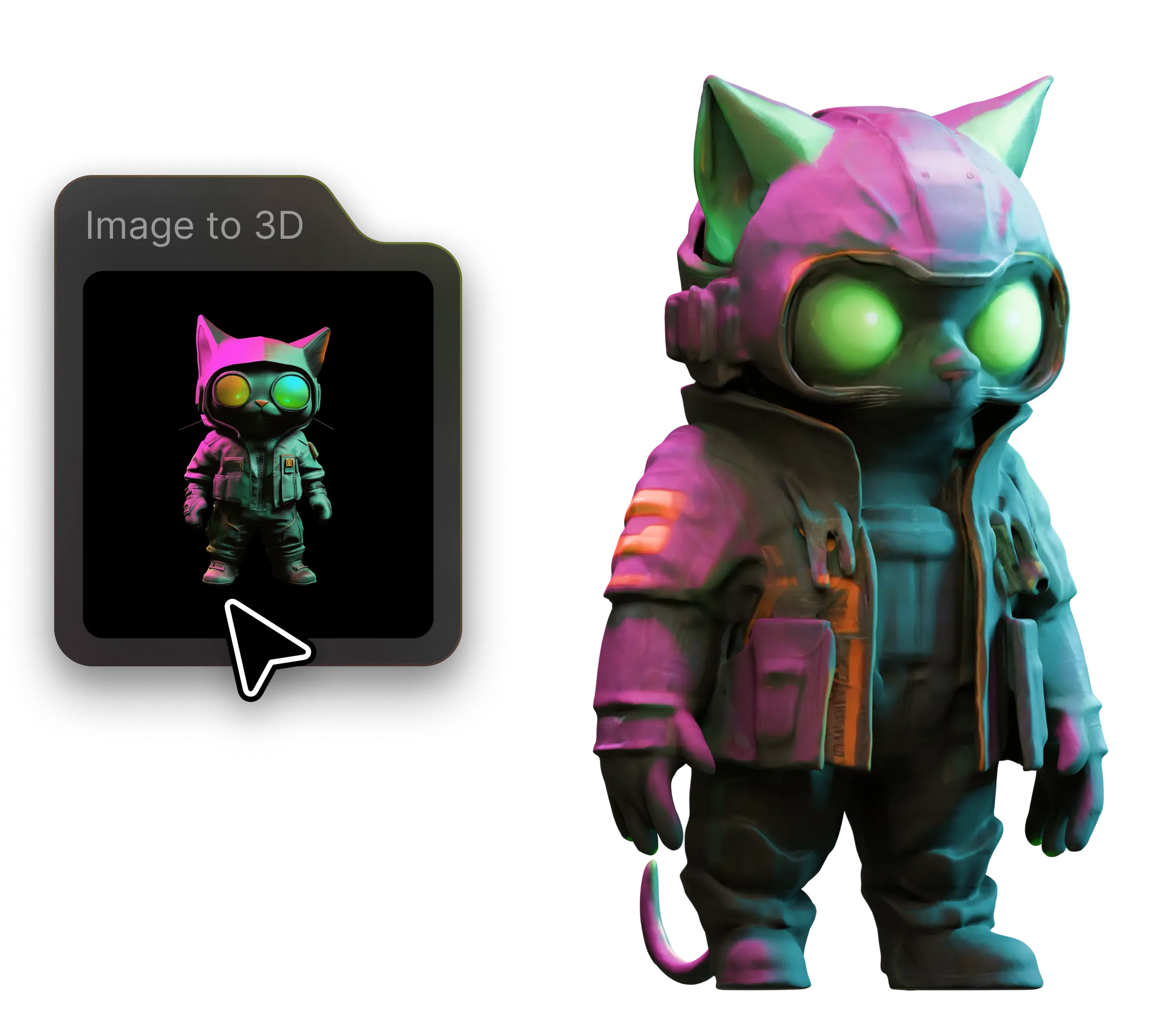
Turn a description or reference into a new visual.
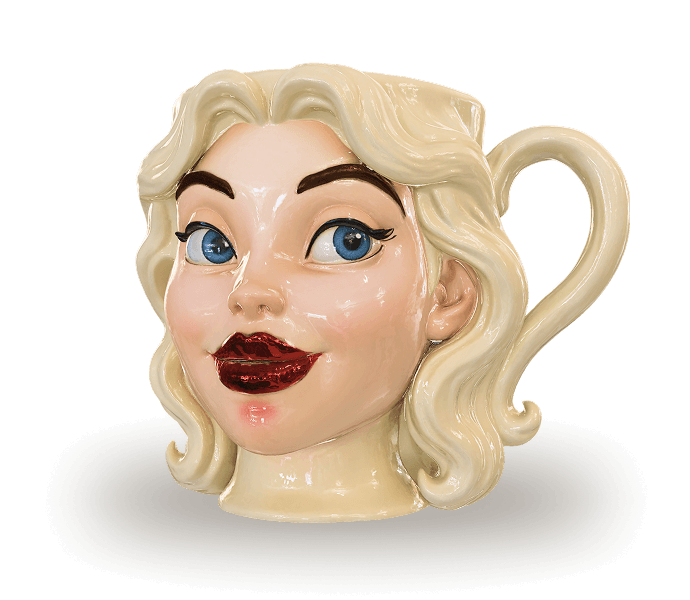
Create moving stories from a prompt or image.
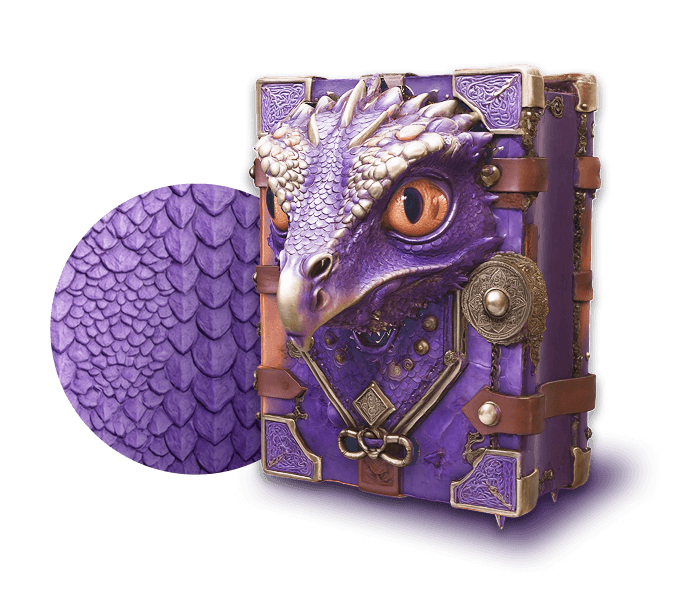
Find the right music and voice for your creation.
Explore live models and choose the right creative tool.
Find and reuse your images, video and audio.
Connectez votre compte Cuta et laissez votre assistant vous aider à prendre le relais.
Connecter Cuta