Long Exposure on iPhone: Live Photo Workflow and Review
Create a long-exposure effect from an iPhone Live Photo, choose a suitable scene and compare motion against stationary detail.
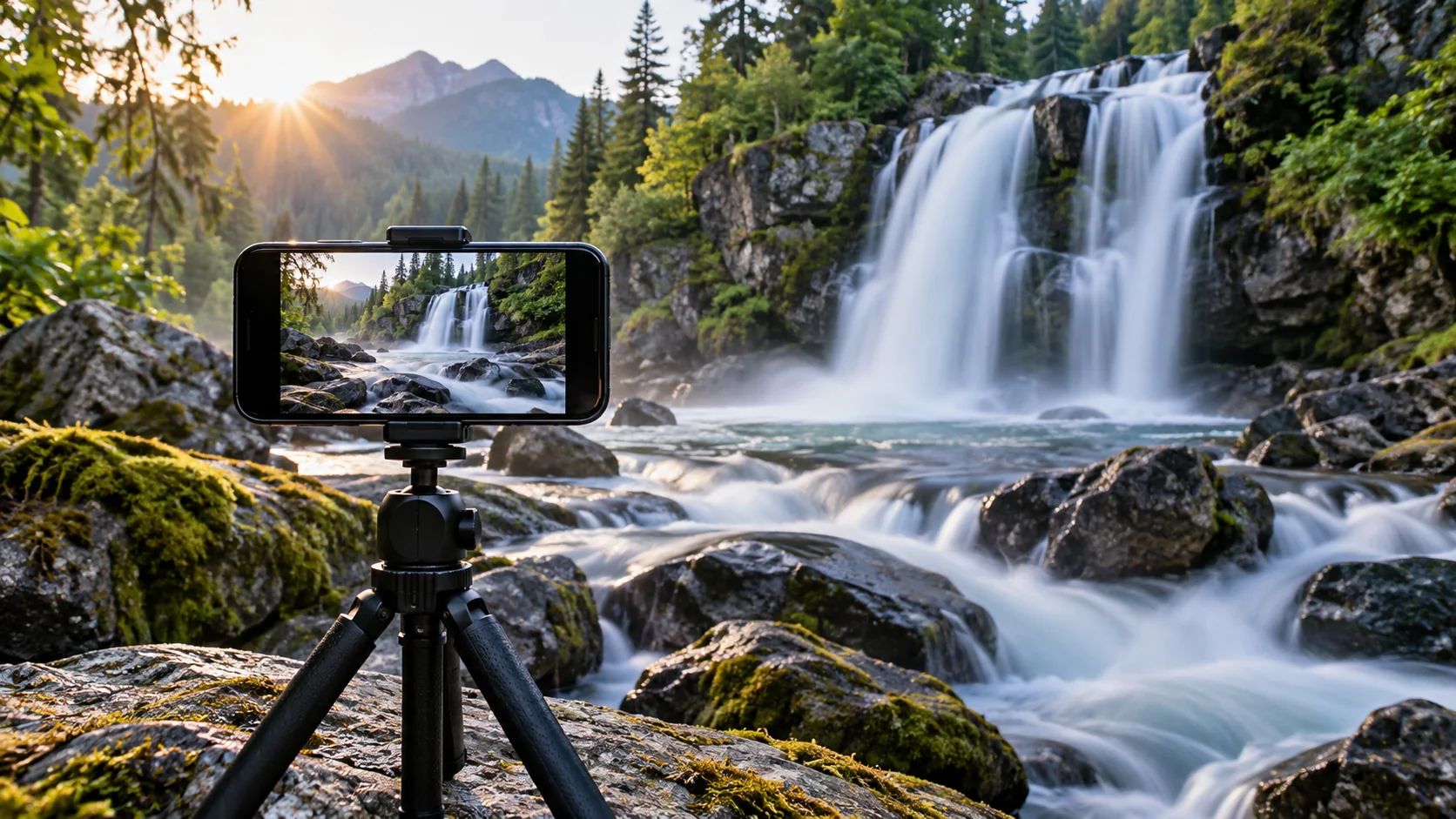
You can create a long-exposure effect on iPhone from a Live Photo, or use a suitable camera app for a different capture workflow. Apple's Live Photo effect combines the recorded movement into a blurred-motion result; it is not the same process as every dedicated camera's long shutter exposure. Apple Live Photo effects.
Use the Live Photo method
Choose a scene with something stable and something moving, such as a rock beside flowing water. Capture it as a Live Photo while keeping the phone steady. Open the Live Photo and choose its Long Exposure effect from the available effect control. Check the current iOS guide if the control location differs on your version.
The Live Photo must contain useful motion. Applying the effect to a scene where everything is still will not create convincing water flow. A moving phone can also soften the entire scene instead of isolating the moving subject.
Keep a stable reference
Use a secure support or brace the phone without obstructing the camera. Keep still around the capture and avoid a sudden reframing. Include a stationary edge, such as a rock or railing, so you can judge whether the overall image remains defined.
If the scene has bright lamps or reflections, inspect those areas as well as the motion. A pleasing blurred trail can coexist with clipped highlights that need a different capture decision.
Worked exercise: a fountain
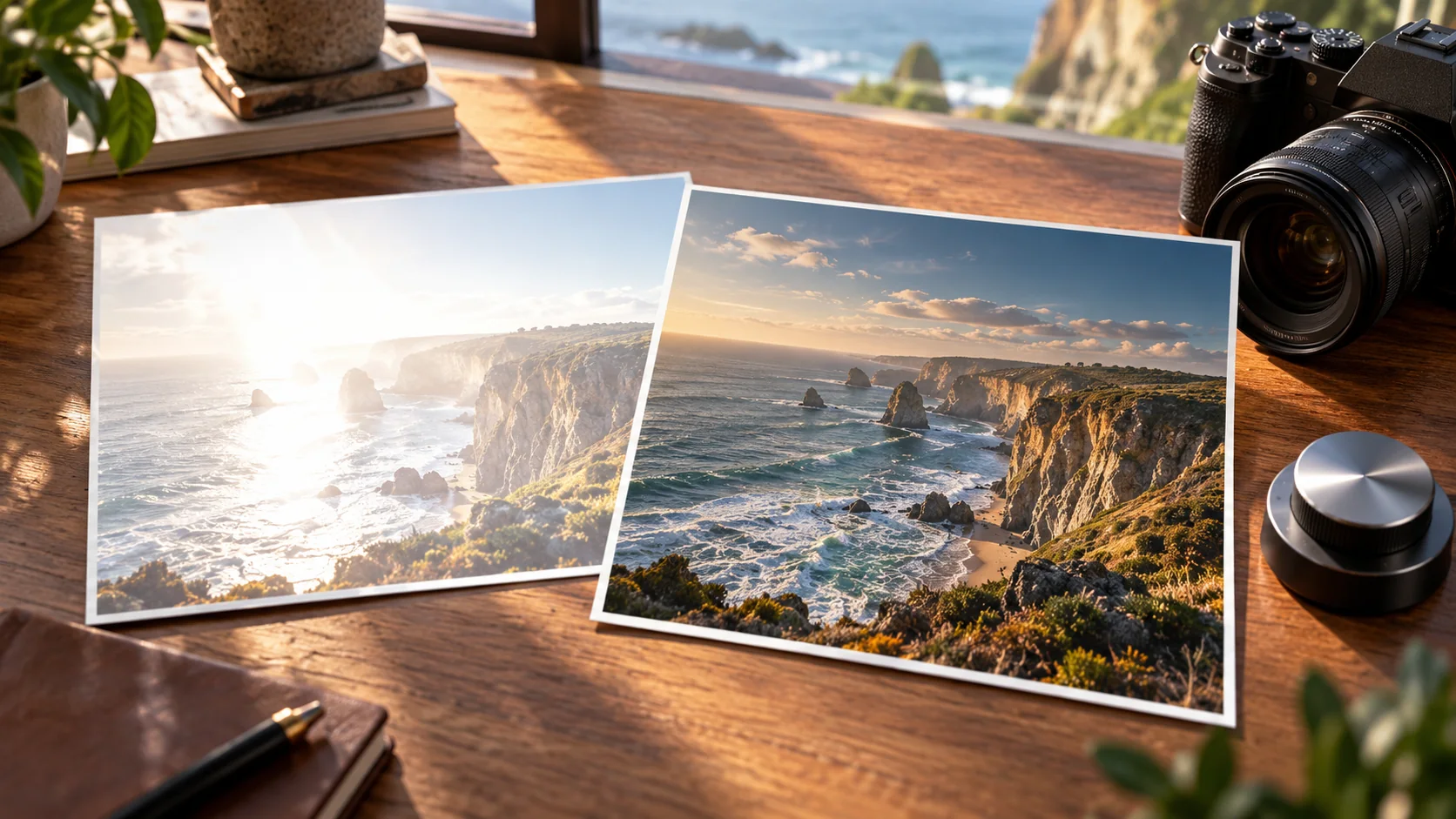
Make one ordinary frame and one Live Photo from the same position. Apply Long Exposure to the Live Photo and compare the water, stone edge and background. The water should change more than the stable structure. If the stone is also soft, improve support and try another capture.
Now compare a busier angle with a simpler one. A quiet background may make the motion effect easier to understand than a scene filled with moving pedestrians and foliage.
When an external camera app helps
A suitable app may offer a longer capture or a more deliberate motion-blending workflow. Check its current device support, controls and export behavior from the official documentation. Do not assume every app labeled long exposure gives the same manual shutter control.
Choose the app after identifying what the built-in route cannot do for the specific scene. A different tool cannot fix an unstable phone or an unclear subject.
Review the actual result
Keep the original Live Photo and a separate output. Inspect the stable edges, motion shape and bright areas at normal size. Label any shared example with the actual method and device used.
Use Cuta's image workspace to plan a visual concept or creative motion-like treatment, while keeping it distinct from a recorded iPhone long-exposure example. This guide provides a practice workflow rather than claiming a completed device test.
Choose a scene with both movement and an anchor
Moving water beside a fixed railing is a clearer first exercise than a scene where everything moves. Make the Live Photo from a stable position and keep the stationary edge visible. After applying the supported Long Exposure effect, compare the railing, water and bright reflections independently.
The effect processes a captured sequence; it should not be described as a manually verified multi-second camera exposure. If the railing is also ghosted, improve stability or choose another capture. If reflections lose all structure, lower the capture exposure where the app permits and retry rather than trying to restore invented highlights afterward.
| Scene part | What the comparison should show | Observation |
|---|---|---|
| Railing or bank | A stable reference edge | Record ghosting |
| Moving water | A coherent motion treatment | Note direction and texture |
| Reflections | Useful bright detail | Mark clipped areas |
Download the iphone long-exposure practice log as an editable CSV. Fill the observation column with your own project notes.